

A WordPress document library gives your site visitors, clients, or team members a clean, searchable way to find the files they need — without digging through pages, posts, or the default media library. This guide walks you through creating one using Filr, a WordPress document library plugin built specifically for this purpose. By the end of this tutorial, you’ll have a fully functional library with search, filters, access controls, and a frontend upload form.
What is a WordPress document library?
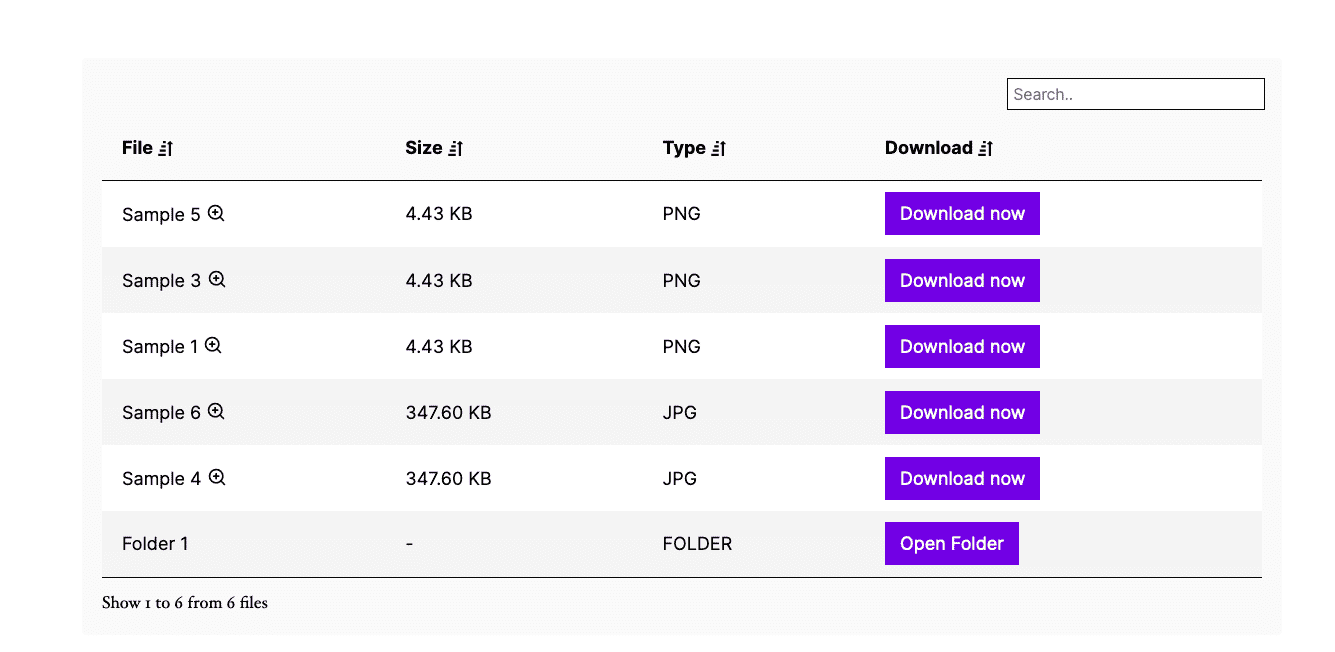
A WordPress document library is a structured collection of files organized in a searchable, filterable table on your site, built for visitors rather than administrators. It differs from the default WordPress media library — which is a backend storage tool for site admins — by giving end users search bars, filter dropdowns, and sortable columns to find files in seconds. You can also control who sees what, set expiry dates on time-sensitive documents, and display download buttons or inline previews alongside each file. Filr, for instance, provides three directory protection modes and lets you restrict individual files by WordPress role or email address — controls the default media library does not offer.
WordPress media library vs. document library: The media library stores files for your site’s internal use (images in posts, attachments, etc.). A document library is a front-facing, visitor-ready interface where people can browse, search, and download files on their own.
Who benefits from a WordPress document library?
A WordPress document library is most valuable when visitors or team members need to find files independently, without asking you for help. Common use cases include:
- Teams and internal portals: Give employees a single place to find HR documents, SOPs, or company policies.
- Client portals: Share contracts, project files, or reports with specific clients using role-based or email-based access.
- E-learning and course sites: Attach supplementary materials, handouts, or reading lists to your course content.
- Nonprofits and government bodies: Publish meeting minutes, grant documents, or public resources in a structured, accessible format.
- Publications and resource hubs: Organize ebooks, white papers, or research reports your audience can browse and download.
Document libraries are especially common in healthcare, government, and nonprofit sectors, where organizations need to publish policies, guidance, and public-facing resources in a format anyone can navigate without training. For managing documents at an organizational level with version tracking, workflows, or approval processes, see our guide on WordPress document management systems — a broader approach that goes beyond display.
Choosing a WordPress document library plugin
A good plugin should support multiple file types (PDFs, Word documents, images, and external links), display files in a table or grid your visitors can actually navigate, and let you control who accesses what — by WordPress role, email address, or password. Built-in search and filter tools are also essential: they’re what separates a proper document library from a basic file list. Filr is built with all of these requirements in mind and is the plugin used throughout this tutorial.
Introducing Filr: the WordPress document library plugin
Filr is a WordPress document library plugin that lets you build a secure, searchable file library on any WordPress site. It handles everything from file organization to access control without requiring technical knowledge to set up.
Here’s what Filr brings to your WordPress document library.
Create a simple or complex document library
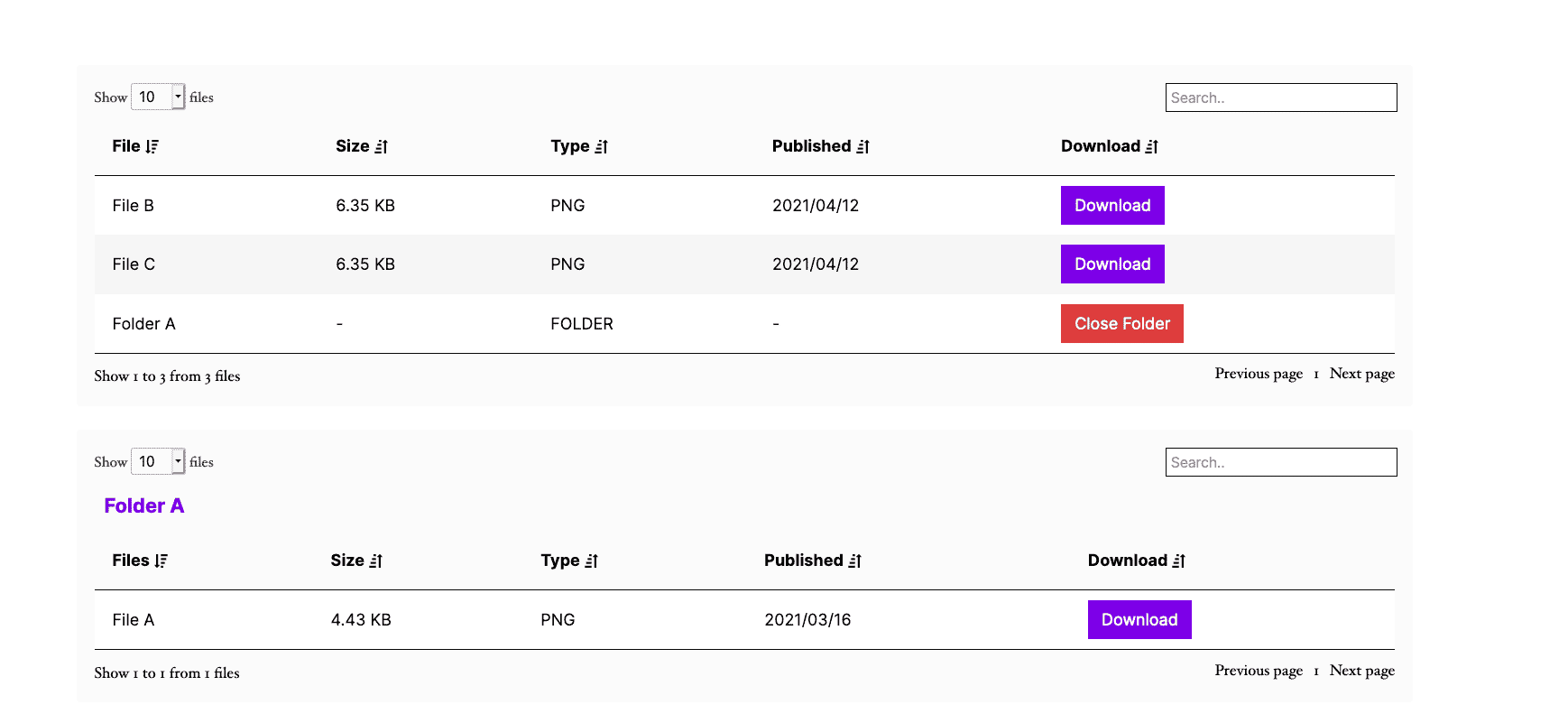
Filr scales to your needs. Upload files individually or in bulk, then organize them into folders and subfolders. For tighter control, you can set expiry dates on individual files, limit the number of downloads per file, and encrypt file names to prevent direct URL access.
Flexible file types — including external files
Filr supports any file type WordPress allows: documents, PDFs, images, audio, video, ebooks, spreadsheets, and more. You upload files using the standard WordPress uploader, so there is no new interface to learn.
Beyond files stored in WordPress, Filr also supports external URLs — meaning you can point your library entries to files hosted on third-party platforms. Those files appear in your library with the same download button or preview link as locally hosted ones.
Use Filr to build a knowledge base, audio library, resource library, members-only content area, and more. Filr also displays your server’s upload limits so you know the maximum file size you can add.
Searchable, filterable, and customizable
Discoverability is the whole point of a document library. Filr delivers instant search, filter dropdowns by category or tag, and sortable columns — so users find the right file without scrolling through a long list.
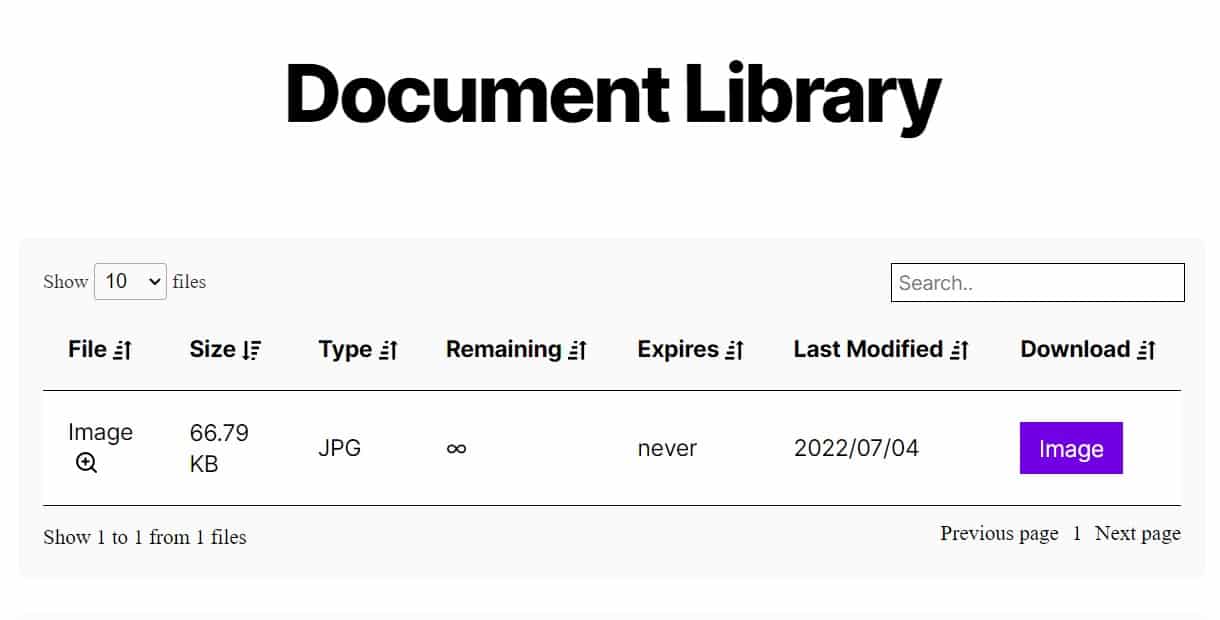
You can customize the table layout too: choose which columns appear, add filter dropdowns for categories or tags, include a document preview, show file modification dates, and add file download links.
Customizable appearance and theme compatibility
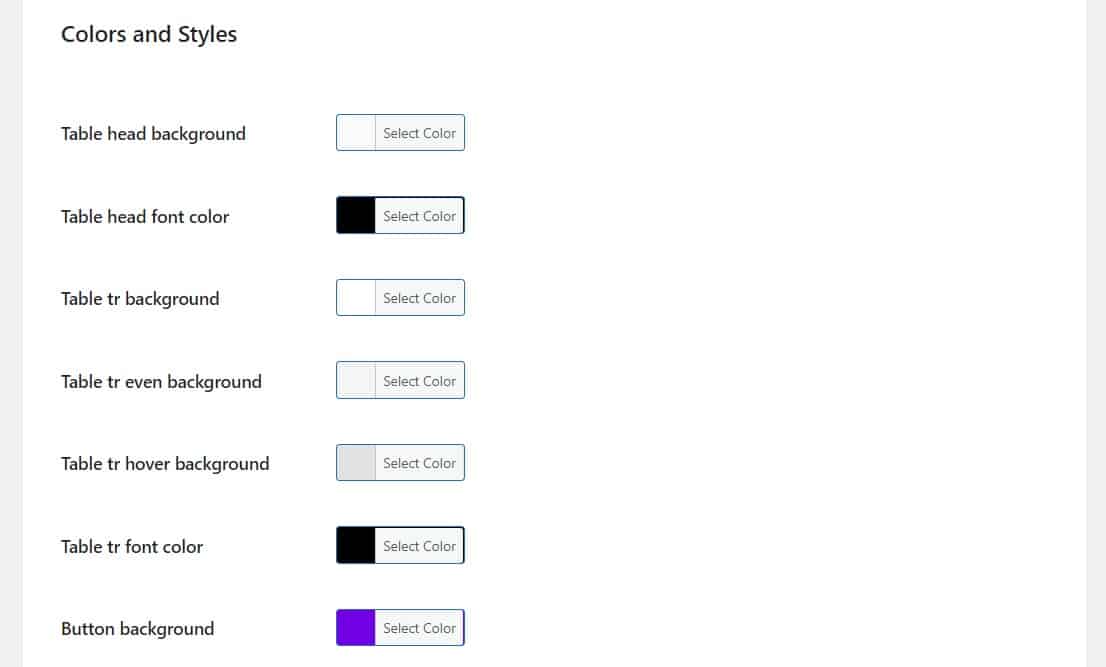
Filr adapts to your existing WordPress theme automatically. You can also customize colors, borders, and background styles to match your brand. Additional controls let you:
- Choose which rows to include and reorder them
- Set a custom date format across the library
- Add an alternative message for empty libraries
Make your document library secure
Filr protects your document library at both the directory and file level. At the directory level, Filr creates a PHP index file that hides your entire uploads folder from public searches. You can go further with:
- Passwords or secret keys to restrict library access to authorized users only
- Htaccess protection to block directory browsing and return a 403 Forbidden response to unauthorized requests
- Encrypted download URLs delivered over HTTPS, so files cannot be reached outside your site
Filr also includes a built-in server compatibility checker. If your hosting configuration needs changes to support Filr’s security features, the checker tells you what to ask your host to enable.
Manage file availability and access
At the file level, Filr gives you per-file controls. You can limit the number of downloads a file allows, set an automatic expiry date so outdated documents leave the library without manual intervention, and restrict access by user email or WordPress role. That role-based option is particularly useful for client portals where different users should see different documents.
How to create a WordPress document library
Creating a WordPress document library with Filr takes five steps: install the plugin, create a library, upload your documents, display the library on a page, and secure it. Before starting, make sure you have:
- A WordPress website set up and running
- The Filr WordPress document library plugin
- A few files to upload (documents, images, audio, or video)
Step 1: Install the document library plugin, Filr
Download Filr from wpdocumentlibrary.com. After checkout, you’ll receive an email with the plugin zip file and your license key.
To install Filr:
- In your WordPress dashboard, go to Plugins > Add New > Upload plugin.
- Select the zip file and click Activate now.
- Enter your license key when prompted, then click Agree & Activate the license.
Step 2: Create a document library
Go to Filr > Libraries in your WordPress dashboard, then:
- Enter a name and brief description for your new library.
- Click Add New Library.
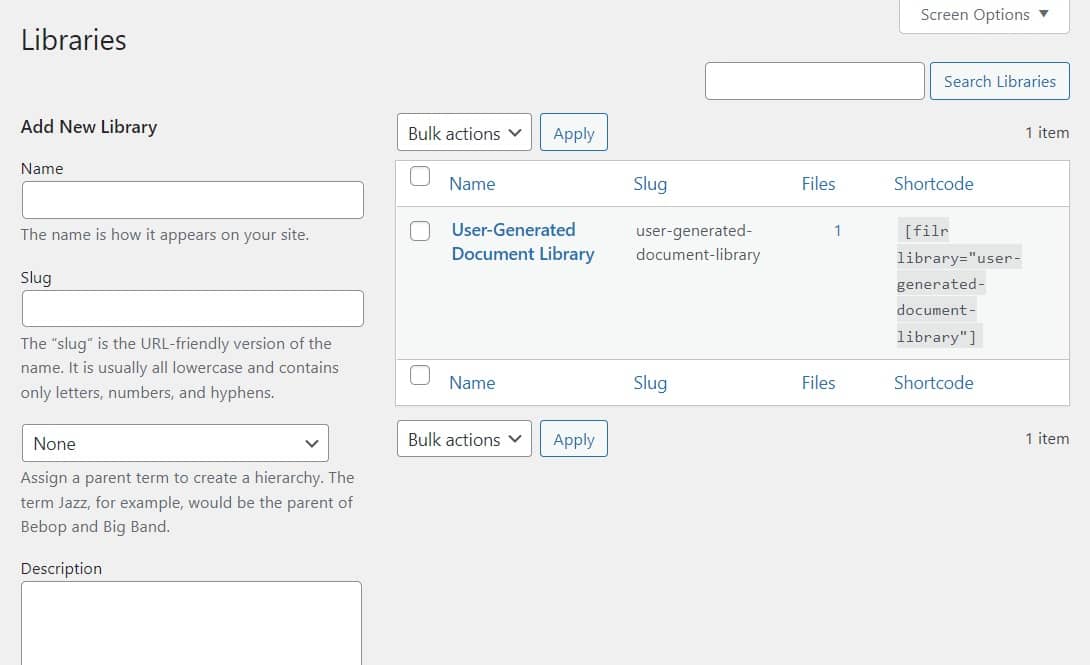
- Your library appears on the right, along with a shortcode to display it on any page. Copy that shortcode — you’ll need it in Step 4.
Shortcode: A shortcode is a small piece of text in square brackets (like
[filr-library]) that WordPress replaces with dynamic content — in this case, your document library — wherever you paste it.
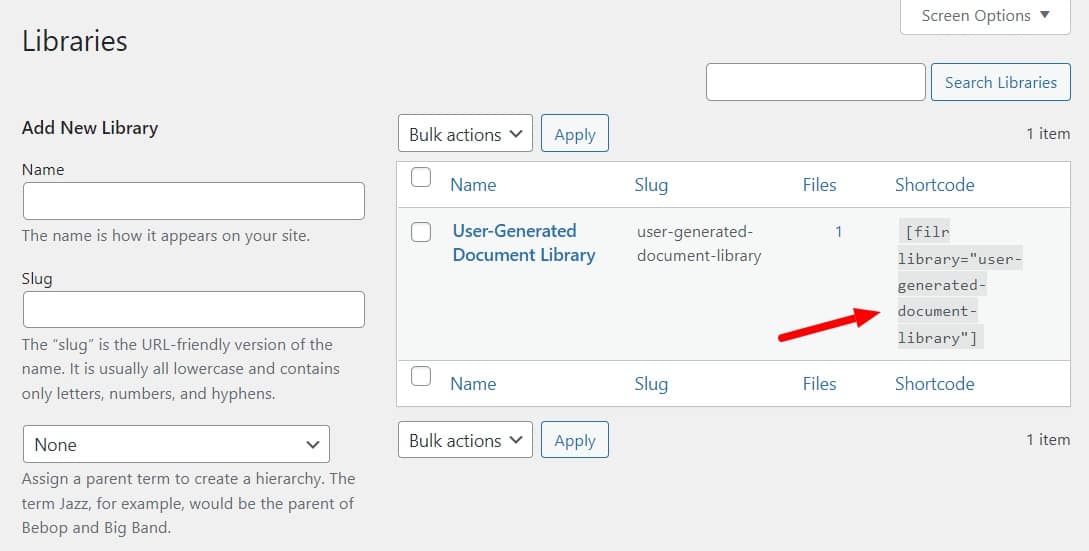
You can create as many libraries as you need at this stage.
Step 3: Upload documents to your document library
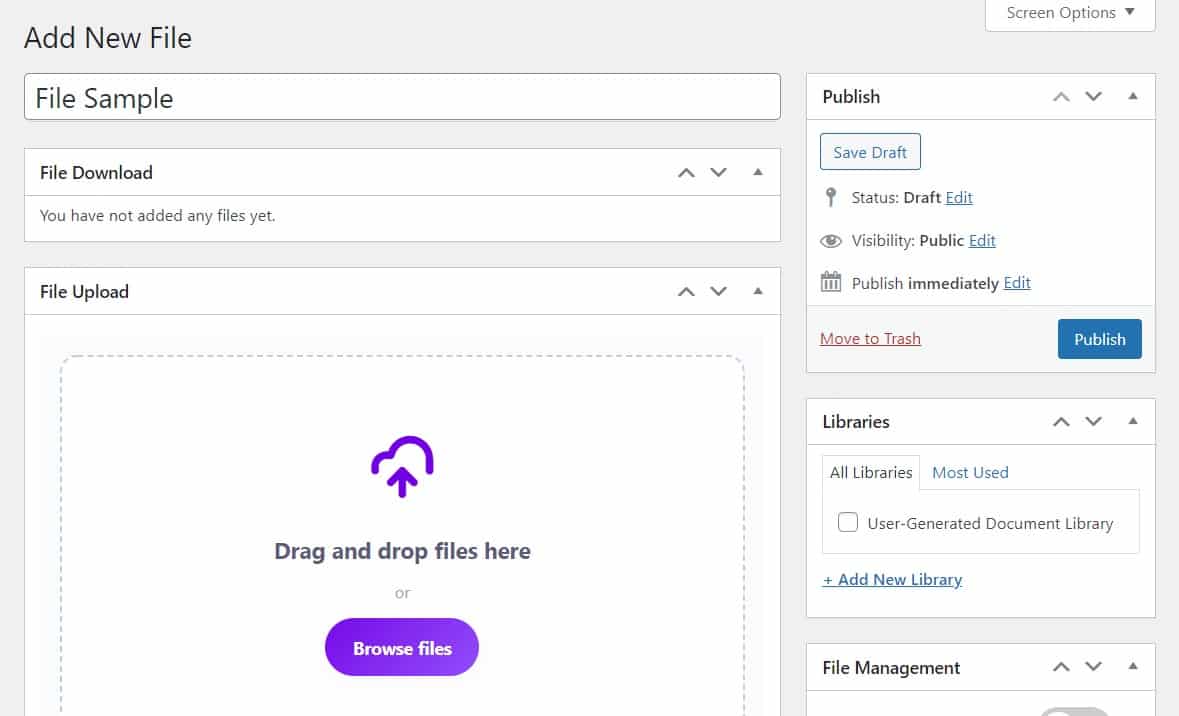
Go to Filr > Add New, then:
- Give the file a name or title.
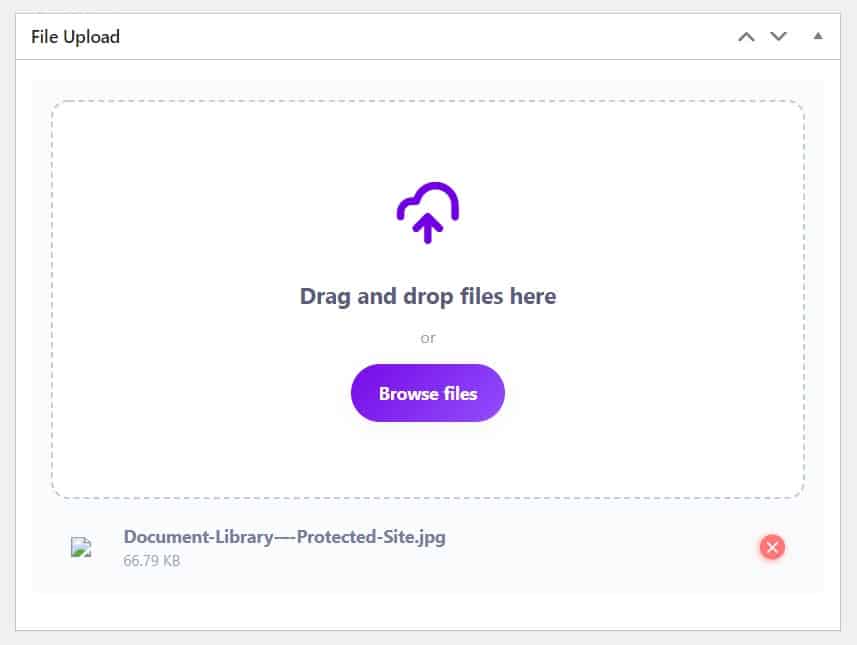
- Drag and drop one or multiple files into the uploader, or click Browse file to select files.
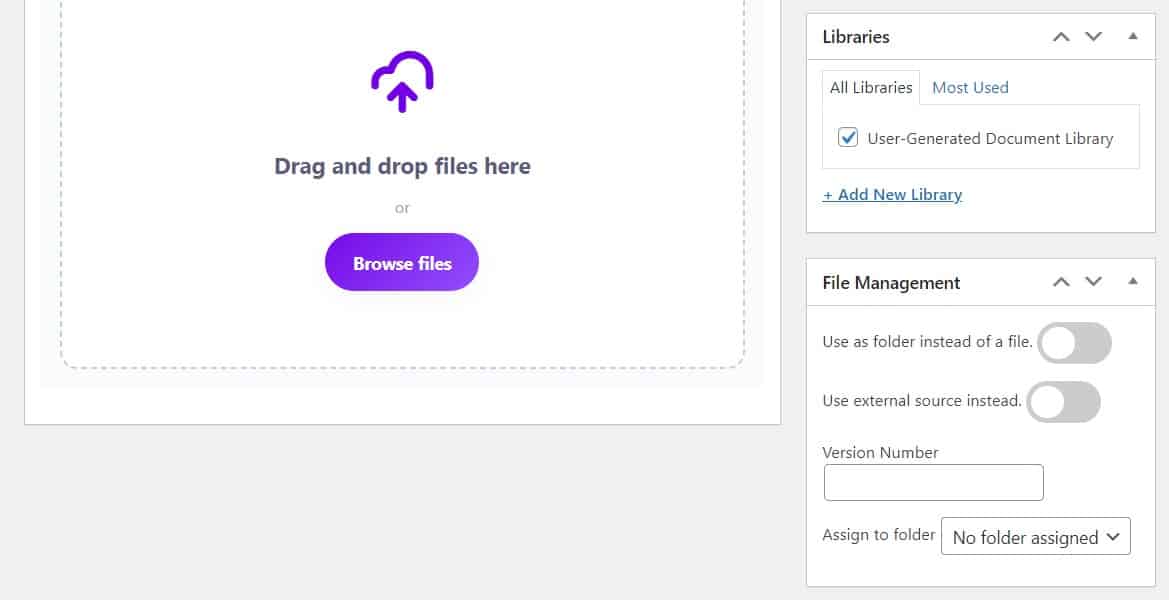
- On the right side of the screen, assign the file to the appropriate library.
- In the Advanced options section, you can set an expiration date, limit downloads, or encrypt the file name.
- In User options, restrict access by email address or user role.
- Click Publish to add the file to your document library.
Step 4: Display your document library
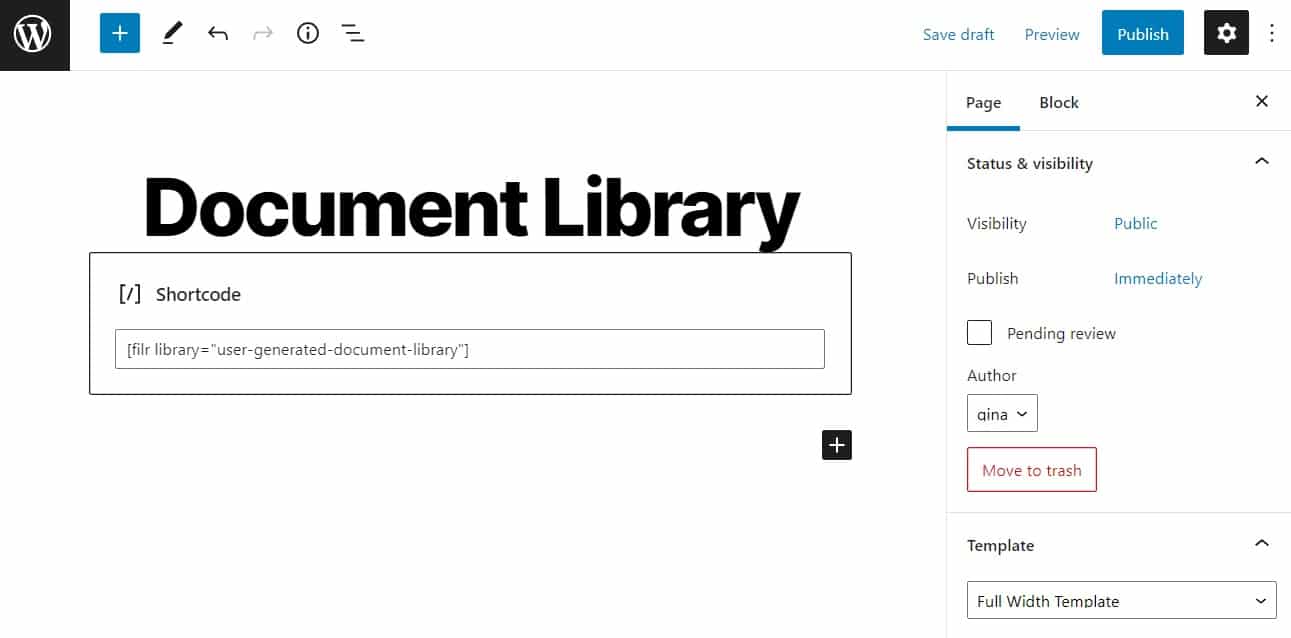
- Go to Pages > Add New in your WordPress dashboard.
- Paste the shortcode you copied in Step 2 into the page content area.
- Give the page a title and click Publish.
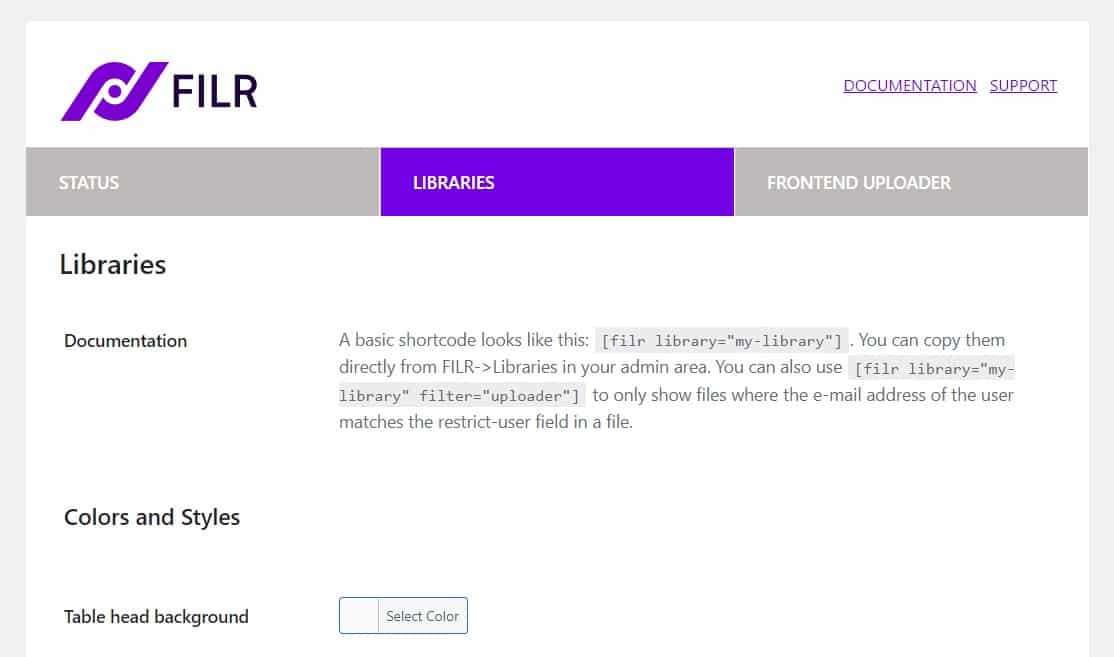
To adjust what’s displayed, go to Filr > Settings > Libraries. From there you can:
- Change colors, borders, and background styles
- Choose which columns appear and reorder them
- Rename the download button, enable or disable search and pagination, set a custom date format, and more
Step 5: Secure your document library
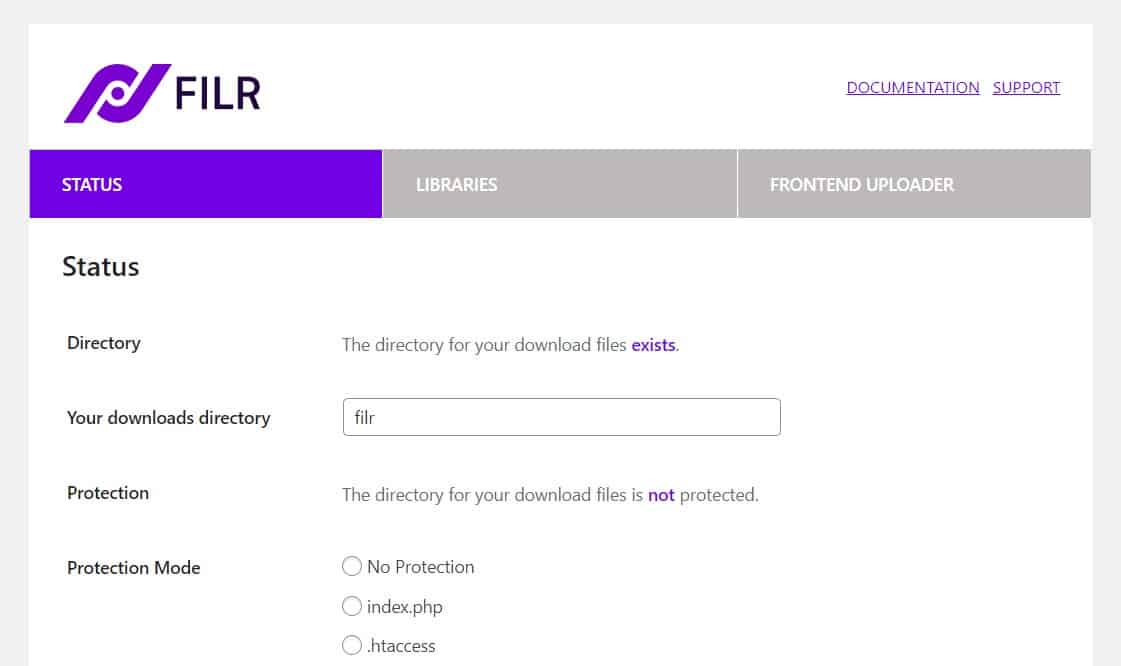
Go to Filr > Settings > Status. Filr offers three file protection modes:
- No protection (default) — files are accessible to anyone who knows the URL
- Index.php — creates a PHP index file in your uploads directory, hiding all download folder contents
- Htaccess — blocks directory browsing and returns a 403 Forbidden response to unauthorized requests
After choosing a protection level, click Check directory settings to verify your configuration, then click Save Changes.
After securing your library, you can also let other users add files from the front end using Filr’s frontend uploader.
Allow users to upload files to your document library
Filr’s frontend uploader lets visitors submit files directly from the front end of your WordPress site — no admin access required.
Step 1: Add the file uploader to your document library page
The frontend uploader uses a shortcode called [filr-uploader]:
- Go to Filr > Libraries and copy the slug of your target library.
- Add
[filr-uploader library="my-library"]to your document library page, replacingmy-librarywith your library’s slug. - Click Publish or Update.
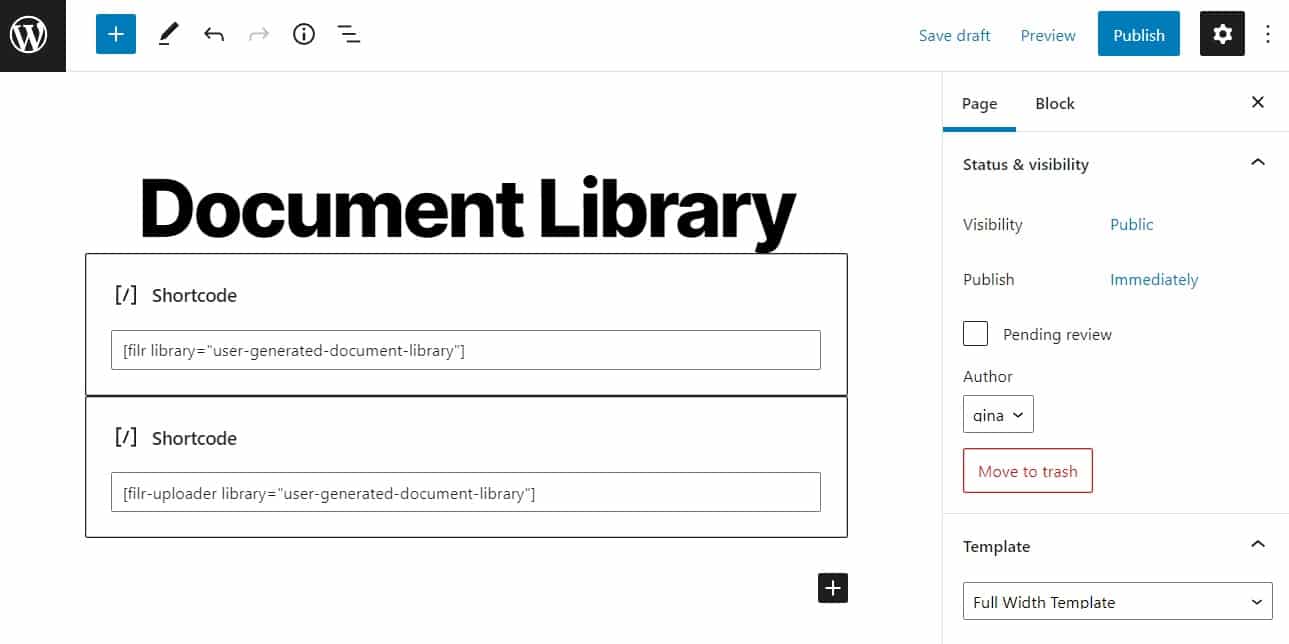
Visitors can now upload and download files from the front end. You can further customize the uploader with these parameters:
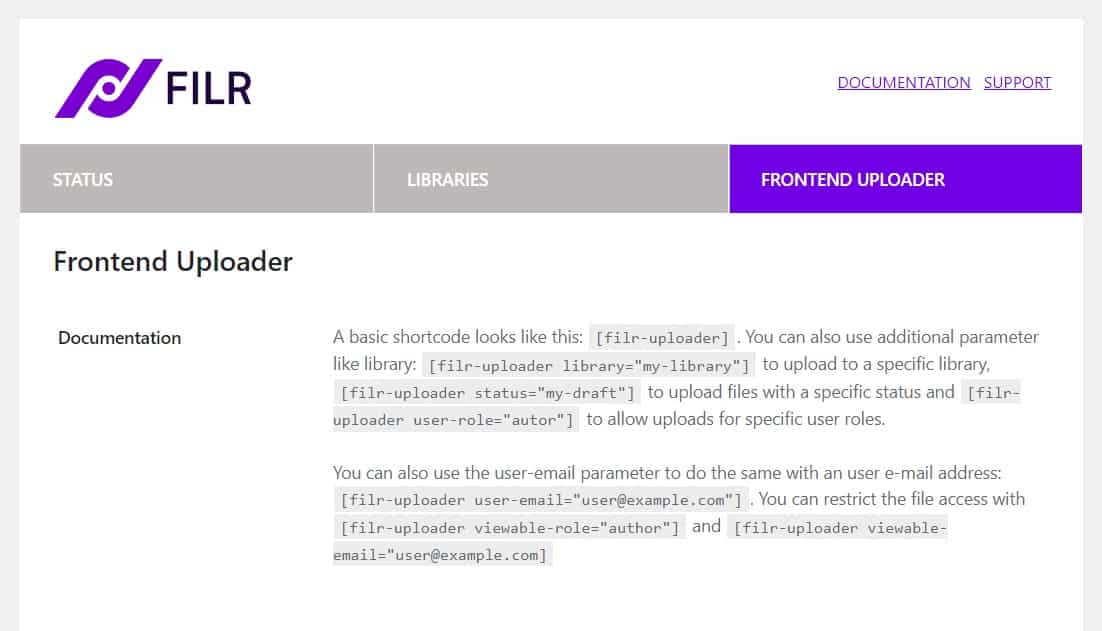
[filr-uploader status="draft"]— holds uploads for manual review before they appear in the library[filr-uploader user-role="subscriber"]— restricts uploads to users with a specific role[filr-uploader user-email="[email protected]"]— grants access by email address; separate multiple addresses with commas
Step 2: Adjust your settings
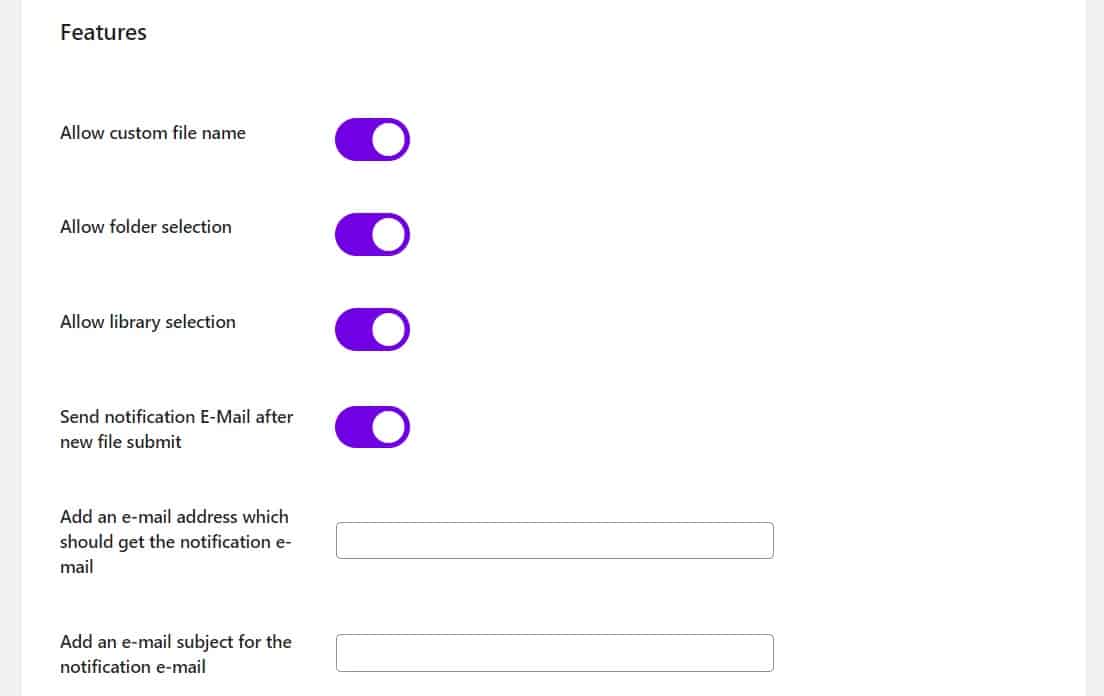
Go to Filr > Settings > Frontend uploader to customize appearance and behavior:
- Edit headline, limiter text, and button labels; set a custom icon using Unicode
- Choose branding colors for buttons and the icon
- Enable automatic page reload after a successful upload
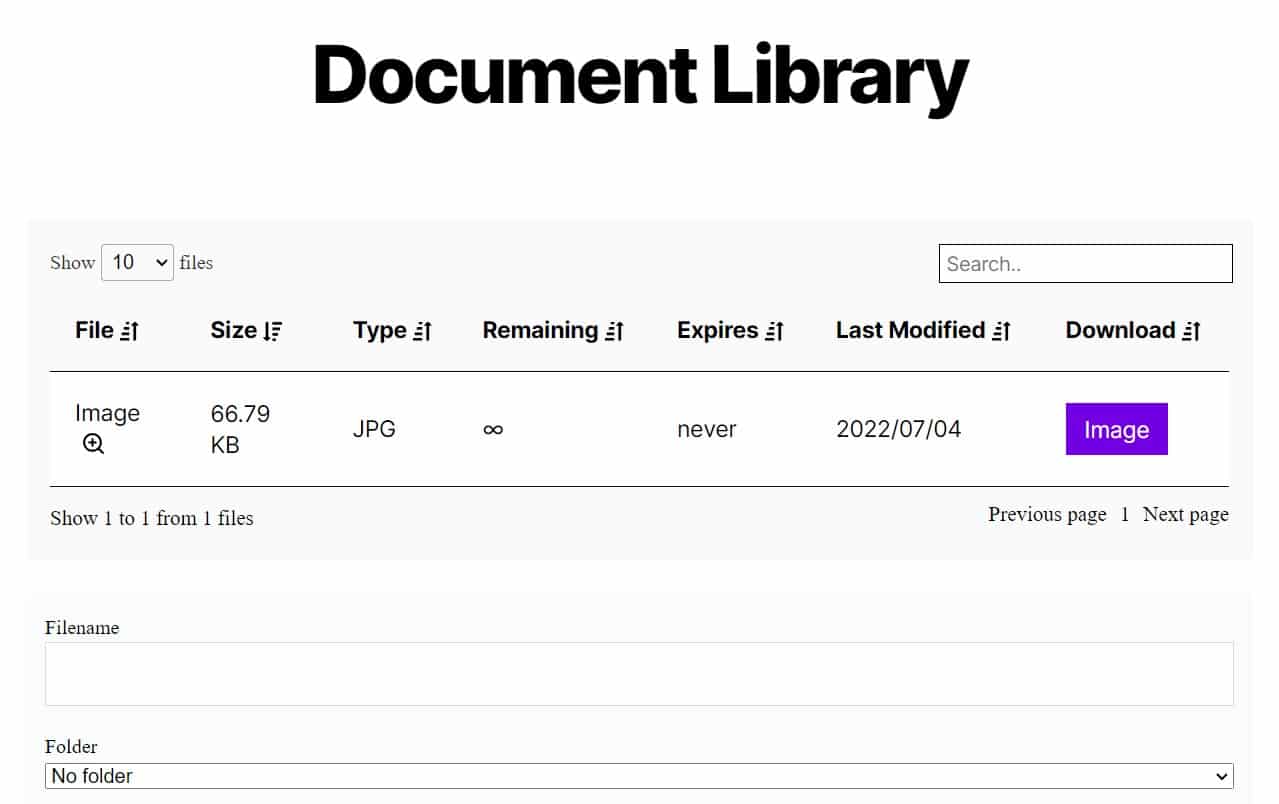
Step 3: View your document library
Navigate to the front end of your WordPress site to test the uploader. Users can drag files in or browse to select them. Once uploaded, those files are immediately searchable and available for download alongside any files you’ve added from the admin.
Creating a PDF-only library in WordPress
If your library will hold only PDF files, Filr handles that natively. PDF is the most widely used file type in WordPress document libraries, making it the most common starting point for new libraries. Upload your PDFs and use categories or tags to organize them into sections. For a dedicated walkthrough covering PDF previews, download controls, and PDF-specific security settings, see our full guide on creating a WordPress PDF library.
Frequently Asked Questions
A WordPress document library is a front-facing, searchable table of files on your WordPress site. Unlike the default media library — a backend storage tool for admins — a document library serves your visitors directly. Users can search, filter, sort, and download files without any admin access, making it ideal for sharing policy documents, resources, client files, or course materials.
Filr is a purpose-built WordPress document library plugin that covers any file type, offers role-based and email-based access control, supports frontend file uploads, and lets you embed multiple libraries anywhere on your site using a shortcode. It’s a strong choice for teams, client portals, e-learning sites, and resource hubs of any size.
Free options exist — including Document Library Lite on WordPress.org — for basic use cases. Most free plugins limit features such as access control, advanced filtering, or multiple libraries. Filr is a premium plugin; pricing is available at wpdocumentlibrary.com.
Yes. Filr supports external URLs as document sources, so you can point library entries to files hosted on any third-party platform — Google Drive, Dropbox, OneDrive, or any other URL-accessible location. Those files appear in your library alongside locally uploaded files, with the same download button and display options.
A document library focuses on displaying and sharing files with visitors — search, filter, download. A document management system (DMS) adds workflow features: version control, approval processes, audit trails, and user permissions at an organizational level. If you need a public or semi-public file hub, start with a document library. For deeper document lifecycle management, read our guide on WordPress document management systems.
Use Filr to upload your PDF files and organize them with categories or tags. For a step-by-step guide covering PDF previews, download restrictions, and PDF-specific security settings, see our dedicated tutorial on creating a WordPress PDF library.
Create your WordPress document library today
A WordPress document library turns a scattered file collection into a searchable, organized resource your visitors and team members can use independently. The default WordPress installation does not include this — but Filr adds it in five steps, with three directory protection modes, role-based and email-based access controls, and a frontend uploader your visitors can use without ever touching the admin.
Filr lets you:
- Create and display a secure WordPress document library
- Support any file type, including links to externally hosted files
- Customize your library’s appearance and table layout
- Control access by role, email address, or password
- Let users upload files directly from the front end
- Limit downloads and set automatic document expiry
Ready to get started? Get Filr now.