

A WordPress document management system lets you store, organize, and share files directly on your existing WordPress site — without paying for a separate cloud platform. By adding the right plugin, you control who accesses which files, restrict downloads by user role, and give team members or clients a clean portal to the documents they need.
This guide covers what a WordPress DMS is, what it needs to do, and how to set one up using Filr — a document library plugin built specifically for WordPress.
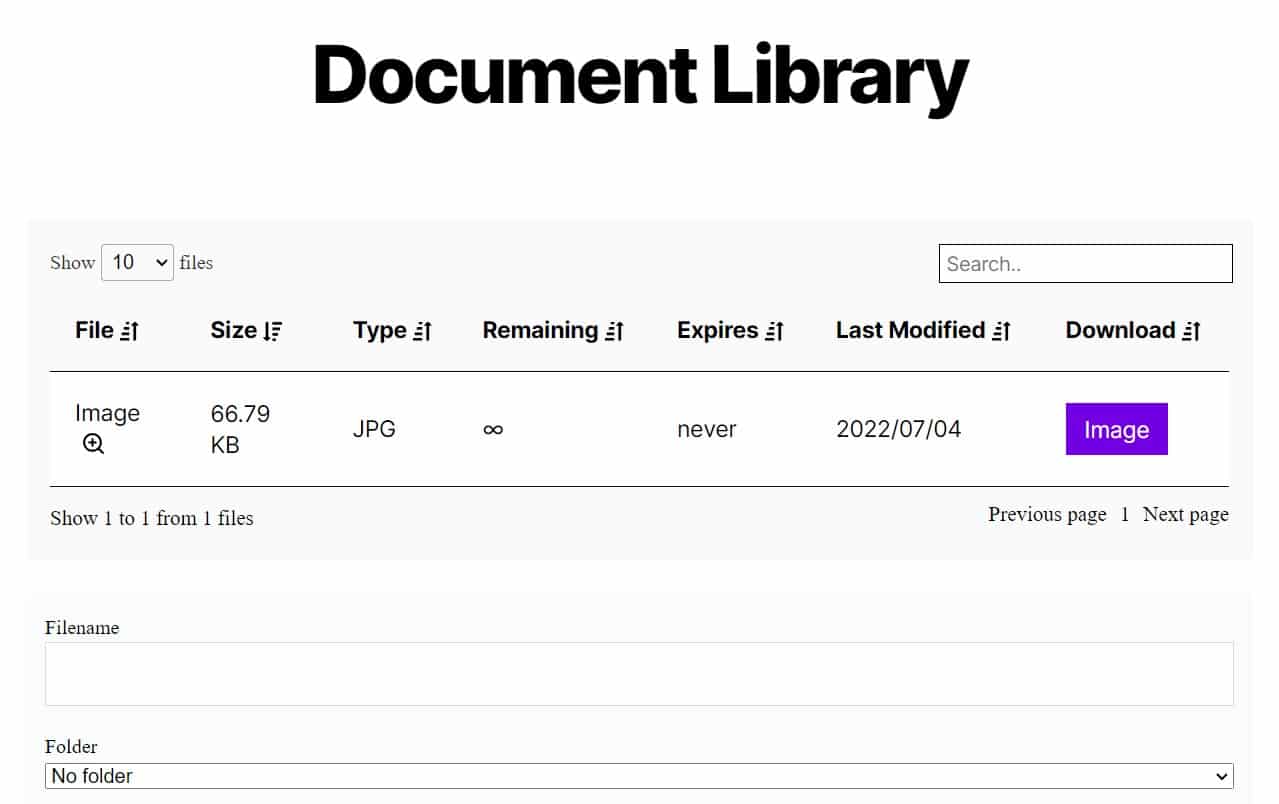
Not sure which plugin to choose? This guide focuses on building a DMS with Filr. For a comparison of other options, see our roundup of the best WordPress document and file management plugins.
What is a WordPress document management system?
A WordPress document management system is software that stores, organizes, and controls access to digital files inside your WordPress site — so you can manage documents without maintaining a separate platform.
Document management system (DMS): A centralized tool for storing, retrieving, and controlling access to digital files. A DMS goes beyond a file folder: it adds user permissions, security rules, and workflow controls so the right people can access the right documents.
Think of it as a digital filing cabinet: you upload contracts, invoices, reports, HR records, or media files to one central location, then decide who can see or download each one.
Rather than maintaining a separate platform, you use WordPress as the backbone. Files live alongside your existing content, and you control access through the same user system you already have. WordPress.org lists more than a dozen dedicated document management plugins under its document management tag (WordPress.org, 2026) — so there is a mature ecosystem to build on.
WordPress DMS vs. document library: A WordPress document library is a browsable, public-facing catalog — visitors can search and download without logging in. A DMS goes further: it adds workflow controls, user permissions, and document security. If you need a searchable archive for your audience, a library may be enough. If you need to control who accesses what, a DMS is the right fit.
Who uses a WordPress DMS?
Any organization that handles a volume of files and needs to control access to them. Common use cases include:
- Sales and marketing teams — manage product catalogs, proposals, and presentations in one place; share them with clients without sending email attachments.
- HR and legal departments — store employee records, contracts, and compliance documents, with access restricted to authorized staff.
- Accounting and finance teams — keep invoices, receipts, and financial reports organized and visible only to the relevant team members.
- Client portals — give each client secure access to their own project files, invoices, and briefs, without exposing other clients’ documents.
- Employee intranets — centralize HR handbooks, company policies, and training materials so staff can find them without searching through email.
- Membership sites — gate documents behind a login, so only active members or subscribers can download them.
These are the most common patterns, but the core need is the same: organized, controlled access to files.
What should a WordPress document management system do?
A capable WordPress document management system covers four core capabilities: file organization, access control, frontend display with search, and document security.
Google’s June 2026 AI Overview for this keyword — synthesizing results from the top-ranking pages — lists those same four as the features users consistently look for (DataForSEO SERP analysis, June 2026). Before choosing a plugin, it helps to understand what each requires.
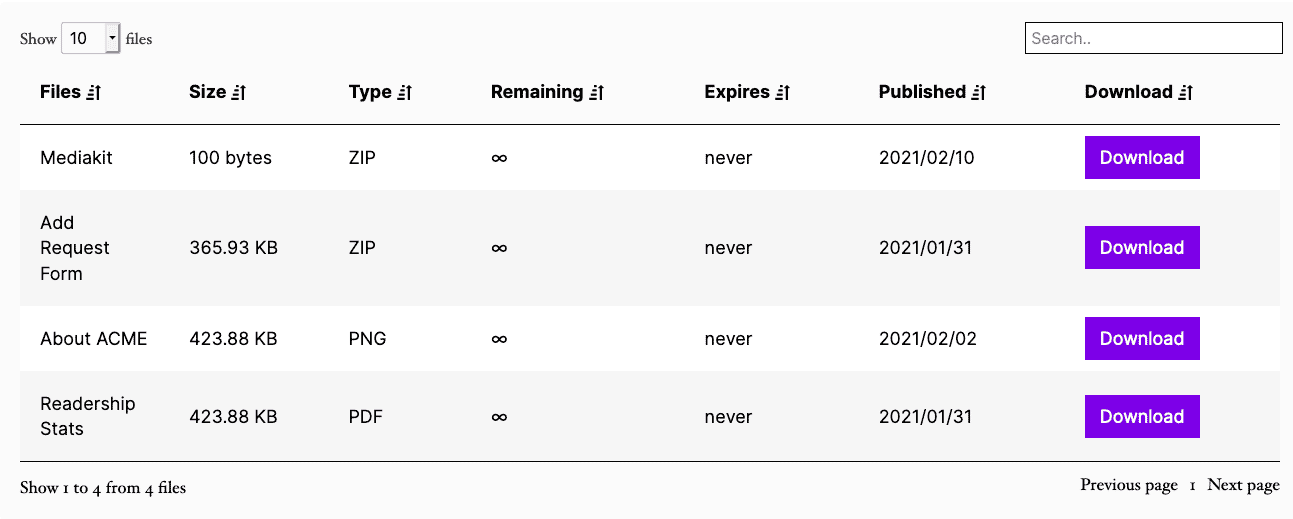
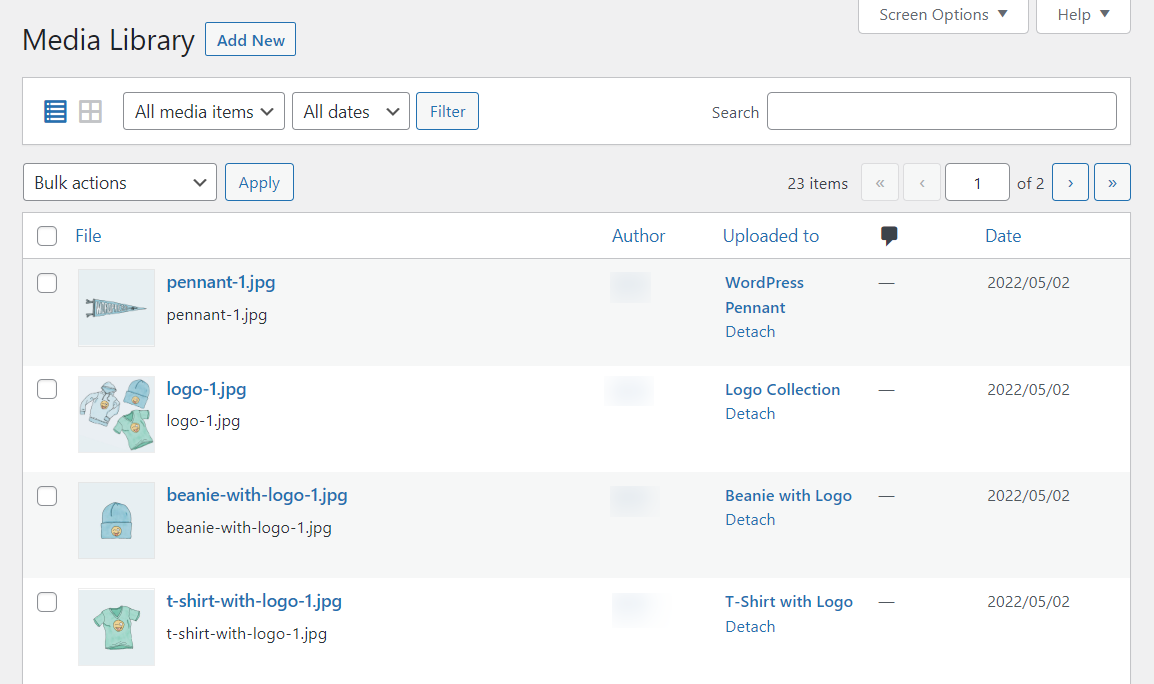
File organization and upload. The system should let you upload files individually or in bulk, sort them into folders or categories, and support a wide range of file types — PDFs, spreadsheets, images, CSVs, and more. The backend should remain easy to navigate even as your library grows.
Access control. Not every file belongs to every user. A solid DMS lets you restrict access by WordPress user role, by email address, or with a password. It should also let you limit the number of downloads per file or set an expiration date, so time-sensitive documents don’t remain accessible indefinitely.
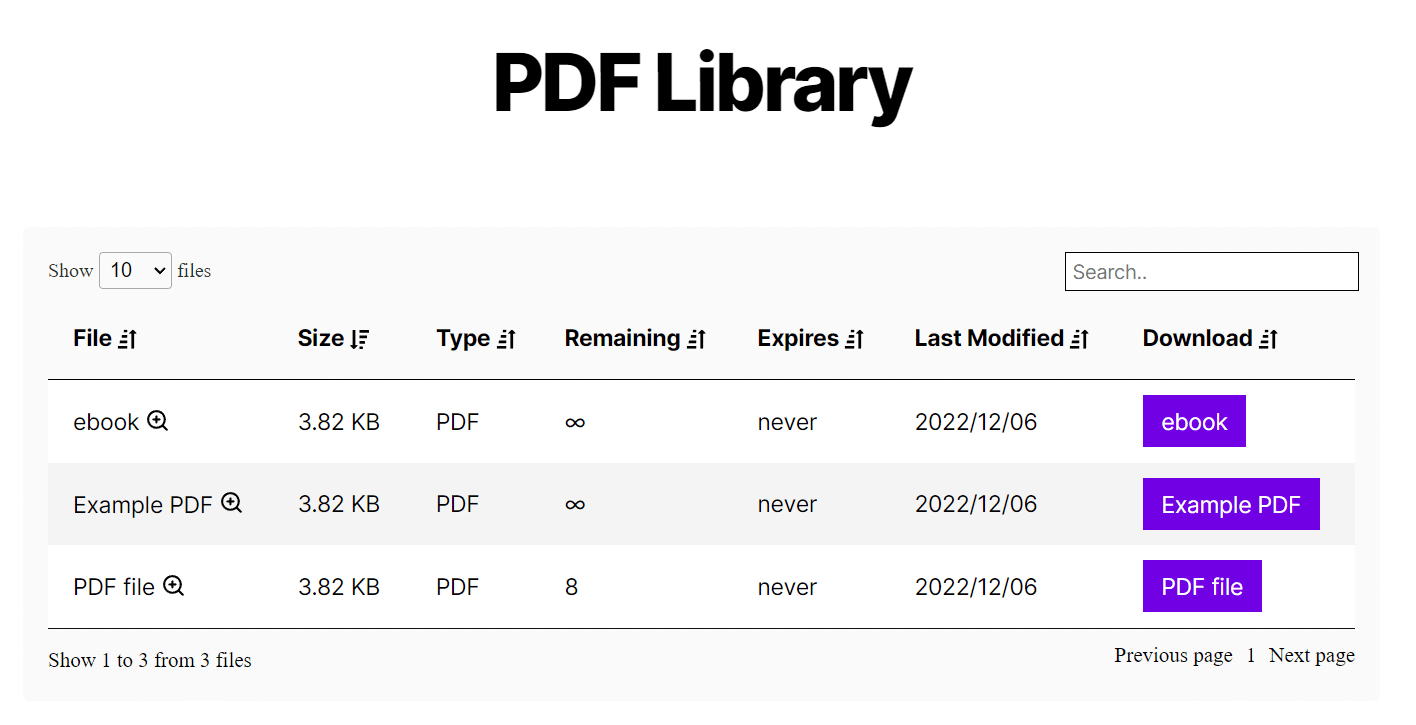
Frontend display and search. Files locked in the admin area aren’t useful to the people who need them. A DMS should display your document library on the front end of your site — in a table or grid — with search and filter options so users can locate files quickly.
Document security. Beyond access control, a DMS should protect the underlying files from direct URL access. This means blocking direct hotlinking, encrypting file URLs, and optionally password-protecting compressed archives.
Version control — tracking document revisions and rolling back to earlier versions — is worth looking for if you need an audit trail for legal, HR, or compliance files. Filr covers the four core capabilities above well. For a full comparison of version control and other advanced features across plugins, see our document management plugin comparison.
Why use WordPress for document management?
WordPress is a practical foundation for a document management system because it combines low cost, full customizability, and a user interface that most non-technical teams already know. WordPress powers more than 43% of all websites (W3Techs, 2025) — so the plugin ecosystem, hosting options, and community support around WordPress document management are more mature than for any other CMS.
If you already run a WordPress site, here is why WordPress makes a strong choice.
It keeps everything in one place
A WordPress DMS shares the same dashboard, user accounts, and hosting plan as your site. That means no separate logins for a cloud storage service and no need to sync users between systems — everything is already connected.
It costs less than standalone storage services
Standalone cloud platforms typically charge per user. Dropbox’s paid plans, for example, charge per seat and scale up as your team grows. With WordPress, you pay for hosting once and can add as many users and documents as your plan supports, with no per-user fees on top.
Open source and fully extendable
WordPress places no restrictions on how you customize it. You can install a document management plugin, configure it for your workflow, and extend it further with plugins for membership, access control, or e-commerce — something a proprietary SaaS platform rarely allows.
No technical expertise required
Once someone knows the WordPress dashboard, adding and managing files is straightforward. Staff don’t need to learn a new platform; they use the same interface they already know. And with frontend upload options (covered in Step 3 below), users can contribute files without ever entering the WordPress admin area.
How to create a WordPress document management system
You can build a working WordPress document management system in four steps using Filr — a WordPress document library plugin that handles upload, organization, display, and security in one tool.
Step 1: Install Filr
First, buy Filr from wpdocumentlibrary.com. After buying, you’ll receive an email with a ZIP file and your license key.
To install Filr on your WordPress site:
- In your WordPress dashboard, go to Plugins > Add New and click Upload Plugin.
- Select the ZIP file you downloaded, then click Install Now.
- When installation finishes, click Activate Now.
- Enter your license key and click Agree & Activate.
Filr is now active and ready to use.
Step 2: Create a document library
A document library is the container that holds your files. You can create multiple libraries — one per client, department, or project — and display each one on a different page.
To create a library:
- Hover over Filr in the dashboard sidebar and click Libraries.
- Fill in the library name and an optional description.
- Click Add New Library.
Once the library exists, you’ll see a shortcode in the Shortcodes section on the right. Copy it — you’ll use it in Step 4 to display the library on a page.
Step 3: Upload documents to your library
With a library ready, you can now add files.
- Go to Filr > Add New in your WordPress dashboard.
- Name the file you’re uploading.
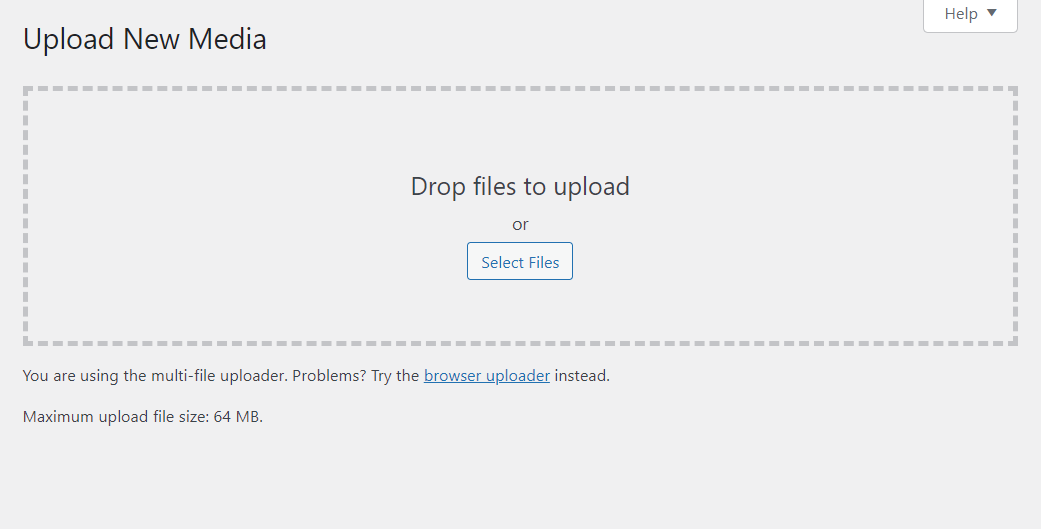
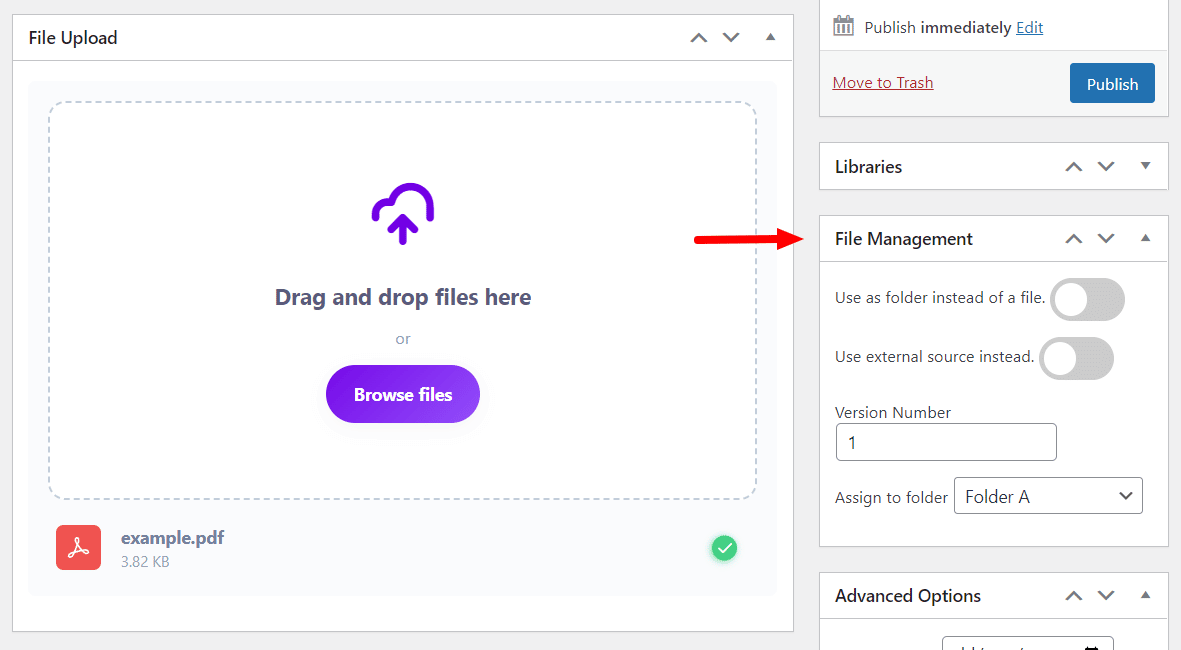
- Upload it by dragging and dropping it onto the uploader, or click Browse Files to select it from your computer. Filr supports bulk upload, so you can drag multiple files at once.
After uploading, the file management panel gives you these options:
- Folder — organize the upload as a folder rather than a standalone file.
- Category — assign the file to a document category for easier browsing.
- Advanced options — set an expiration date, encrypt the file, or cap the number of downloads.
- Access control — restrict the file by WordPress user role or by specific email address.
Filr supports a wide range of file types, including PDFs, JPGs, CSVs, Word documents, and ZIP archives.
If you want users to upload files from the front end of your site — without touching the WordPress admin — enable Filr’s frontend upload option. You can restrict the uploader by user role, hold uploads for review before publishing, and receive a notification each time a new file comes in. This is particularly useful for client portals and employee intranets.
Click Publish when your file settings are complete.
Step 4: Display your WordPress document management system
You’ve built your library and added files. Next, you’ll make them accessible on the front end of your site.
- Go to Pages > Add New and give the page a title (for example, “Documents” or “Client Files”).
- Paste the shortcode you copied in Step 2 into the page content area.
- Click Publish.
The document library now appears on that page, visible to the audience you’ve configured.
To adjust the table’s appearance, go to Filr > Settings > Libraries. From there, you can:
- Change colors, backgrounds, and borders to match your site design.
- Choose which columns appear and in what order.
- Enable or disable search, pagination, and the download button label.
Click Save Changes when done.
To allow non-logged-in visitors to submit documents to your DMS, follow the steps in the Filr knowledge base.
Build your WordPress DMS today
A WordPress document management system is within reach for any site owner who manages a meaningful volume of files. With WordPress as the foundation and Filr handling the library structure, access control, and display, you replace scattered email attachments and unwieldy cloud storage folders with a secure, organized system.
Get Filr and set up your WordPress document management system today.
Frequently Asked Questions
A WordPress document library is a browsable, public-facing catalog where visitors can search and download files — often without logging in. A document management system goes further: it adds access control, user permissions, and security rules such as expiration dates and encrypted URLs. Libraries are best for public file sharing; a DMS is the right choice when you need to control who accesses what.
Filr supports a wide range of file types, including PDFs, JPGs, PNGs, CSVs, Word documents, and ZIP archives. You can use it for document libraries, media kits, product catalogs, and more.
Yes. Filr lets you restrict individual files or your entire library by WordPress user role or by specific email address. You can also limit access to logged-in users only, cap downloads per file, and set expiration dates so documents become unavailable after a set period.
Yes. By creating a document library restricted to a custom WordPress user role — such as a “Client” role you define — you give each client access to their files without exposing other clients’ documents. Pair Filr with a membership plugin if you need registration and login flows.
No. Filr is entirely no-code. You configure libraries, upload files, and set access rules from the WordPress dashboard. Displaying a library on a page only requires pasting a shortcode — no PHP or HTML needed.
Filr includes four built-in protections. It uses an index.php file on the uploads directory root to block direct file browsing, supports .htaccess configuration for access control, encrypts file names and URLs, and allows password protection on ZIP archives. These features work together to prevent unauthorized direct downloads even if someone guesses a file URL.