


WordPress member only downloads let you gate PDFs, templates, and files behind a membership level — so each subscriber gets exactly the resources their plan includes, and nothing more.
For a foundation on how WordPress document libraries work, see our guide to WordPress document libraries. This article covers gating that library for members only, using WP Document Library (Filr) and Passster.
Why a members-only file library works for membership sites
Definition: A members-only library is a password- or role-restricted section of your WordPress site where subscribers access downloadable resources — PDFs, templates, course files — organized by membership tier.
A members-only library gives subscribers something concrete: an organized, searchable archive of resources that justifies the subscription fee. Members don’t just pay for website access — they pay for what’s waiting on the other side.
It also lets you run tiered plans without a complex setup. For example:
- Bronze Plan members get access to the online course only.
- Silver Plan members get the online course plus the full resource library.
- Gold Plan members get everything above, plus a 30-minute one-on-one session.
Each tier gets its own protected page. When a member upgrades, you adjust their role access. As a result, the library becomes a retention tool: as long as you keep adding resources, members have a concrete reason to stay subscribed.
Passster — the gating plugin used in this tutorial — is active on more than 10,000 WordPress sites (WordPress.org, 2026), which means the approach is battle-tested and well-documented across a wide range of membership setups.
What to put in your members-only content library
PDFs, templates, and course workbooks deliver consistent value in a members-only content library because members can act on them immediately. WP Document Library (Filr) is active on more than 800 WordPress sites (WordPress.org, 2026) and handles the formats below natively. Good options include:
- PDF guides and checklists — step-by-step references they download and keep
- Templates — workbooks, spreadsheets, or design files specific to your niche
- Course workbooks — companion materials for video or audio lessons
- Slide decks and presentations — useful for training or coaching programs
- Private audio or video files — uploaded as file entries rather than embedded players
Organize these in Filr by library — for example, “Bronze Resources” and “Gold Resources.” That structure carries through to the front-end display, so members can find their WordPress membership documents without hunting.
How to set up WordPress member only downloads using Filr and Passster
Two plugins handle the whole setup: WP Document Library (Filr) builds and displays the file library; Passster gates pages by user role or logged-in username. Here’s the full process.
Definition — WP Document Library (Filr): A WordPress plugin that lets you upload, organize, and display files in a searchable library with access controls, download limits, and filename encryption.
Definition — Passster: A WordPress password-protection plugin that restricts page access by shared password, multiple passwords, or WordPress user role — without requiring a dedicated membership plugin.
Step 1: Install and activate the Filr plugin
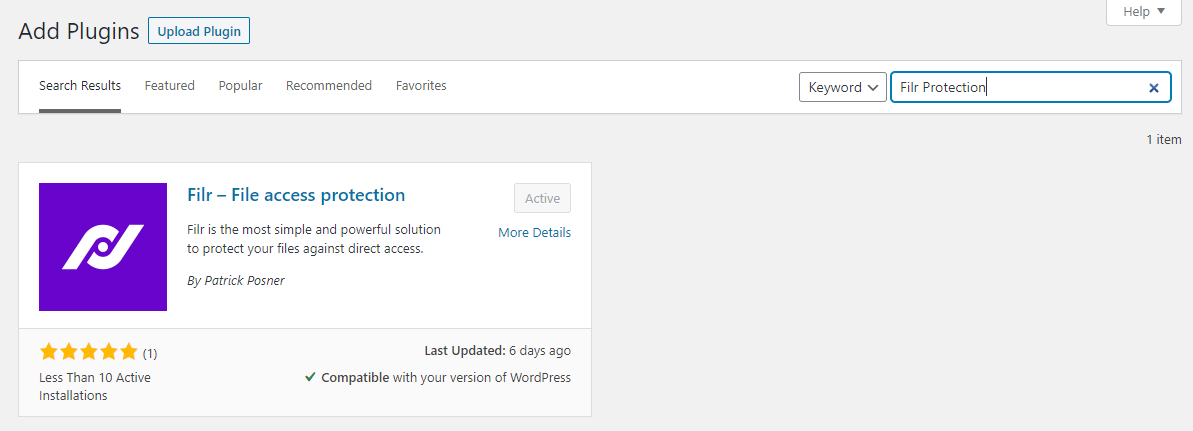
Filr lets you upload files in any format, group them into libraries, set download limits or expiration dates, and encrypt filenames to block direct-access attempts.
Get the Filr plugin and install it on your WordPress site. Click Activate to continue.
Step 2: Create a library to organize your files
From your WordPress dashboard, go to Filr > Libraries. Give your library a title and a short description, then click Add New Library.
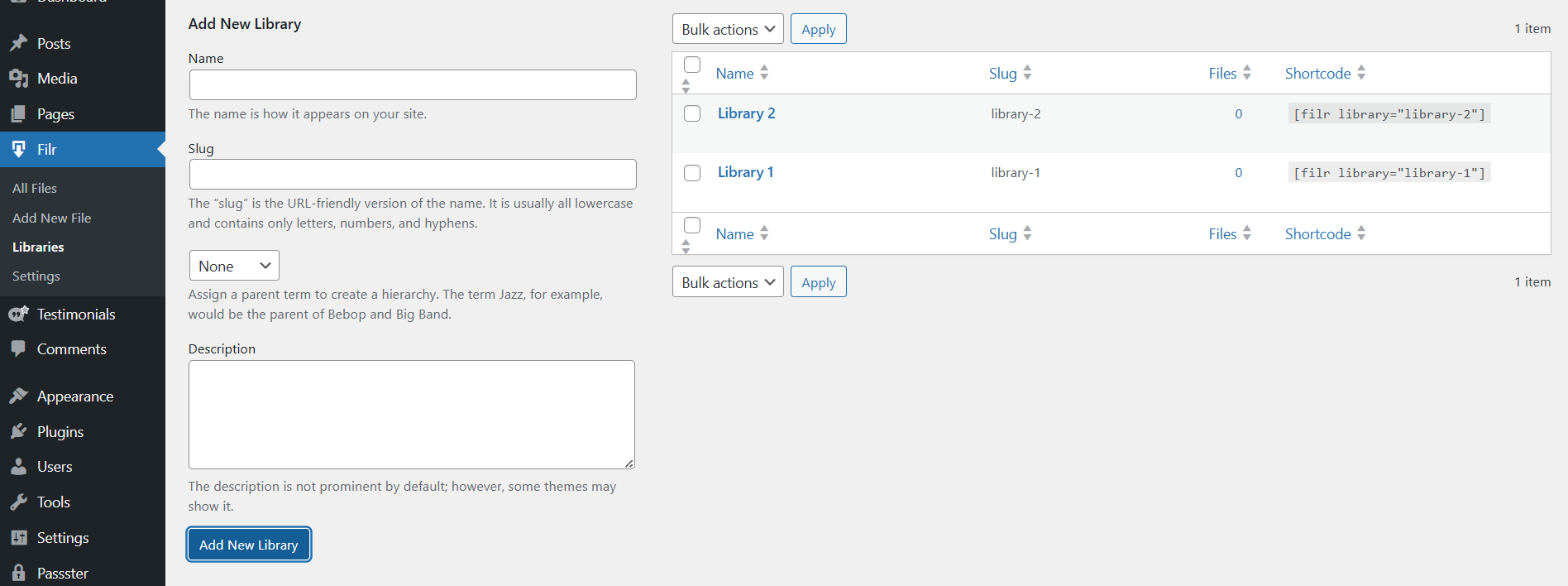
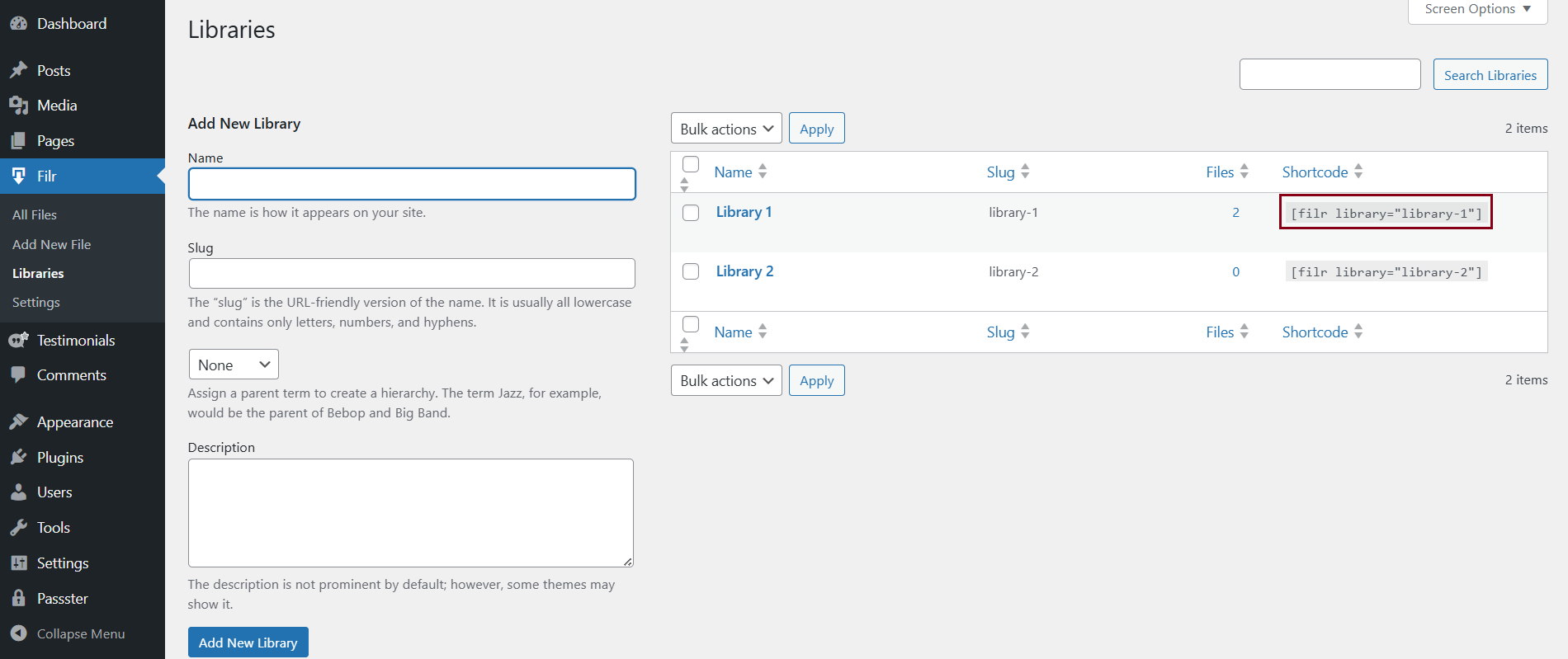
A library entry appears on the right with a shortcode. Copy that shortcode — you’ll use it to display the library on a page. If you have multiple membership tiers, create a separate library for each one.
Step 3: Upload your files to WordPress
Go to Filr > Add New. Give the file a title, then use the File Upload metabox to upload your document.
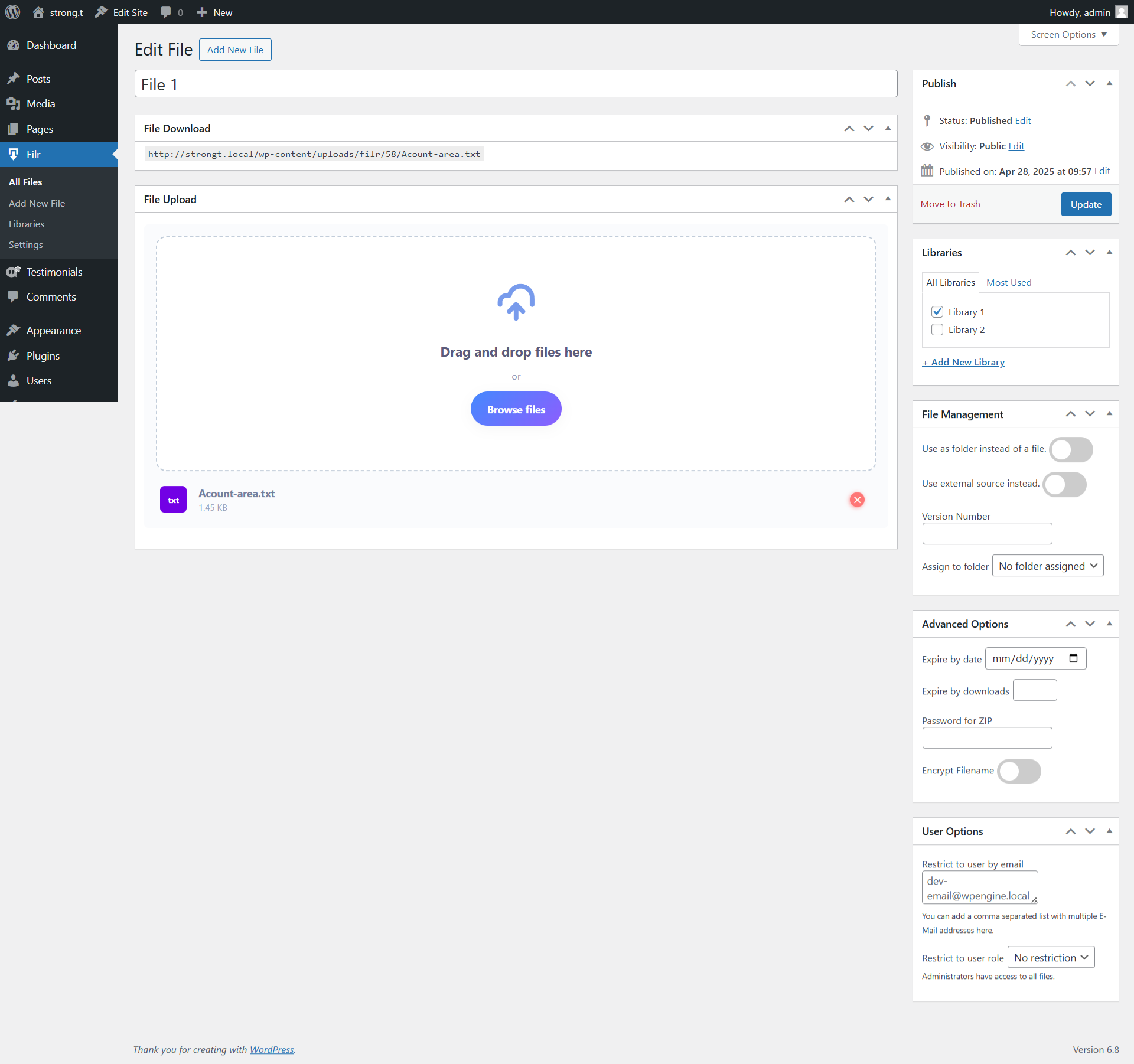
Filr lets you offer files in two ways:
- Individual files — members click a download button to get one file at a time. Use this when you want them to pick and choose.
- Multiple files — Filr bundles selected files into a single
.zipwith a direct download link. Use this when a plan includes a resource bundle.
Use the Libraries metabox on the right to assign each file to the correct library. Under Advanced Options, set a file to expire on a specific date or after a set number of downloads. Turn on Encrypt Filename to prevent direct URL access. Click Publish when done.
Step 4: Install and activate the Passster plugin
Passster is the gating layer. It restricts access to any WordPress page by password, user role, or specific logged-in usernames.
Go to Plugins > Add New and search for “Passster”. Install and activate Passster – Password Protection.
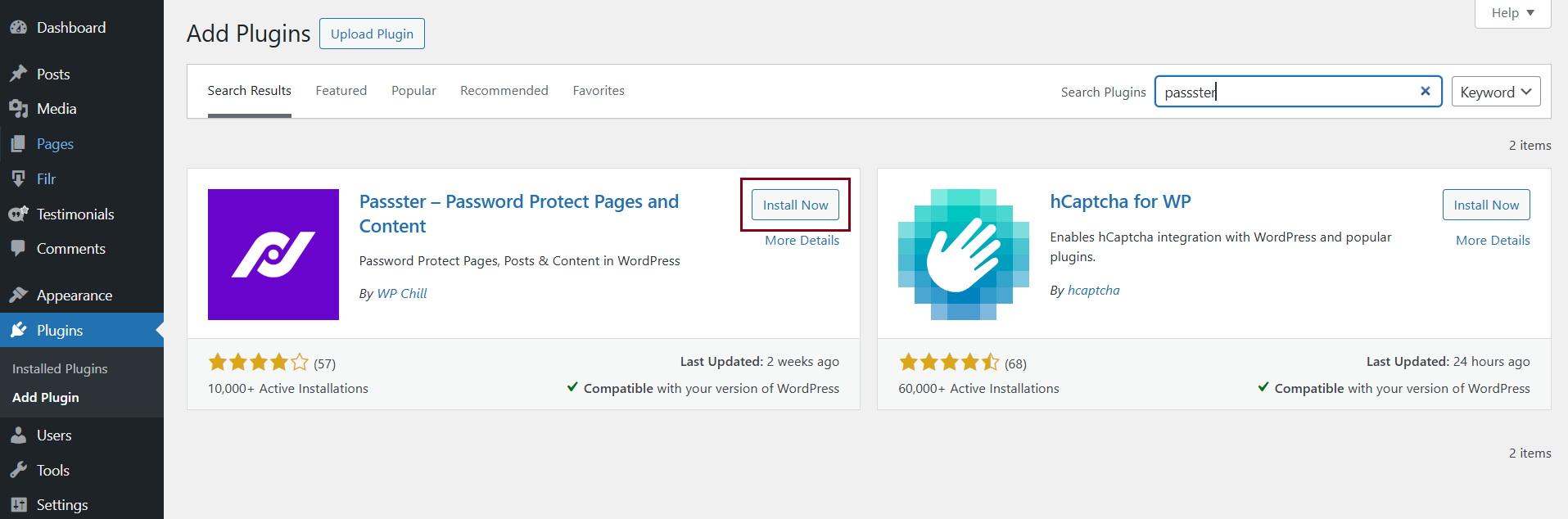
Passster’s free version supports a single shared password. The premium version adds multiple passwords, an unlock-via-link option, and user-restriction access — which is the right choice for membership sites with tiered plans.
Step 5: Choose the right protection mode
First, create a WordPress page and paste the Filr library shortcode into the page body. Publish the page.
Next, open the page for editing. In the right-hand sidebar, scroll down to the Passster section.
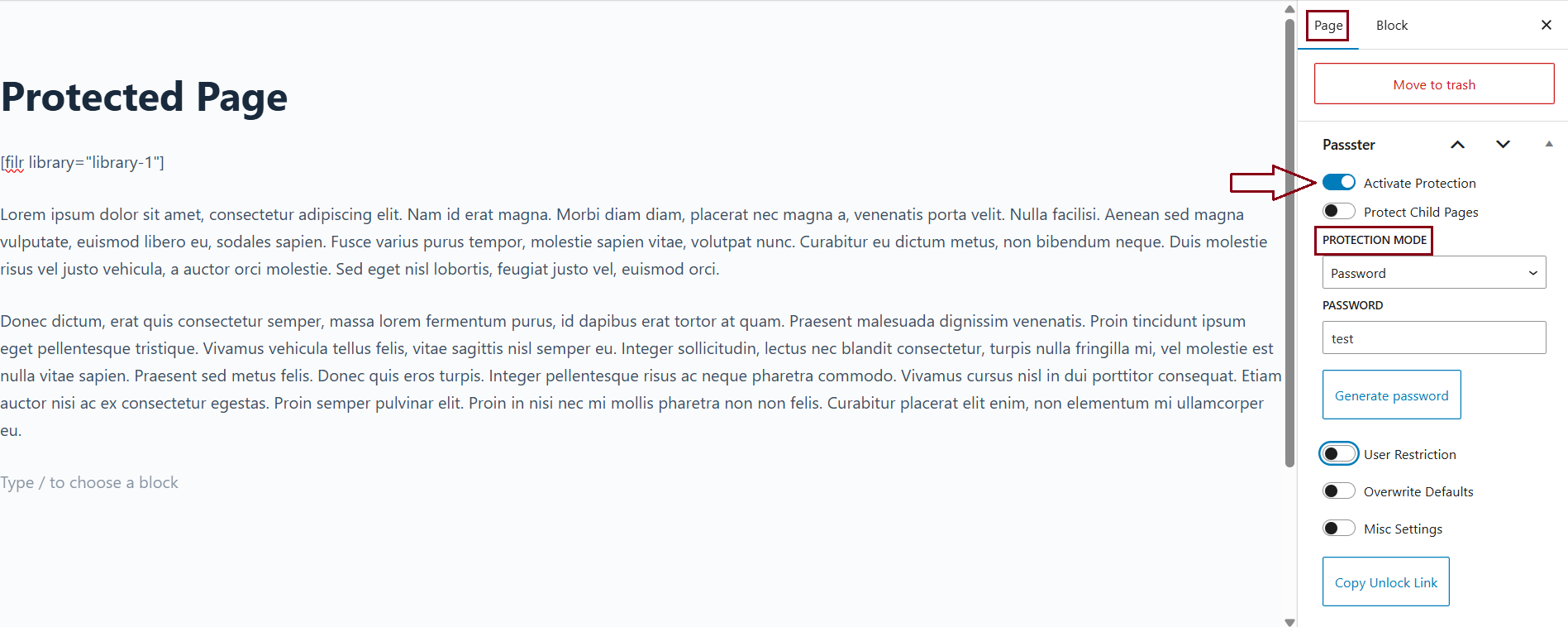
Under Protection Mode, skip reCAPTCHA and Turnstile. For member-only access, select User Restriction. This limits access to specific logged-in users by their username or WordPress user role — for example, “subscriber” or “member.”
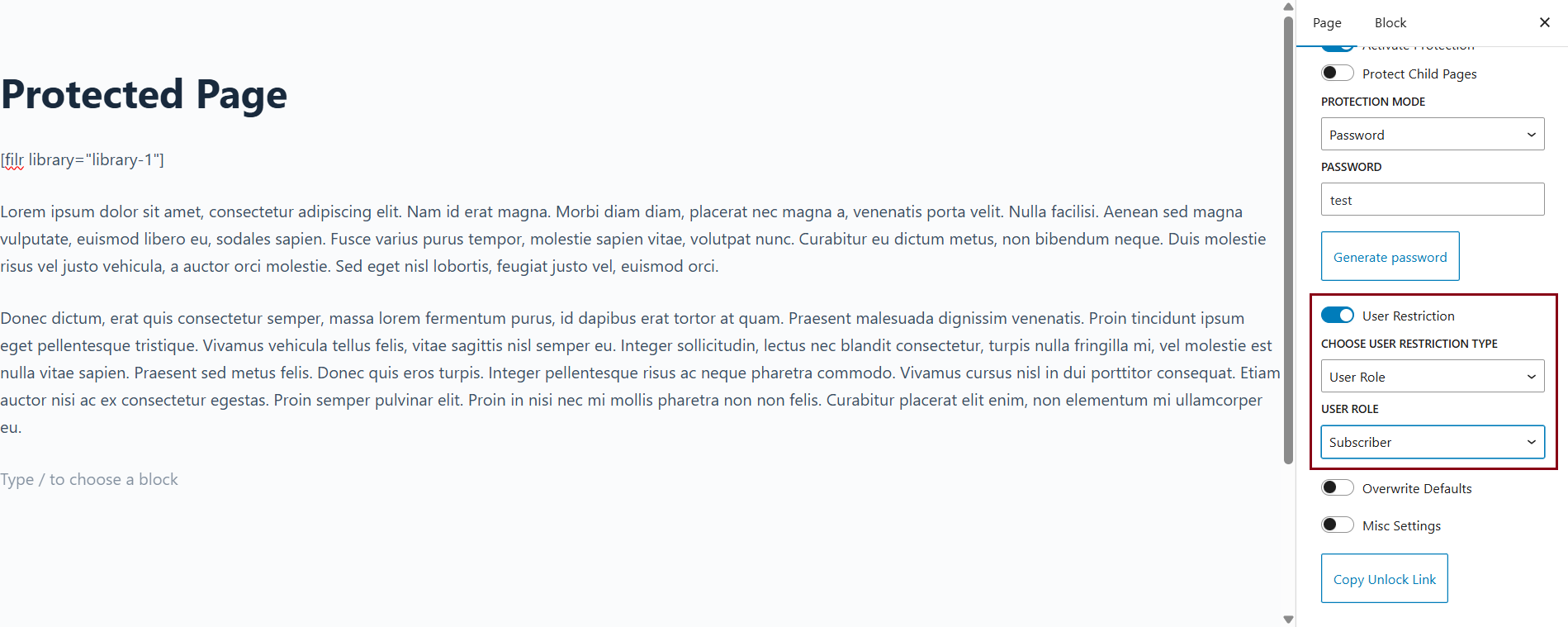
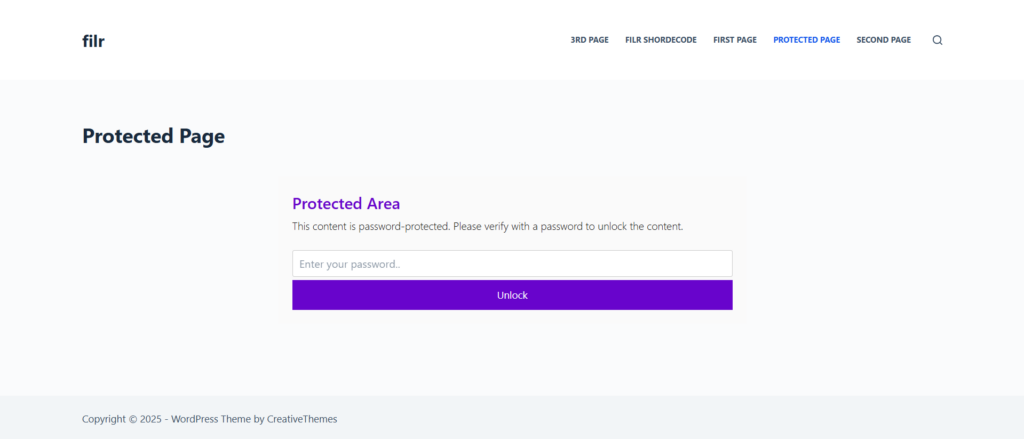
Enter the usernames or roles allowed to access the page. For tiered plans, create one page per membership level and apply the appropriate role restriction to each. Click Update to save. The page is now restricted to those members only.
Managing and growing your members-only library
A members-only library grows in value the more content it holds — but only when members know new resources are available. A few practices keep the library active:
- Announce new uploads. Send an email or notification each time you add a resource. Members who forget the library exists won’t log in to check.
- Add content on a schedule. Monthly or quarterly additions give subscribers a concrete reason to stay. Even one well-made template carries real perceived value.
- Review Filr’s download stats. Filr tracks download counts per file. High counts show what members actually use; low counts signal a mismatch with their needs.
- Adjust role access when members change plans. Passster’s user-restriction setting makes this a quick update to the page protection settings. With more than 10,000 active installs (WordPress.org, 2026), the workflow is well-documented and straightforward to maintain as your membership grows.
Frequently Asked Questions
Install WP Document Library (Filr) to build a file library, then use Passster to restrict the page to specific WordPress user roles. Members log in with their WordPress account; Passster checks their role before granting access. The whole setup takes under an hour with both plugins active.
Yes. Create a separate Filr library for each tier — for example, “Silver Downloads” and “Gold Downloads” — embed each on its own WordPress page, and apply a different Passster user-restriction setting to each page. Members only see the pages their role permits.
Passster restricts access based on WordPress user roles, so it works alongside any membership plugin that assigns subscribers a WordPress role. Check the Passster documentation for confirmed integrations.
Filr supports any file format WordPress accepts — PDFs, Word documents, Excel files, ZIP archives, MP3s, MP4 videos, and more. Encrypted filenames work across all formats.
Enable Encrypt Filename in Filr’s Advanced Options. This replaces the real filename with an encrypted string, so a shared URL either expires or fails to resolve for users who aren’t logged in with the correct role.
Set Up Your Members-Only Library
A members-only library needs role-based gating, encrypted filenames, and a way to keep shared links from leaking out to people who never joined. Filr handles the library and download controls; Passster locks the page itself — together they keep paid members inside and everyone else out.
Ready to lock your downloads behind membership? Get Filr and set up your members-only library today.