


B2B teams spend significant budget creating sales enablement content — case studies, pitch decks, whitepapers, one-pagers — and then struggle to find it when it matters. According to long-standing SiriusDecisions research, 60–70% of B2B marketing content goes unused, primarily because teams can’t locate it when they need it. A structured content library built on WordPress fixes that.
This tutorial shows you how to set up a sales enablement content library in WordPress for your B2B team using the Filr plugin, giving your reps, clients, and partners a self-hosted, branded asset hub they can access without a SaaS subscription. This is specifically the B2B sales-enablement use case — organising collateral, battlecards, and prospect-facing assets for your revenue team. For a broader overview of WordPress document management features, see the general WordPress document library guide.
What is a B2B content library?
B2B content library: A centralised, searchable repository of sales and marketing assets that a business publishes for internal teams, clients, or partners to access and download.
A B2B content library typically holds two categories of material:
- External prospect-facing content: case studies, pitch decks, whitepapers, one-pagers, ROI calculators, product demo videos, e-books, and media kits
- Internal sales enablement content: battlecards, competitive analysis, training videos, RFP templates, and market research
That distinction matters, because 60% of B2B buyers make their final purchase decision based on digital content (DemandSage, 2024). Sales reps who can find the right asset fast — the healthcare case study, the enterprise pricing one-pager — close more deals. A disorganised library costs you those moments.
B2B content libraries also serve as media and PR hubs: a public page where journalists or advertisers download brand assets, readership stats, and rate cards directly.
What should go in your B2B content library?
A B2B content library should include two categories of assets: external content for prospects and clients, and internal content for your sales team. Organising by purpose makes it far easier for sales reps to pull the right content at the right moment — the same SiriusDecisions research attributes most of that 60–70% of unused content to assets sales teams simply can’t find.
External content (share with prospects and clients):
- Case studies and customer testimonials
- Pitch decks and presentation slides
- Product whitepapers and one-pagers
- ROI calculators and comparison guides
- Product demo videos and webinar recordings
- E-books and how-to guides
- Media kits and advertising rate cards
Internal content (sales team only):
- Battlecards (competitive positioning)
- Competitor analysis documents
- Training materials and onboarding guides
- RFP templates and proposal frameworks
- Market research and analyst reports
A second level of organisation maps assets to the buyer journey. Top-of-funnel content — blog posts, e-books, educational webinars — educates new prospects. Middle-of-funnel assets, such as case studies, product comparisons, and ROI calculators, help buyers evaluate options. Bottom-of-funnel material — pricing guides, detailed specs, client testimonials — supports final decisions. Filr lets you create separate libraries for each stage or audience group.
How to set up a WordPress document library for B2B content using Filr
Filr is a WordPress document library plugin — updated in April 2025 — that lets you upload files, organise them into named libraries, and publish a clean table of downloadable assets on any page. It also includes file encryption, access restrictions by user role or email, and expiration controls — features that are especially useful for a B2B library containing confidential materials.
Here’s what you need:
- A WordPress website
- Your content assets (documents, images, video files, e-books)
- The Filr plugin
Step 1: Install the Filr plugin
Get the Filr plugin from wpdocumentlibrary.com. After purchase, you’ll receive the plugin files and a license key. Install the plugin on your WordPress site, activate it, then enter the license key to finish setup.
Step 2: Create libraries for your B2B content
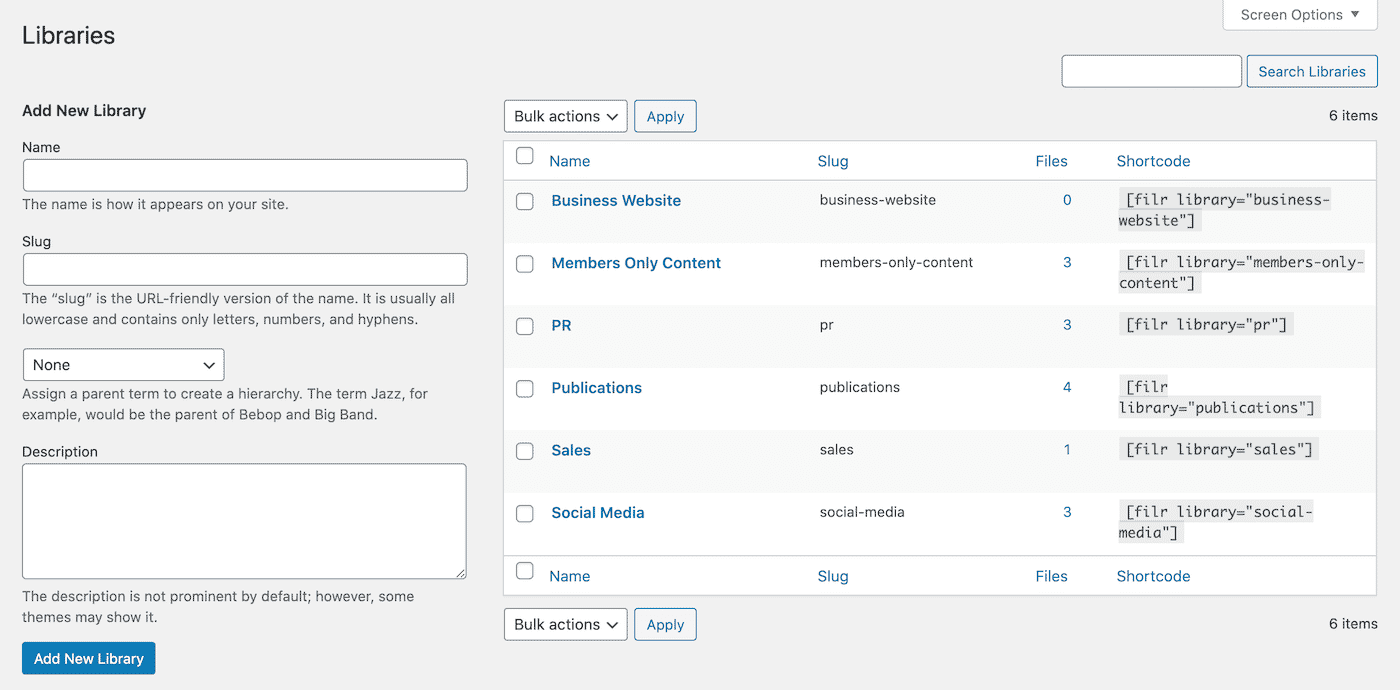
Filr organises files into categories called Libraries. Each Library gets its own shortcode, so you can publish different content collections on different pages — or all on one page.
Map your libraries to your content taxonomy. Practical options:
- By funnel stage: Awareness, Evaluation, Decision — lets sales reps pull content that fits where each prospect is in the buying process
- By content type: Case Studies, Pitch Decks, Whitepapers, Media Kit — useful if your team searches by format
- By audience: External / Internal — a clean split for prospect-facing vs. sales enablement assets
To create a library, go to Filr > Libraries from the WordPress admin panel. Give it a descriptive name, add a short description, and click Add New Library. Copy the shortcode that appears next to it — you’ll use this in the next steps.
Step 3: Upload your B2B content
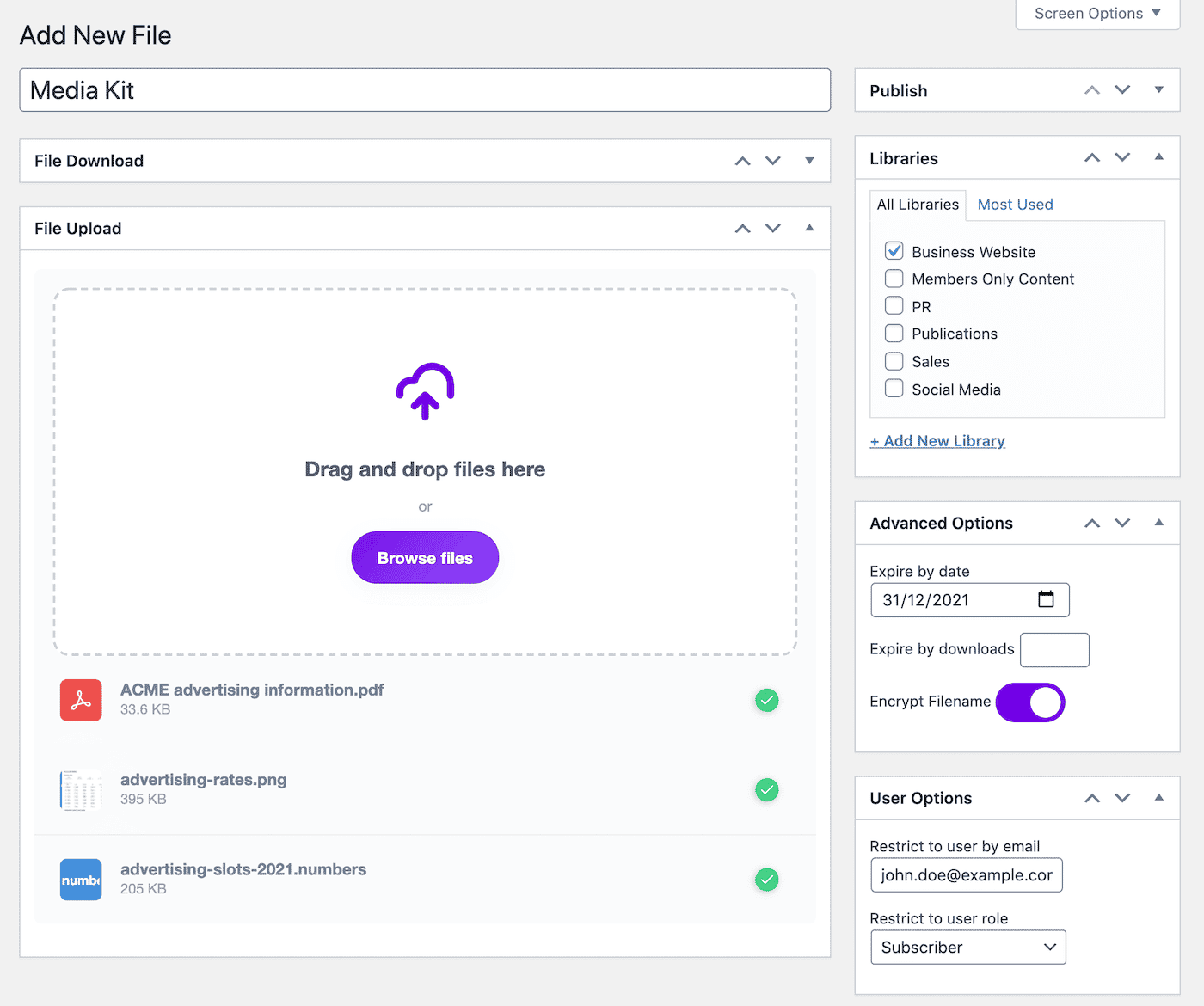
Go to the Files directory and click Add New. Give the file a clear name, upload the asset using the File Upload meta box, and assign it to the correct library via the Libraries meta box.
Filr accepts multiple file types: PDFs, Word documents, PowerPoint files, images, video files, audio, and design files. You can also bundle multiple files into a single downloadable .zip, which is useful for a complete campaign kit or media pack.
For each file, the Advanced Options let you:
- Expire by date — remove access after a deadline (ideal for time-sensitive proposals)
- Expire by downloads — limit how many times a file can be downloaded
- Encrypt filename — obfuscate the file URL so assets can’t be hotlinked
Use the User Options meta box to restrict access by user role or email address. This is how you keep the internal battlecard library visible only to logged-in sales staff, while the external case study library remains publicly accessible. Click Publish when done.
Step 4: Publish the B2B content library
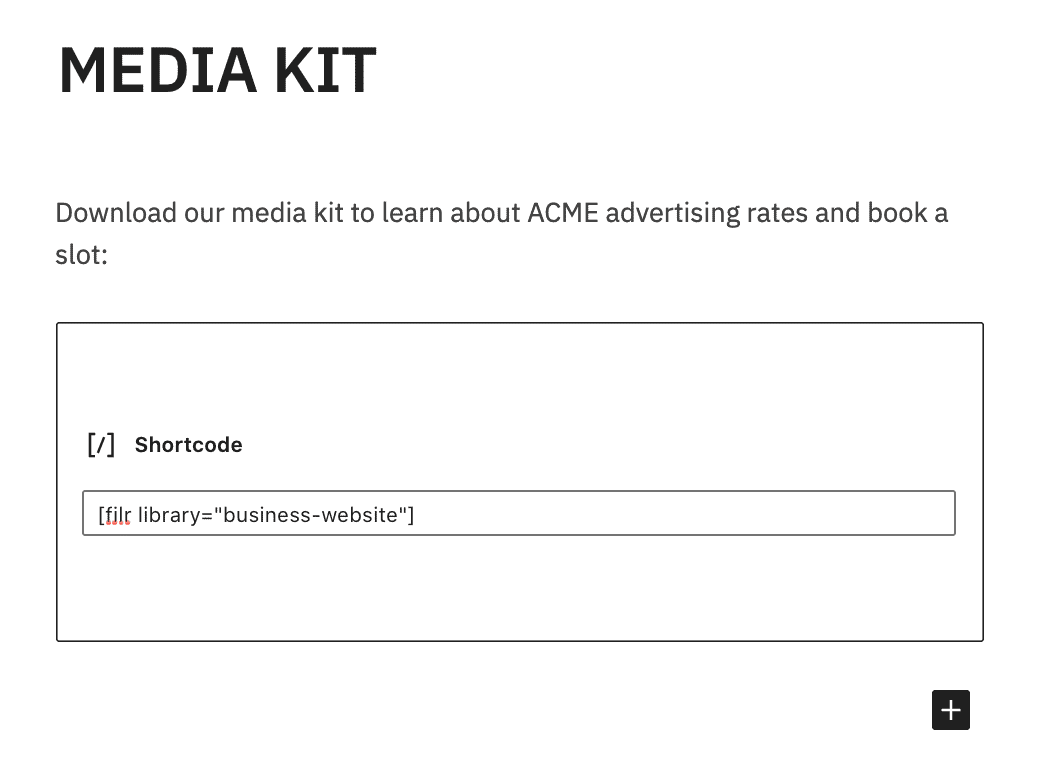
Go to Pages > Add New in your WordPress dashboard. In the Gutenberg editor, search for the Shortcode block and add it. Paste the library shortcode into the block, then click Publish.
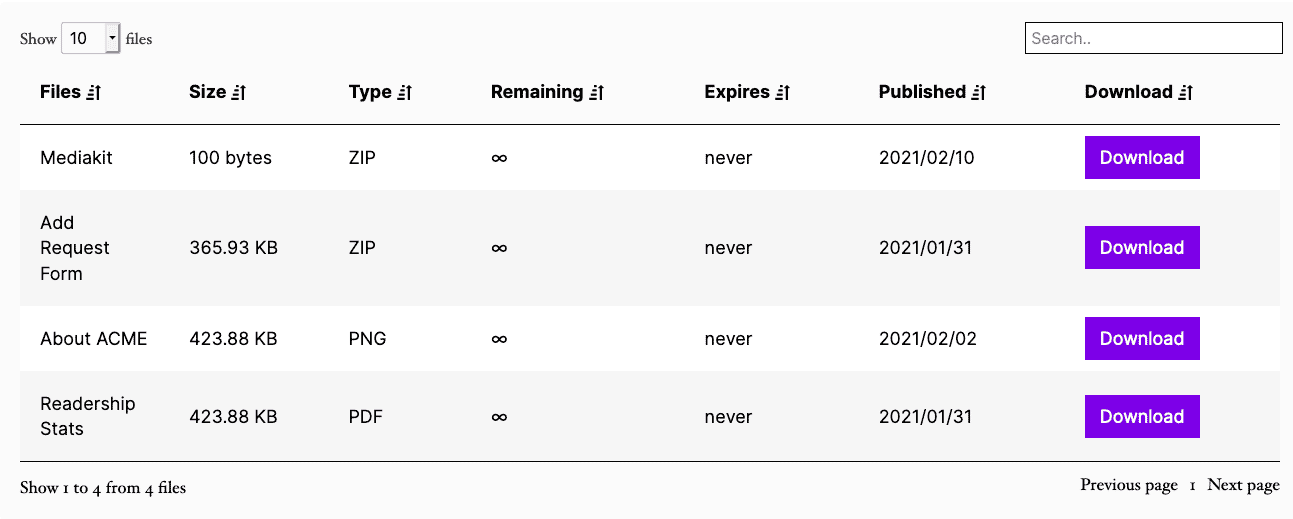
The front-end table shows file names with direct download links. Visitors click a file name to download it — no registration required unless you’ve restricted access.
Step 5: Customise the library display (optional)
Go to Filr > Settings > Libraries to adjust the table style, visible columns, colours, and date format. You can match the library’s look to your brand without touching any code.
Bonus: Publish multiple content libraries
Once your main library is live, create additional libraries for specific audiences or deal stages. Paste multiple shortcodes onto the same page to show them side by side — useful for a single sales resources page with separate sections for prospects, partners, and internal staff.
Conclusion
Filr gives B2B teams a WordPress-native way to build a content library that keeps sales assets organised, access-controlled, and easy to find. Instead of relying on shared drives that nobody maintains, you get a branded, self-hosted library your reps, clients, and partners can access directly from your website.
Frequently Asked Questions
A B2B content library is a centralised repository of sales and marketing assets — such as case studies, pitch decks, whitepapers, and battlecards — that a business makes available to its sales team, clients, or partners. It can be hosted on your own website or through a third-party platform. WordPress with the Filr plugin lets you build and control one yourself.
B2B content libraries typically include two groups: external assets for prospects (case studies, pitch decks, whitepapers, one-pagers, ROI calculators, demo videos, e-books, media kits) and internal sales enablement assets (battlecards, competitor analysis, training guides, RFP templates). Organising by funnel stage or audience type makes assets easier to find and use.
The most practical approach uses three layers: funnel stage (Awareness, Evaluation, Decision), content type (deck, one-pager, case study), and one custom dimension specific to how your team sells — such as industry, product line, or audience. In Filr, each layer maps to a separate Library, and the shortcode system lets you publish them anywhere on your site.
Yes. Filr includes built-in access controls that restrict downloads by user role or email address. You can keep internal assets — like battlecards or RFP templates — visible only to logged-in staff, while prospect-facing content remains publicly available. File expiration by date or download count adds another layer of control.
A B2B content library is built specifically for sales enablement: it helps reps find the right asset for the right deal stage at the right moment. A member library (see our members-only library guide) gates content behind paid subscriptions. An agency asset library (see our agency assets guide) serves client deliverable storage. The audience and purpose differ, even though all three use the same Filr plugin.
Launch Your B2B Content Library
A B2B content library works best when reps can find the right asset fast and marketing controls who sees what. Filr organizes sales content into a searchable, role-restricted library, so battlecards, case studies, and RFP templates stay current and easy to find.
Ready to replace the shared drive nobody maintains? Get Filr and set up your B2B content library today.