


One-time download links in WordPress expire after a single use. The moment a user downloads a file, the link becomes inactive. No one else can use it, and even the original recipient can’t download the same file a second time using the same URL. For anyone selling digital products or sharing sensitive documents, that single-use behavior stops unauthorized sharing at the source.
This guide shows you how to create a one-time download link in WordPress using the Filr plugin — from installation to setting the download count limit — in three steps.
Why you need one-time download links
One-time download link: a WordPress download URL that deactivates automatically after the first successful download, preventing anyone from reusing or sharing the link. Also called a single-use download link.
Standard WordPress file URLs don’t expire. Once you share a file link, anyone with that URL can download the file repeatedly and pass it to others. Free resources can stay open. Paid digital products cannot afford that exposure.
A one-time download link solves this by capping how many times a link can trigger a download. Set the cap to 1, and the link deactivates after the first download. The file stays on your server; only that specific link stops working.
Here are the main situations where this approach matters:
- Selling digital products. Customers get a download link after buying. Setting it to one use means they can’t forward the link to friends who skipped paying.
- Distributing course materials. Students download their PDFs or videos once per link. A new enrollment generates a new link.
- Issuing software licenses. A single-license customer gets one download. If they need to reinstall, they return through the proper channel.
One-time links focus specifically on download-count limits. If you need links that expire after a set number of days rather than a download count, see our guide on 2 ways to expire document downloads in WordPress.
Filr: the best plugin for one-time download links in WordPress
Filr is a WordPress file management plugin built for uploading, securing, and distributing downloadable files. Its Expire by downloads feature — the key setting for creating one-time download links — lets you set an exact download count on any file. Set that count to 1, and the first download deactivates the link automatically.
Beyond download count limits, Filr stores your files outside the public WordPress Media Library, so direct hotlinking doesn’t work. You can also enable filename encryption to hide the real file path from the download URL. Filr organizes files into libraries, each with a shortcode you paste into any WordPress page or post to display a download table on the front end.
The free version of Filr is available on WordPress.org and lets you upload and display files. You need the pro version to use the Expire by downloads feature and other access-control settings.
How to create a one-time download link in WordPress
The process takes three steps: install the Filr plugin, add your files to a library, and set the download limit to 1. Here’s how each step works.
Step 1: Install and activate the Filr plugin
Get Filr from the product page and download the plugin zip file. In your WordPress dashboard, go to Plugins > Add New > Upload Plugin, choose the zip file, and click Install Now. After activation, a new Files menu item appears in the sidebar.
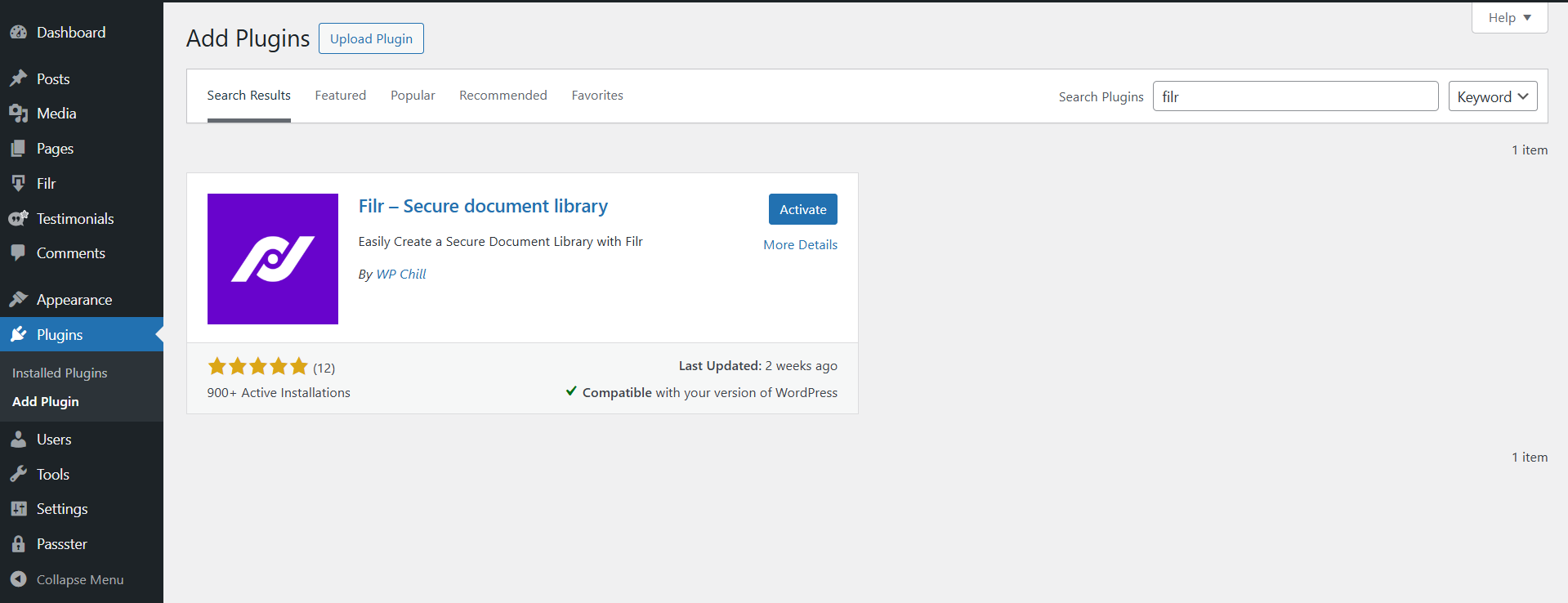
The free version on WordPress.org works for testing file display before you upgrade to pro.
Step 2: Add your files and create a library
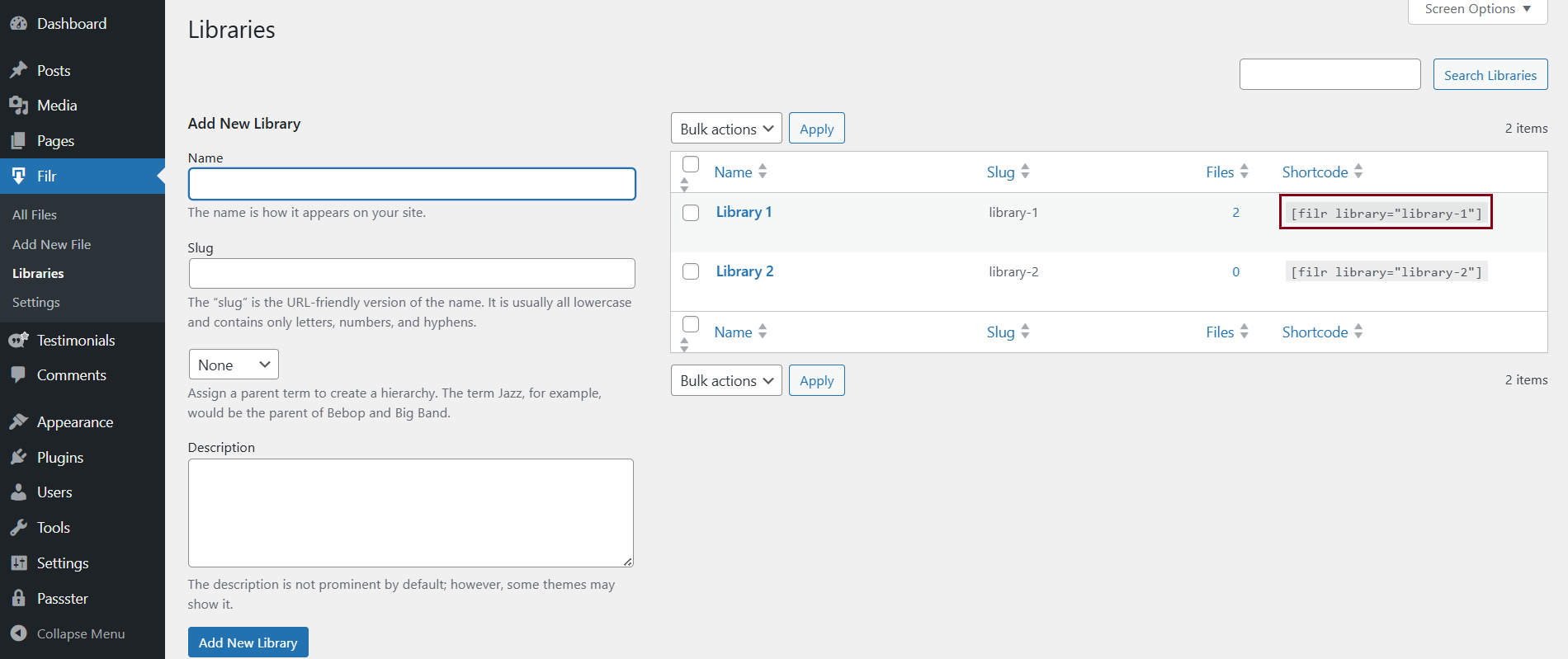
Before uploading files, set up a library to keep things organized. Go to Filr > Libraries, enter a name and a short description, then click Add New Library. The library appears in the table on the right, along with a shortcode — copy that shortcode, because you’ll need it later to display the files on a page.
Now upload your files. Go to Filr > Add New, give the file a name, and use the File Upload metabox to add the file. Then select the library you just created from the Libraries metabox on the right side of the screen.
Filr offers two delivery formats at this stage:
- Individual files. Each file gets its own download button. Use this when users should pick individual items from a list.
- Bundled archive. Filr packages all selected files into a single .zip and generates one download link for the whole set. Use this to deliver file packages in one click.
Step 3: Set the download limit to 1
In the Advanced Options metabox on the same edit screen, find the Expire by downloads field. Set this value to 1. That is the count limit — after the first successful download, Filr deactivates this link automatically.
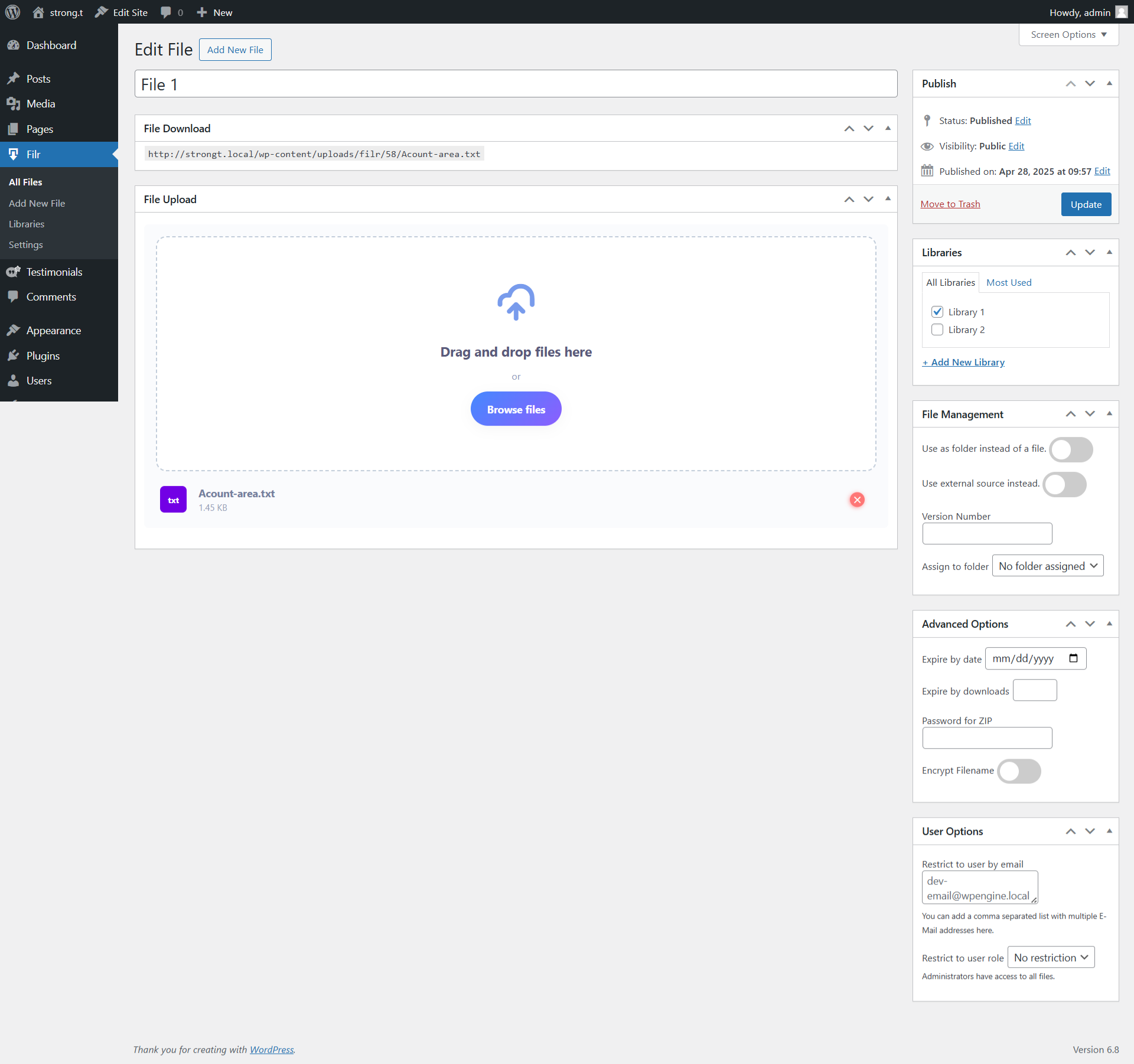
You can also enable Encrypt Filename here to hide the real filename from the download URL.
When you’re done, click Publish.
To display the file on your site, go to Pages > Add New, create a page, and paste the library shortcode into a Shortcode block. Publish the page. Visitors will see the file table with a download button. The first click downloads the file and deactivates the link. You can adjust the table’s appearance in Filr > Settings > Libraries.
Frequently Asked Questions
After the first successful download, the link stops working. The file remains on your server, but that specific download URL no longer responds. You can generate a fresh link for the same file at any time by editing the file in Filr and resetting the download count.
Yes. The Expire by downloads field accepts any positive integer. Set it to 2 for two downloads, 3 for three, and so on. Leave the field blank to allow unlimited downloads with no expiry.
A one-time link expires based on download count — it stops working after N downloads regardless of when they happen. A date-expiring link stops working after a set date, regardless of how many times someone downloaded the file. Filr supports both methods. For the date-based approach, see our guide on 2 ways to expire document downloads in WordPress.
No. Filr stores files in a secure folder outside the Media Library, so they have no public URL by default. The plugin handles file protection as part of the upload process.
Filr works alongside WooCommerce. You can send the Filr page URL (with the library shortcode) as the post-payment download destination. Check the Filr documentation for the most current WooCommerce integration options.
Create Your First One-Time Download Link
A one-time download link in WordPress needs just one setting: upload the file in Filr, set the download limit to 1, and publish. The link stops working the instant someone downloads it, so a forwarded URL never grants a second copy.
Ready to stop worrying about shared links? Get Filr and create your first one-time download link today.