


Business owners frequently need to share documents with employees, clients, or customers for a limited time — without granting permanent access. Contracts valid for a specific window, course materials tied to an enrollment period, or event resources that should disappear after a fixed date all fit this pattern.
To expire download links in WordPress, the most direct approach is to use the Filr plugin. Filr lets you set a precise expiry date on any downloadable file, and it revokes access automatically when that date arrives. Below you’ll find a step-by-step guide to both date-based and count-based expiry methods, so you can choose the one that fits your situation.
Why expire document downloads in WordPress?
Setting an expiry date on a WordPress download gives you precise control over how long users can access a file — with no manual revocation needed. Filr has supported date-based download expiry in WordPress since 2020, covering file types from PDFs and spreadsheets to images and videos. Here are four use cases where that expiry control solves a real problem:
Online courses and membership sites
Membership site owners can expire document downloads by date so students lose access when their enrollment period ends. Course videos, workbooks, and supplementary files stay available only while the membership is active. Once it lapses, access disappears automatically — no admin follow-up required.
Digital agencies
Agencies can set project files to expire at the end of a contract. Clients get a defined window to review deliverables and provide feedback, and access closes on schedule. That removes the manual step of revoking permissions after the project wraps up.
Event organizers
Registration forms, session recordings, and slide decks can all expire after the event date. This keeps your downloads page current and stops out-of-date material from circulating once the event has ended.
Intranet and internal teams
If your company uses an intranet site for internal document sharing, expiry dates are a practical access-control tool. Managers can set license keys, policy drafts, or sensitive files to expire on a specific date the moment they upload them — so the clean-up builds itself in from the start.
How to expire download links by date in WordPress
Filr supports date-based expiry for over a dozen file types, including PDFs, Word documents, Excel spreadsheets, images, videos, audio files, and PSDs. Once the expiry date passes, front-end users can no longer access or download the file — while the file itself stays safely in your WordPress media library.
Here’s the step-by-step process:
Step 1: In your WordPress admin, go to Filr > Add New. Enter a title for your file, then upload the document or file you want to make downloadable. If you upload multiple files at once, Filr automatically packages them into a single zip archive.
Step 2: Assign the file to an existing library or create a new one. The library controls how the file appears in the table layout on the front end.
Step 3: In the Advanced Options meta box on the right-hand side of the screen, find the Expire by date field and set the date you want the download to stop being available.
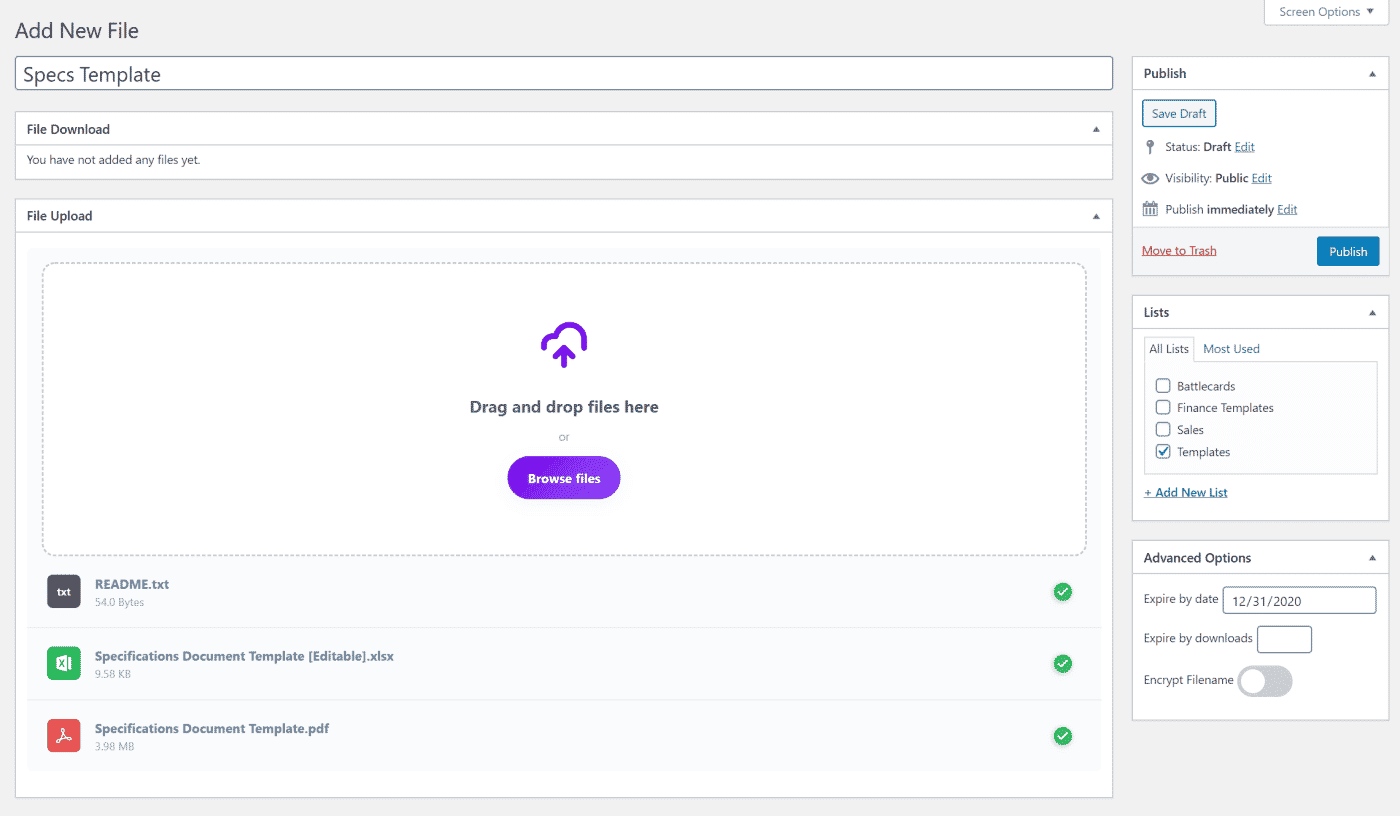
Step 4: Click Publish to save.
Step 5: To display the file on a page, add the [filr library="templates"] shortcode in a shortcode block on any page. The table shows all active files with download buttons. Once the expiry date passes, the file becomes unavailable to front-end visitors.
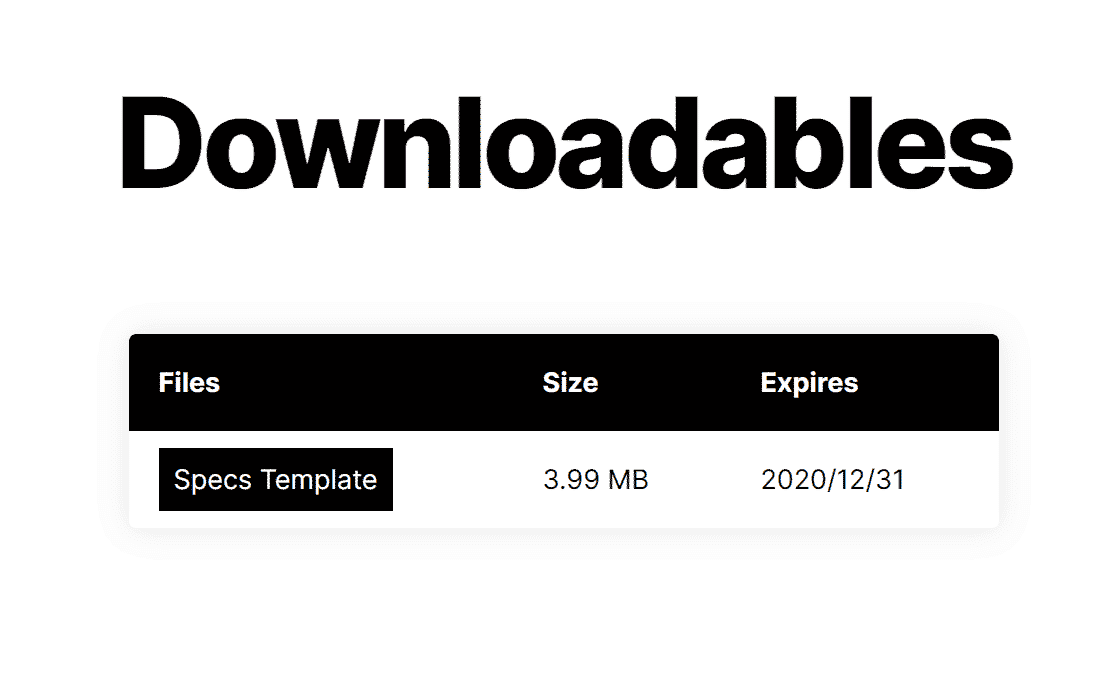
A practical tip: set the expiry date a day after your actual deadline rather than on the day itself. That way, users in different time zones all get a full window of access before the link closes.
How to limit downloads by download count
Filr also supports count-based download limits, where access closes after a set number of downloads rather than on a fixed date. You set a download cap in the same Advanced Options meta box — Filr tracks the total download count for each file in real time — and once Filr hits that cap, the file stops being available to new downloaders.
For a full walkthrough of count-based limits — including how to create single-use download links — see the guide: How to Create One-Time Download Links in WordPress.
What happens when a WordPress download expires?
When a download’s expiry date passes, Filr stops serving the file to front-end users and the download link becomes inactive. Visitors who click the link see a message that the file is no longer available, rather than hitting a 404 error.
On the admin side, the expired file stays in your WordPress dashboard — expiry affects front-end access only, not the stored file itself. As of the April 2025 update, Filr keeps expired file records intact in the admin; you can update the expiry date and republish at any time to restore access.
Frequently Asked Questions
Yes. With Filr, you set a specific expiry date on a file when you upload it. Once that date passes, the download link becomes inactive and front-end users can no longer access the file — while the file itself stays safely in your WordPress admin.
An expired download is a file whose access window has closed. The URL still exists, but the plugin stops serving the file. Users who click the link see a message that it’s no longer available, rather than a download starting.
Install the Filr plugin, go to Filr > Add New, upload your file, and use the Expire by date field in the Advanced Options meta box. Set the expiry date, publish, and display the file using the [filr library="templates"] shortcode on any page.
Yes — Filr supports count-based expiry as well. For a full step-by-step guide, see How to Create One-Time Download Links in WordPress.
—
Setting expiry dates on download links is one of the most efficient ways to manage time-sensitive document access in WordPress. Upload the file, set the date once, and Filr handles access control automatically from there.
Expire Your WordPress Download Links Today
Expiring a WordPress download link takes one setting: add an expiry date or a download-count limit in Filr’s Advanced Options, then publish. Filr enforces the cutoff automatically, so a shared link stops working the moment it’s meant to — no manual cleanup, no extra plugin.
Ready to put a shelf life on your downloads? Get Filr and start expiring links today.