


A direct access link in WordPress is a URL that carries an encrypted token. Anyone who clicks it can view the destination page or download the file without entering a password — the token acts as a built-in key that the site validates in the background and unlocks the content automatically.
This tutorial covers two ways to create direct access links in WordPress. The first method grants users access to password-protected pages and posts. The second lets you share downloadable files. There’s also a bonus method that combines both approaches into a single link.
When you might need direct access links
Direct access links solve a specific friction point: you have protected content, and you want certain people to reach it without fumbling with a password.
Here are the most common scenarios where direct access links make sense:
- Email campaigns and newsletters. Drop a direct link into an email so subscribers land on the gated resource with a single click — no password box to lose them.
- Client and partner access. Share a private project page or report with a client without setting up a full user account.
- Paid or one-time content delivery. Send customers a link to restricted content right after purchase — no extra steps required.
- Internal file sharing. Make sales templates or onboarding documents available to your team via a link they can bookmark or forward.
- Stakeholder previews. Give a collaborator temporary access to an unpublished or restricted page without creating a login for them.
Direct access links also remove a backend burden. Instead of keeping track of multiple passwords and sending them out separately, you generate one encrypted link per piece of content. Users never see a password; they just click and get in. Passster — the plugin used in Method #1 below — has over 10,000 active installations on WordPress sites (wordpress.org, 2026), which reflects how widely WordPress teams rely on direct-access link workflows.
How to create direct access links in WordPress
WordPress gives you two distinct tools for creating direct access links — one for password-protected pages (Passster) and one for downloadable files (Filr). The method you choose depends on what you’re sharing.
Method #1: Grant access to restricted content
The easiest way to create direct access links for password-protected pages and posts in WordPress is with the Passster plugin.
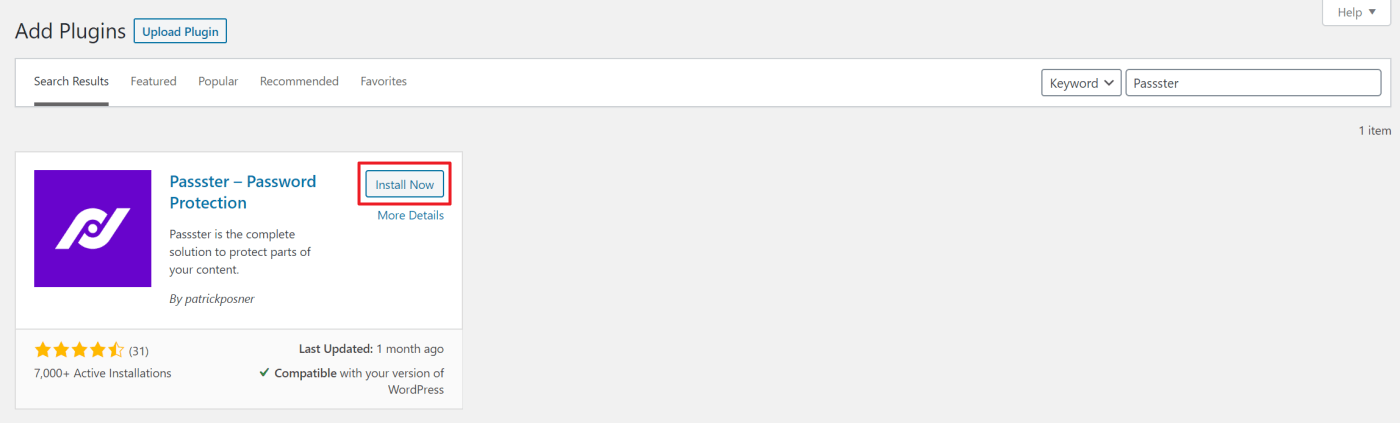
Install and activate Passster on your WordPress site. Then open the page or post you want to protect in the Edit screen. You’ll find Passster settings in the sidebar on the right.
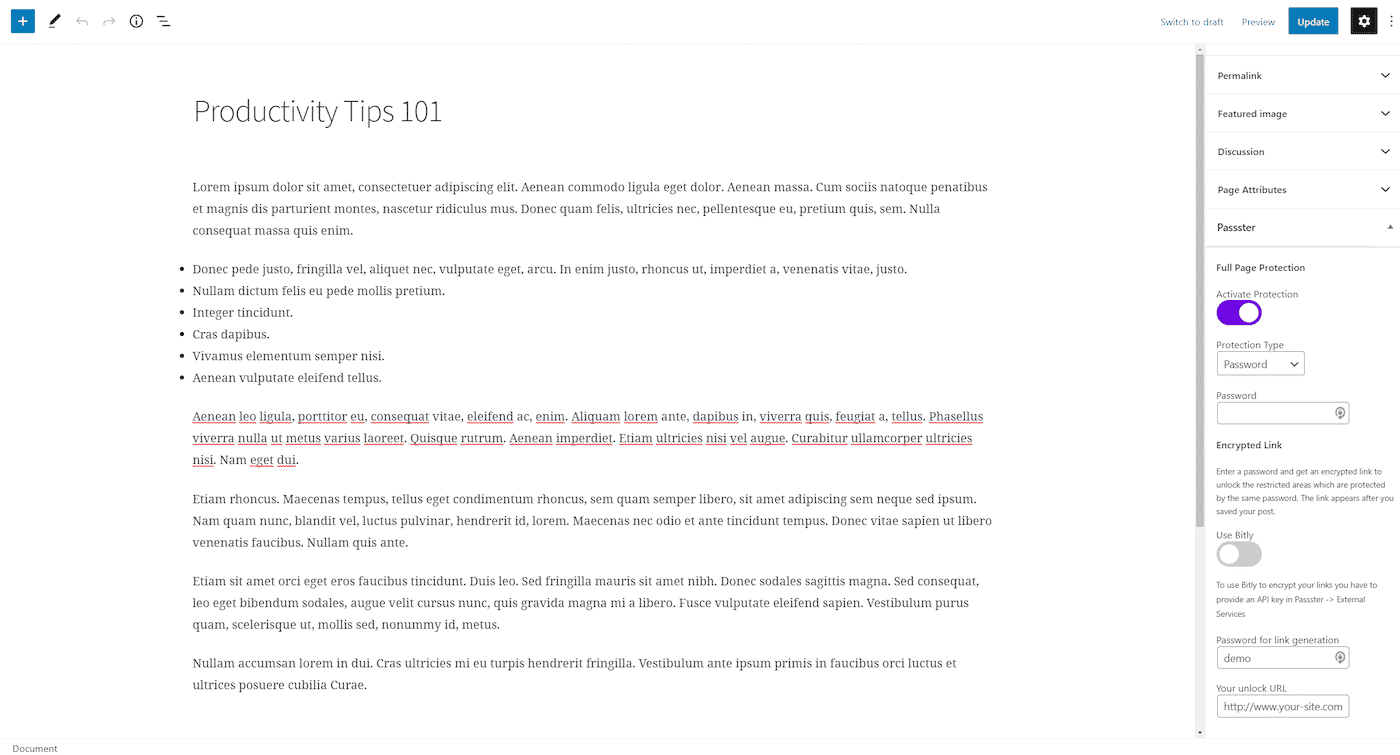
Toggle Activate Protection on and set Protection Type to Password using the dropdown. Enter a password in the Password for link generation field. This is the password Passster embeds into the encrypted link — users never type it themselves.
Optionally, toggle Use Bitly on to shorten and further encrypt your links. To use this option, go to Passster > External Services and add your Bitly API key.
When you save the page, Passster generates the direct access link automatically. It will look something like this: http://www.your-site.com/productivity-tips-101/?pass=ZGVtbwjk
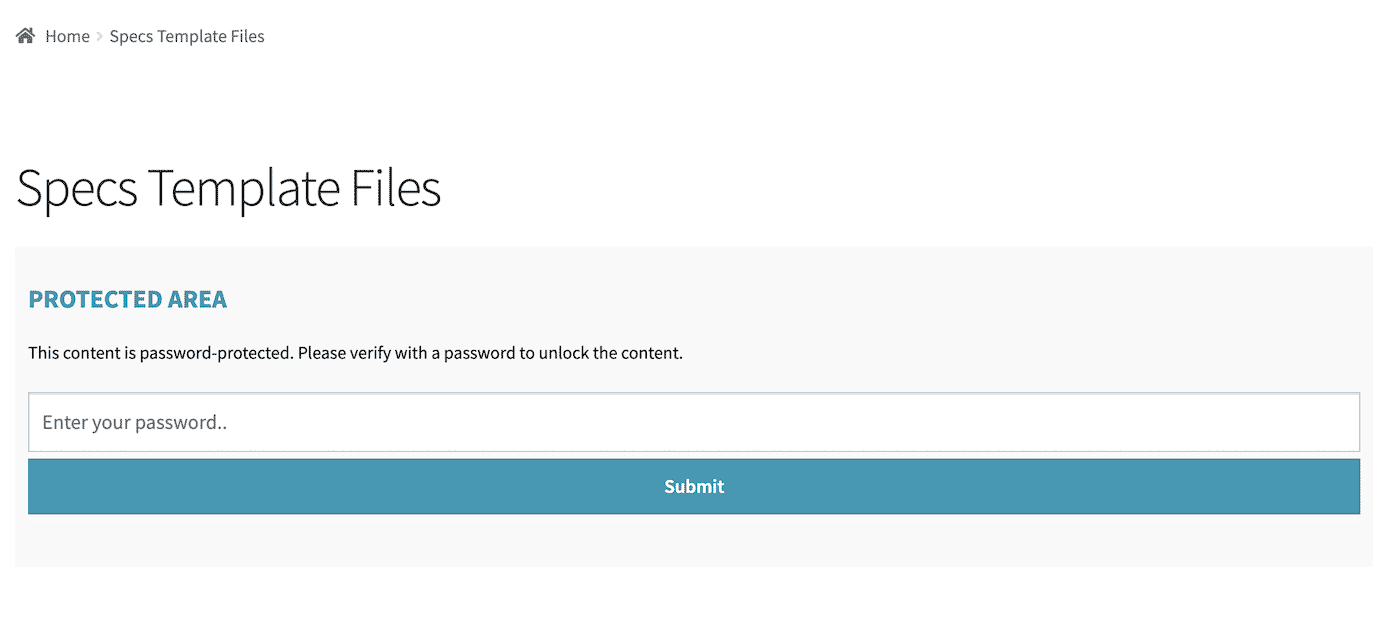
Share that link with anyone who should have access. They click it, the plugin validates the token, and the page opens — no password prompt, no extra step.
Security note: Because Passster embeds the password in the URL, treat the link itself as the credential. Avoid posting it publicly. If you need a link that expires after one use, see our guide on one-time download links in WordPress.
Method #2: Share downloadable content
For sharing files — PDFs, templates, documents, videos — use the Filr plugin (also called WP Document Library).
Get the Filr plugin, install it, and activate it on your WordPress site. Then go to Filr > Add New from the admin panel. Give the file a name and use the Libraries metabox on the right to create a library to group your files.
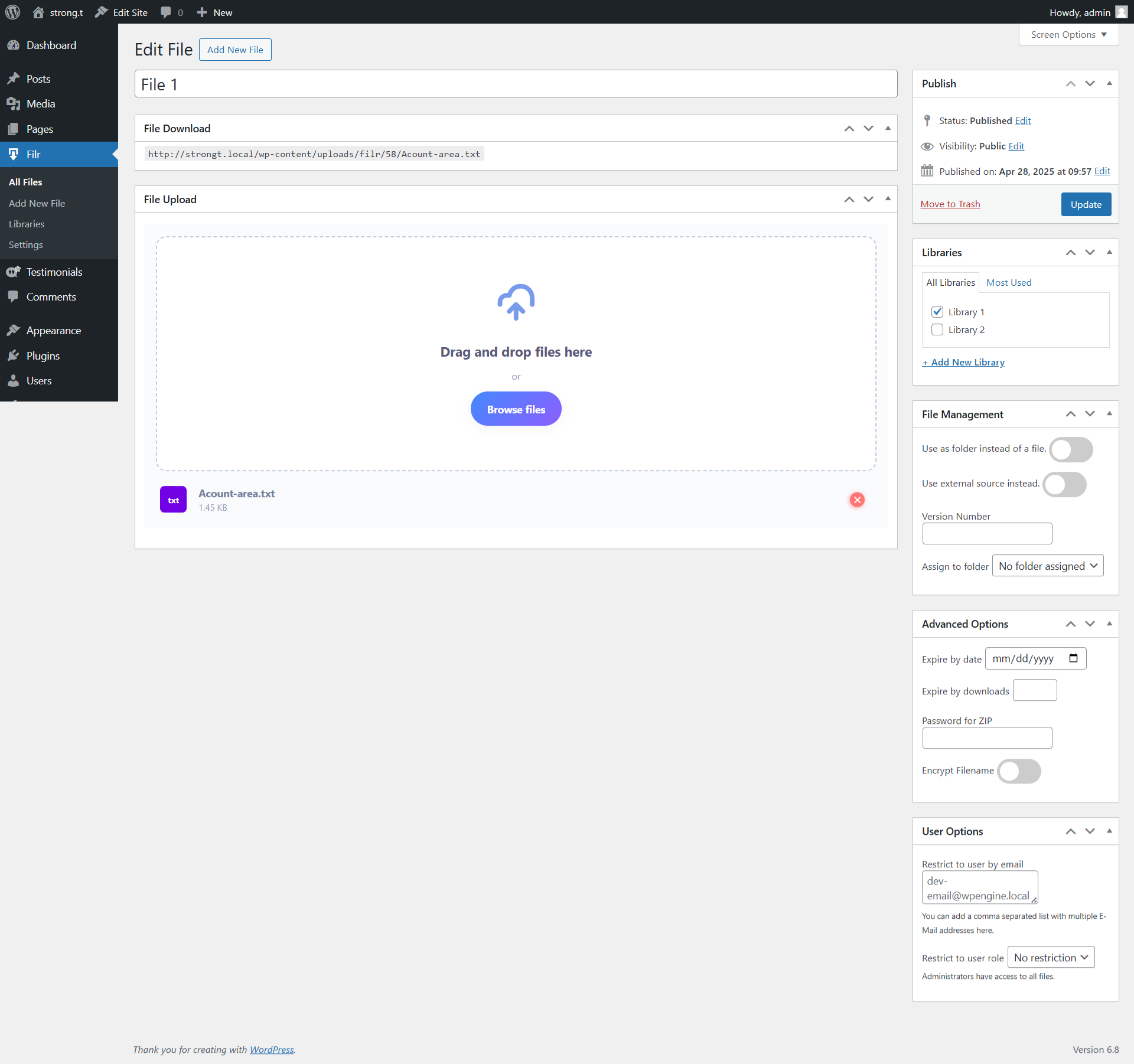
Upload the file (or files) you want to share in the File Upload metabox, then click Publish.

Next, create a page or post where users can download the files. Add a shortcode block and enter:
[filr library="library-name"]Replace library-name with the slug of your library. Then click Publish. The front end will display a clean, downloadable file table.
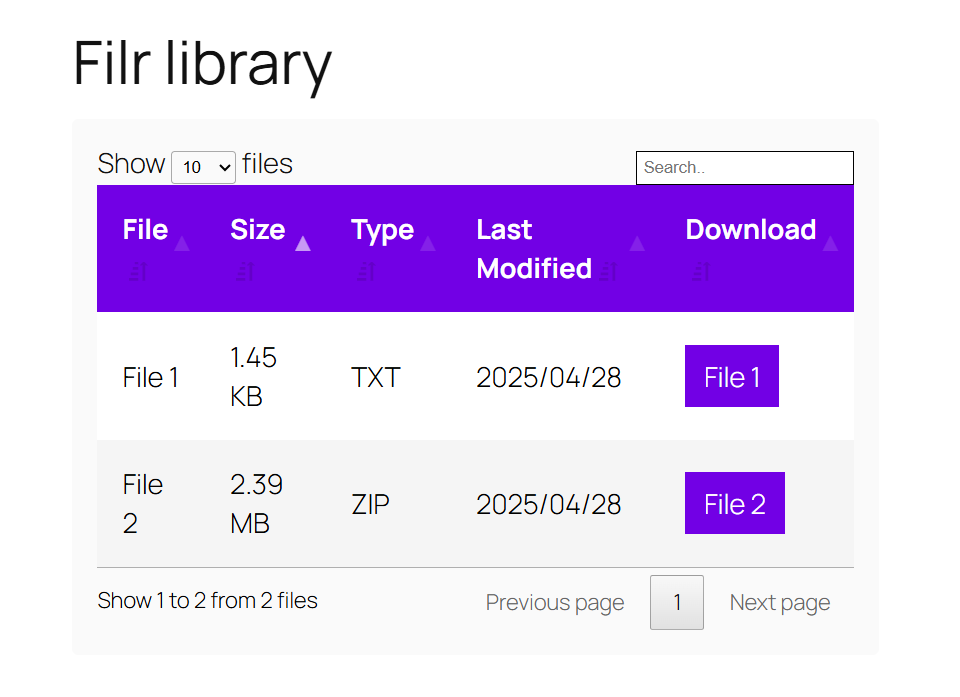
If you upload multiple files, Filr automatically bundles them into a single .zip archive for download.
You now have a page with a direct link to your downloadable resources — share the page URL with anyone who needs access.
Tip: If you need each download link to work only once, our guide on one-time download links in WordPress covers that workflow.
Bonus: Password-protect your document hub
Want users to click a link that both bypasses a password and takes them straight to a set of downloadable files? You can do that by combining Passster and Filr.
First, follow Method #2 to build your document hub — upload files to Filr and add the [filr library="library-name"] shortcode to a page.
Then open that page in the Edit screen. In the Passster sidebar, toggle Activate Protection on, set Protection Type to Password, enter a password in the Password for link generation field, and save.
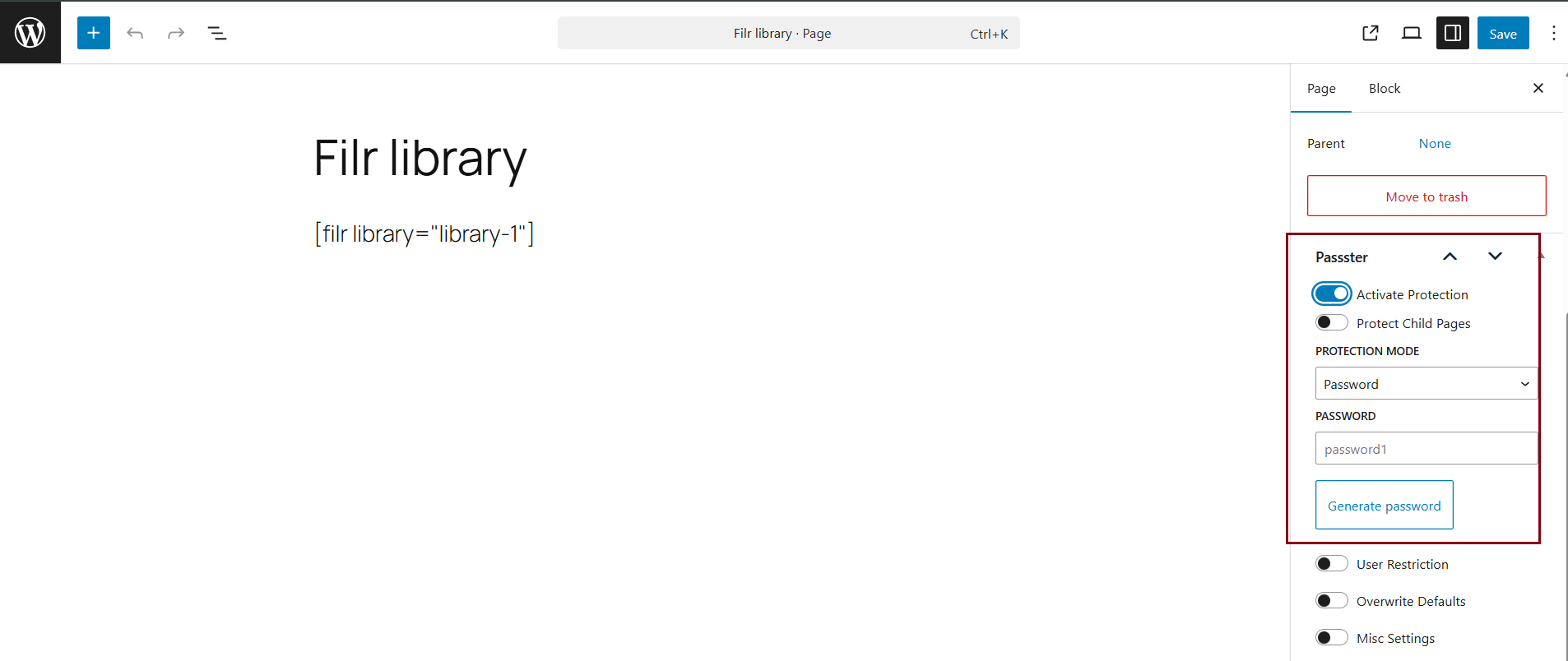
Passster generates a direct access link to the page. Share it with users and they’ll land directly on the password-protected downloadable hub — no password entry needed.
Ready to create direct access links in WordPress?
Direct access links make protected content frictionless for your users. They don’t need to save passwords or know where to look — they just follow a link. This article covered three methods: password-protected page access (Passster), file sharing (Filr), and a combined approach that handles both with a single link.
- To protect pages and posts, use Passster.
- To share downloadable files, use Filr.
- To do both at once, combine the two plugins as shown in the bonus method.
Each approach takes a few minutes to set up. Start with the method that fits your current project and expand from there.
Frequently Asked Questions
A direct access link is a URL that embeds an encrypted token or password parameter. When a user clicks the link, WordPress validates the token automatically and grants access to the page or file — no manual password entry required. The link itself acts as the credential.
Use the Passster plugin. It generates an encrypted direct access link for any password-protected page or post. You share the link; Passster handles the authentication in the background. Users never see or need to enter the password.
Yes. For password-protected content, you can use Passster alongside its access rules. For downloadable files with expiring links, see our guide on one-time download links in WordPress, which covers setting up download links that expire after a set number of uses or a fixed duration.
A direct access link bypasses a password form so a user can view a page or access a resource without typing credentials — the link is reusable (for whoever has it). A one-time download link is single-use: it expires after the first click or download and a second click will not open the content. For one-time download links in WordPress, see our dedicated guide.
Both, for different purposes. Passster creates direct access links to password-protected pages and posts. Filr (WP Document Library) creates direct access links to downloadable files. You can also combine them to create a link that grants password-protected access to a downloadable file library.