

WordPress powers more than 43% of all websites globally (W3Techs, 2025). That reach is impressive — but it means millions of site owners hit the same wall: WordPress built its media library for content publishing, not serious WordPress digital asset management. Once you move past a handful of files, the cracks start to show.
This piece explains what DAM means in a WordPress context, why WordPress works well as an asset management base, and exactly when you need to go beyond the native tools. You’ll also find what features to look for in a WordPress DAM plugin and when it makes sense to integrate something more powerful.
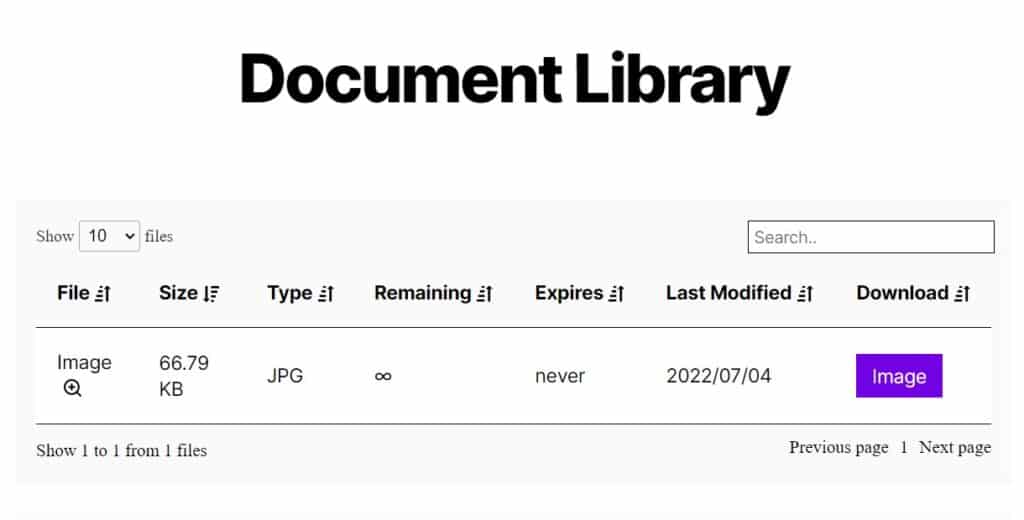
What is a digital asset?
A digital asset is any file or piece of content you have created, own, and can legally use. That includes documents (PDFs, spreadsheets, presentations), images, audio files, video files, brand graphics, product photos, marketing templates, and any other format carrying usage rights.
The key word is rights. A digital asset isn’t just a file sitting on a server — it’s something your business controls and depends on. Losing track of an asset, using an expired version, or sharing the wrong file with the wrong person all carry real costs: rework time, licensing fees, or off-brand content reaching your audience.
What is a DAM? A digital asset management system (DAM) is a secure, central platform for storing, organising, retrieving, and sharing digital assets — with controls over who can view, download, or edit each file. Rather than hunting through folders or relying on team members to remember where files live, everyone in your organisation finds what they need from one location.
What is WordPress digital asset management?
WordPress digital asset management starts with the built-in media library. Every file you upload lands there. From your dashboard, you can view files in a grid or list layout, sort by file type or upload date, and search by filename.
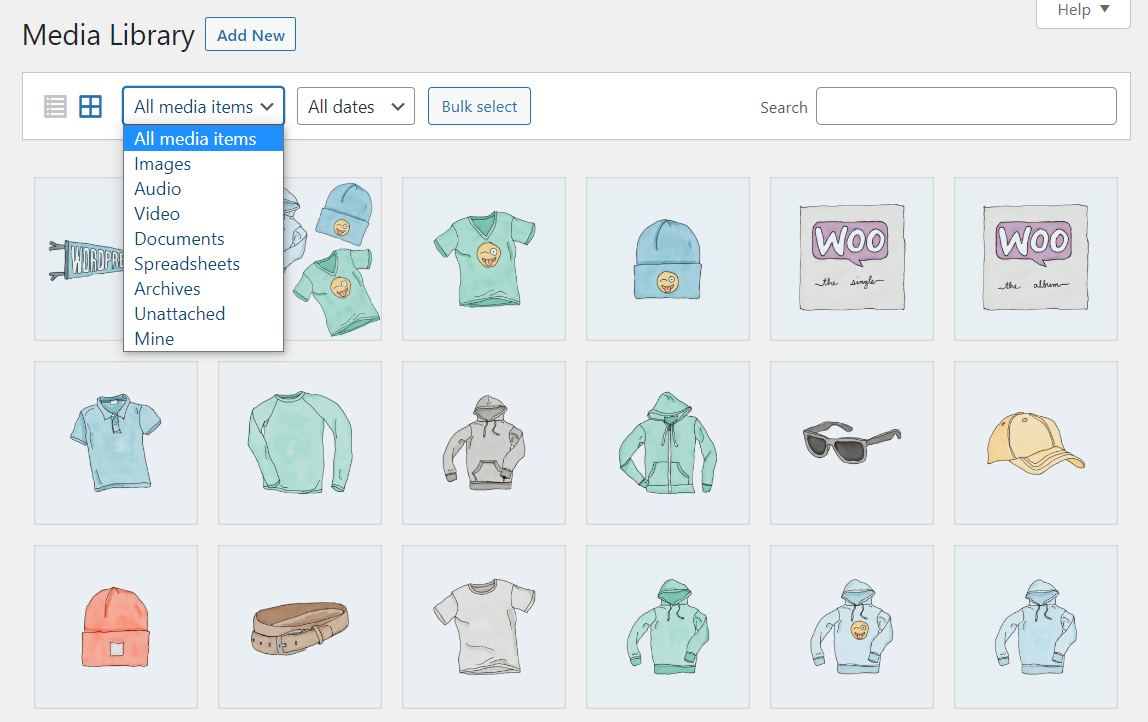
The media library also stores basic file metadata — title, uploader, upload date, dimensions, and alt text. For images, you get a simple in-browser editor for cropping, rotating, and resizing without leaving WordPress.
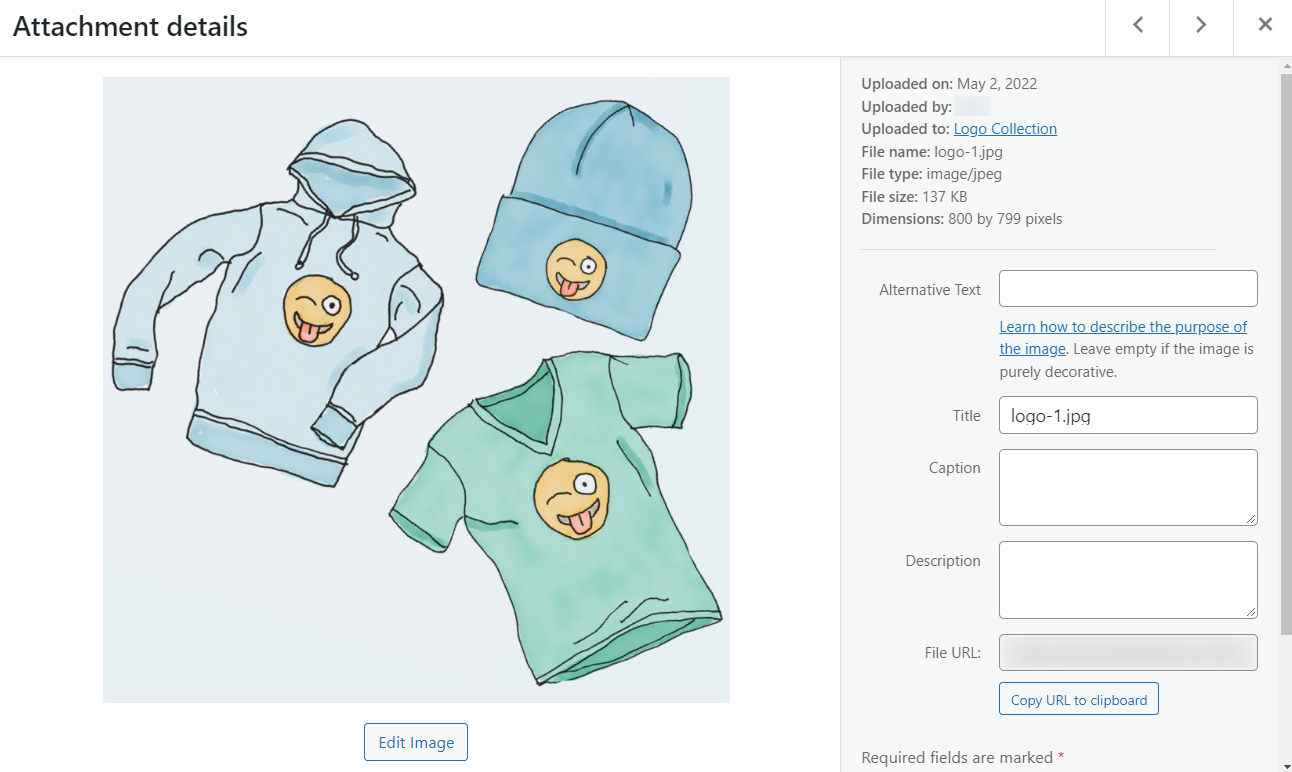
For small sites with a modest file count, this approach works well. If you run a personal blog or a small business site with a few dozen assets, the media library covers your needs without extra setup. Navigate to Media Library from your WordPress dashboard, search for the file you want, and you’re done.
You can also add files directly from your device, assign descriptive metadata, and make them available to any logged-in WordPress user immediately.
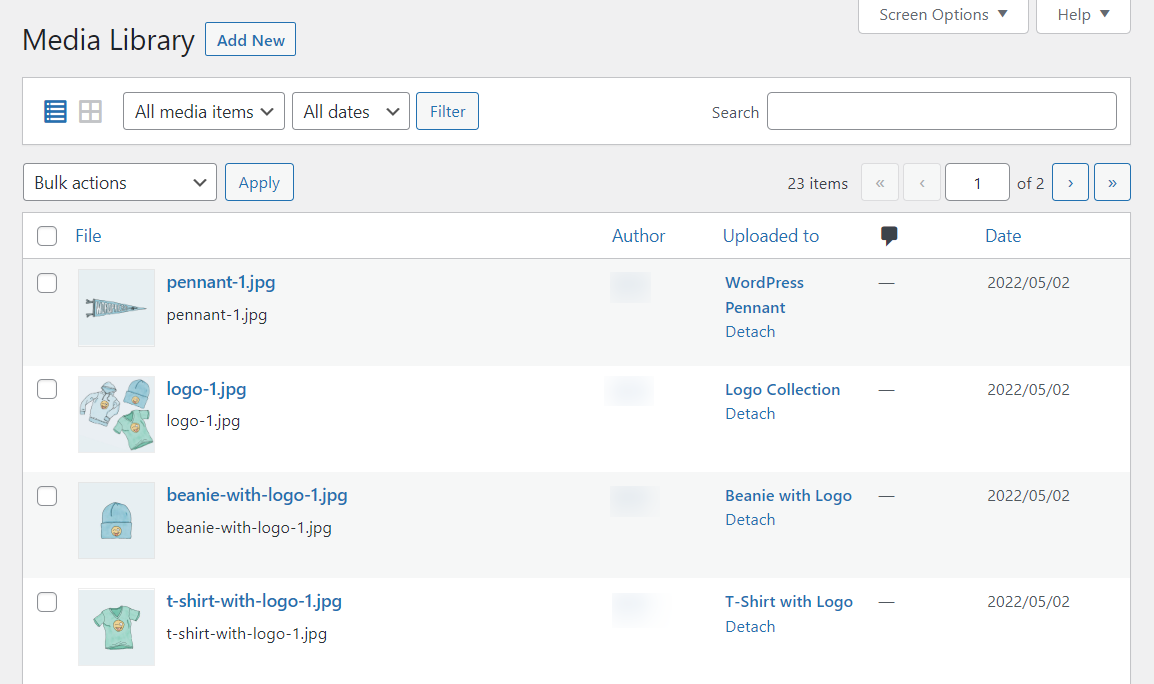
The moment your site grows — in traffic, team size, or asset volume — the media library starts to struggle. Managing hundreds of product images, documents, and brand assets in a flat chronological list isn’t just inconvenient; it actively slows your team down.
WordPress media library vs. a dedicated DAM — what’s the difference?
The WordPress media library and a dedicated DAM both store digital assets, but they handle different scales and use cases. Understanding the gap helps you decide which approach fits your situation.
The WordPress media library is a publishing tool. Its primary job is to make it easy to attach images and documents to posts and pages. It does that job well, but managing hundreds of brand assets across multiple teams and platforms falls outside what it does.
A dedicated DAM organises, governs, searches, and distributes assets at scale. The differences show up across a few key dimensions:
- Folder structure: The WordPress media library has no folder structure. Every file goes into a flat, chronological list. A DAM lets you organise assets into folders, collections, and sub-libraries — the same way you’d expect a proper file system to work.
- Metadata and tagging: WordPress offers only four basic fields (title, alt text, caption, description). A DAM supports custom metadata and tag taxonomies, so you can find a product photo by campaign, colour, geographic market, or any dimension relevant to your workflow.
- Advanced search: In the media library, search covers filenames only. A DAM searches across metadata, tags, and sometimes visual content. Type “blue product packaging Q3 2025” and you’ll find every asset tagged that way, regardless of what filenames the images carry.
- Collaboration and permissions: WordPress grants access to the entire media library or none of it. A DAM gives you granular control — a social media agency sees only the campaign assets you’ve shared with them, while internal designers see the full brand library.
- Version control: WordPress doesn’t track asset versions. A DAM keeps a version history, so you know what changed, who changed it, and can restore a previous version when needed. This matters most for teams that regularly update logos, brochures, or templates.
- Asset governance: DAMs track usage rights and expiry dates. If a licensed stock photo expires next month, the system flags it before you accidentally use it in a new campaign. The WordPress media library has no parallel mechanism.
A common question is whether tools like Google Drive serve as a DAM alternative. The short answer is no. Google Drive handles general document storage and collaboration. A DAM organises, governs, searches, and distributes brand assets at scale — including metadata management, rights tracking, and deep integration with publishing platforms like WordPress.
Why use WordPress for digital asset management?
WordPress makes practical sense as a DAM foundation for most businesses, particularly those already running their website and content on the platform. Four concrete advantages support that choice.
Open-source flexibility
WordPress is open-source software, which means you can extend it without running into a vendor’s platform limits. That flexibility explains why a rich ecosystem of plugins exists for WordPress media management — each one closing a specific gap in what the native tools provide.
Because WordPress is open source, you also avoid lock-in. If your requirements change, you can swap plugins, connect an external enterprise DAM, or add custom functionality on top of your existing installation without starting over.
Cost-effective compared to standalone cloud storage
Dedicated cloud storage services like Dropbox charge per user per month, and those fees compound as your team grows. Dropbox Business Plus, for example, costs $20 per user per month (Dropbox, 2026) — $240 per seat per year for file storage alone, before any DAM-specific features.
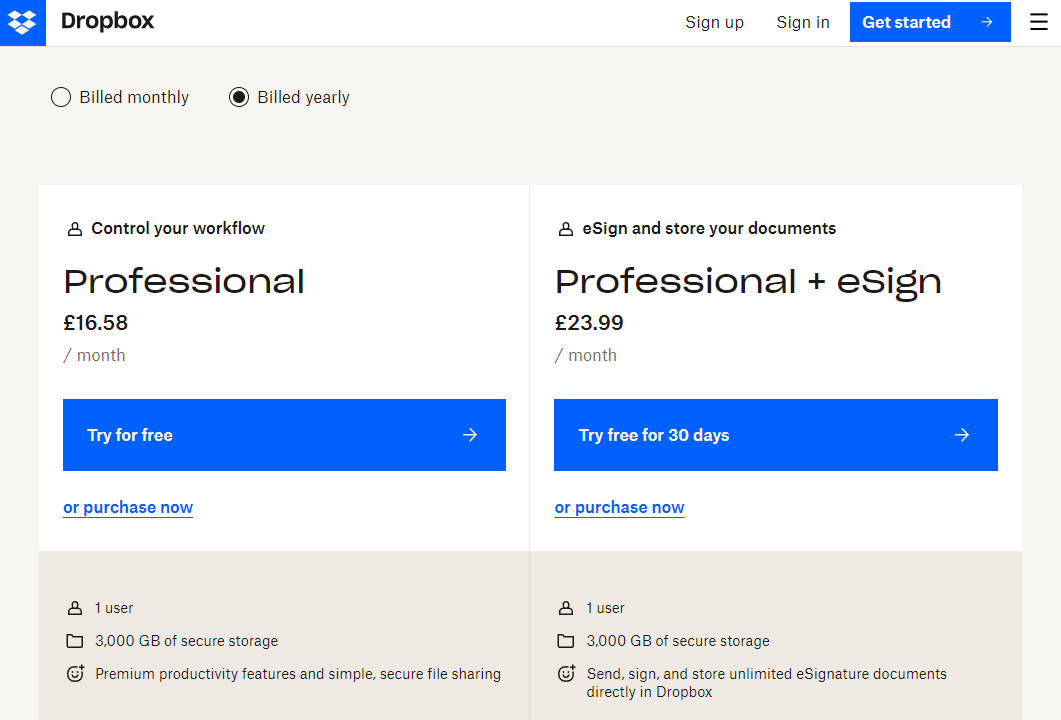
With WordPress, your assets live on your existing hosting plan. Once you cover hosting costs, adding files doesn’t trigger extra per-seat storage charges. For small to mid-sized teams, that cost structure is far more predictable.
Everything in one place
Managing separate tools for your website and your assets creates friction. Your team must context-switch, juggle multiple login credentials, and move files between systems.
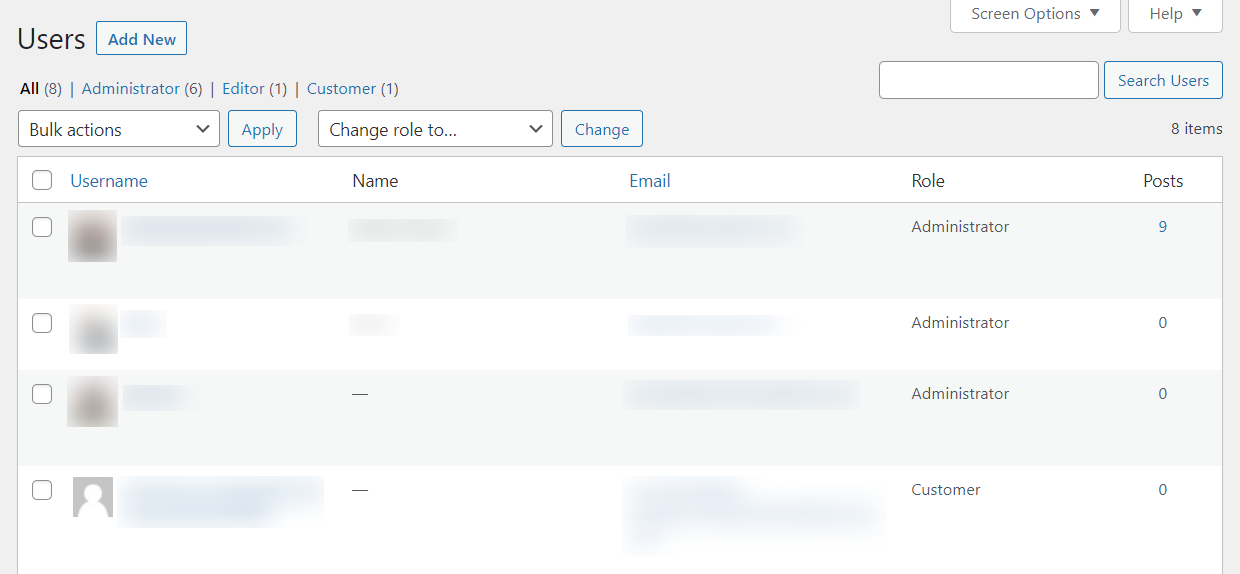
With WordPress, your website, your content workflow, and your digital assets share a single dashboard. Team members, editors, and even customers with the right role log in once and get what they need. Forrester Research notes that DAM systems “decrease time to market with new products and digital experiences, reducing production costs for rich-media assets” — and keeping everything on a platform your team already knows speeds that gain further.
Easy to use
Past the initial setup, WordPress is straightforward to manage without writing code. You can upload files, set metadata, control access, and manage your media library entirely from the dashboard.
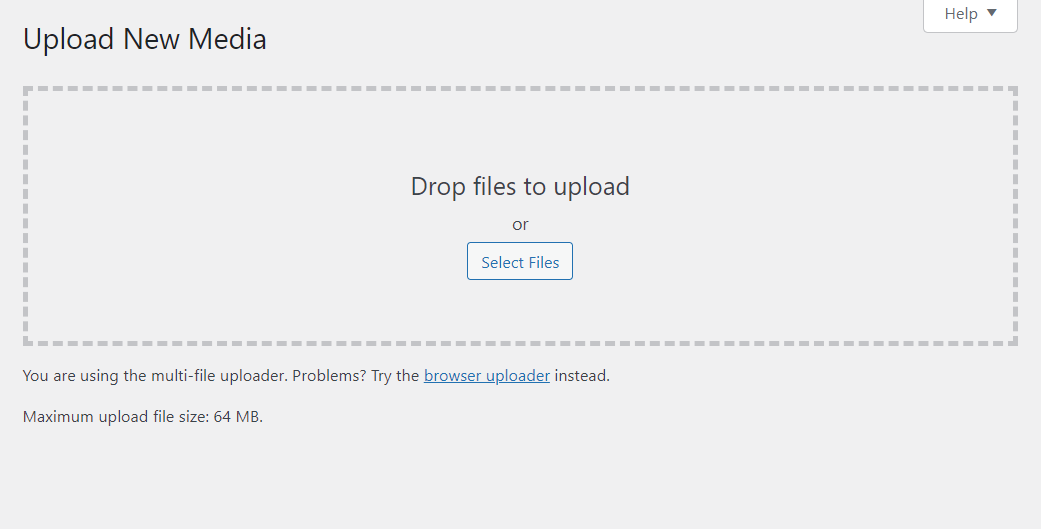
That simplicity matters for non-technical users. The marketing coordinator who needs the latest brand logo, or the sales rep who needs a product sheet, can find what they need without IT involvement. With the right plugin in place, the experience approaches a purpose-built DAM — without the enterprise price tag or the separate login.
What features should a WordPress DAM plugin have?
A WordPress DAM plugin should deliver six core capabilities: search and filtering, metadata and tagging, access control, version control, external storage integration, and asset tracking. Plugins vary widely in depth, so knowing these priorities before committing saves time and avoids switching costs.
Search and filtering should come first on your checklist. You should be able to find any asset quickly by name, file type, category, tag, or custom field. Advanced filtering — specifically the ability to combine criteria — is the feature users miss most when stepping up from the basic media library. Some plugins add AI-powered search that matches visual descriptions, which becomes valuable once your library reaches hundreds or thousands of files.
Metadata and tagging determine how well you can organise assets to match your actual workflow. Custom metadata fields let you add dimensions the core WordPress media library doesn’t support: campaign name, product line, rights expiry date, intended channel, or whatever categorisation matters to your team. AI-powered auto-tagging, available in some tools, can speed this process for large existing libraries.
Access control becomes essential once more than one person touches your assets. Granular permissions let you decide who can view, download, edit, or delete specific files or file groups. This protects brand consistency (stopping the wrong logo version from going out) and security (keeping external collaborators away from internal documents).
Version control prevents teams from working on outdated files. When someone uploads a revised product brochure, the old file moves to archive rather than disappearing, and everyone has the current version automatically. This one feature eliminates a category of rework that regularly costs active teams real time.
External storage integration lets some businesses keep assets in Dropbox, AWS S3, Google Drive, or another service while displaying and managing them through WordPress. Plugins that support external storage references let you keep your existing infrastructure without a full migration.
Asset tracking and download analytics are a bonus worth looking for if you share documents with external stakeholders. Knowing how often a file gets downloaded, by whom, and when helps you identify which assets earn their place and which you can remove from your library.
Larger enterprises sometimes go further, connecting a cloud DAM — such as Cloudinary, Canto, or Bynder — directly to WordPress via a plugin connector or API. That hybrid approach delivers enterprise-grade governance (AI metadata, rights management, cross-channel delivery) while keeping WordPress as your publishing layer. It works well for brands that need to push the same asset library to their website, social channels, and marketing automation tools at the same time.
Why you should use a WordPress plugin for digital asset management
A solid digital asset management system lets you create, store, organise, find, retrieve, edit, and share files from one secure place.
The native WordPress media library handles the basics. However, it falls short on organisation at scale. It can sort assets by file type and date, but it can’t classify them into a taxonomy that reflects how your team actually works. If you manage dozens of files with one or two contributors, the media library is fine. Once you’re managing hundreds of files across multiple teams or content types, you’ll hit its limits quickly.
The WordPress media library handles basics well, but it underperforms when organising files at scale. The flat structure, limited metadata, and absence of permission controls aren’t quirks — they reflect what the media library does.
A WordPress plugin purpose-built for document and asset management closes that gap. The right plugin turns the default media library into a structured, permission-controlled, searchable system.
WP Document Library (Filr) is the recommended starting point. With over 900 active installs on WordPress.org (WordPress.org, 2026), Filr combines document library management with strong security features — encrypted URLs, role-based access controls, file expiry by date or download count, and external storage support — in a clean interface that doesn’t require developer involvement to configure. It also supports frontend file uploading, so authorised users can submit files directly from your public-facing site.
For a full comparison of the best WordPress digital asset management plugins — Filr and the leading alternatives — see the dedicated guide: Best Digital Asset Management Plugins for WordPress.
Get started with WordPress digital asset management today
Open-source, cost-effective, and already central to your content workflow, WordPress makes extending it with a plugin the natural next step — not a platform migration.
The built-in media library works for small sites. Once you’re managing significant file volumes, working across a team, or needing precise control over who accesses what, you need more than a flat image grid.
Filr gives you the organisation, security, and access control the native media library can’t provide. With it, you can build a document library that is searchable, permission-controlled, and designed to scale — without leaving the WordPress environment you already work in.
Frequently Asked Questions
No. Google Drive is a general cloud storage and document collaboration tool. A digital asset management system (DAM) is purpose-built to organise, govern, search, and distribute brand assets at scale. DAMs support custom metadata, usage rights tracking, granular permissions per asset, and version history — none of which Google Drive provides. For teams managing brand assets across multiple channels, a DAM offers governance and search capabilities that Drive cannot match.
The most effective approach is to use a WordPress DAM plugin that adds folder structure, custom metadata, and access controls on top of the native media library. For smaller libraries, the built-in media library works with consistent naming conventions. For larger collections or team environments, a plugin like Filr lets you classify assets by category, set permissions per user role, and search by custom tags — making files far easier to find and share.
WordPress itself is free and open-source. Your main costs are hosting (typically $10–$50 per month depending on provider and scale) and a DAM plugin if you need advanced features. A purpose-built plugin like Filr starts at $49 per year for the pro version — far less than standalone DAM platforms or per-seat cloud storage subscriptions, which can run $240 or more per user per year.
Digital asset management (DAM) is the practice of storing, organising, and governing digital files — images, documents, video, brand assets — in a centralised, searchable system. For WordPress site owners, it matters because the default media library has no folder structure, limited metadata, and no granular access controls. As your asset library grows, a structured DAM approach (via plugin or integration) reduces search time, prevents version errors, and keeps brand assets consistent across teams.
You need a DAM plugin when any of the following apply: you manage more than a few hundred files, multiple team members upload or use assets, you need to control which users can access specific files, or you share assets across more than one channel (website, email, social). The media library works well for simple, single-user sites. As soon as collaboration, volume, or access control enters the picture, a plugin pays for itself quickly.