


Managing who can access your downloadable files is one of the more practical challenges WordPress site owners face. Whether you’re sharing client reports, member resources, or paid digital products, you need a way to control access — without making users create an account or jump through hoops.
Password protecting your downloads solves this directly. Users enter a password to get access. Everyone else gets nothing.
Why password protect your WordPress downloads
The most common reason is access control. Freelancers often need to share a portfolio or project files with specific clients only. Membership site owners gate resources to paying members. Sellers of digital products — PDFs, templates, video files — need to ensure only buyers can download them.
WordPress has a built-in password protection feature for pages and posts, but it has one important limitation: it protects the page, not the file. Anyone who obtains the direct file URL can bypass the page and download the file without entering a password. A plugin approach is more reliable for actual WordPress download protection. Passster — the plugin used in this tutorial — has over 10,000 active installs on WordPress.org (as of June 2026), which reflects how common this need is across WordPress sites.
There’s also a practical management reason. Once you’ve issued a password, you can revoke access by changing it — without touching user accounts or roles. For a small group of trusted contacts, that’s often the simplest solution available.
If you need to restrict downloads by user role — letting logged-in subscribers download while blocking guests, for example — our guide to restricting downloadable files in WordPress covers that approach in detail.
Single password vs. multiple passwords: which do you need?
Before setting up password protection, it’s worth deciding which method fits your situation.
Single password protection gives every user the same password. It’s the simpler option and works well when you have a small, trusted group — or when you want to gate a resource temporarily, such as a pre-launch preview.
Use single password protection when:
- You’re granting access to a handful of clients or contacts and simplicity matters more than individual control
- You want quick, low-maintenance access gating without managing a password list
- Users don’t need individual access management — one password fits all
Multiple password protection assigns a different password to each user or group. This lets you revoke one person’s access without affecting everyone else — useful when managing a larger contact list or segmented membership.
Use multiple passwords when:
- You have different customer tiers (for example, bronze, silver, gold members)
- You need to revoke individual access without changing the password for all users
- You’re distributing to a large list where per-user control matters
The free version of Passster covers single password protection. For multiple passwords and bulk password lists, you’ll need Passster Pro.
How to password protect downloads in WordPress step by step
For this tutorial, you need two plugins: Filr (for document library management) and Passster (for password access control). Filr handles file storage, organization, and display; Passster controls who can access those files.
Step 1: Create a document library with Filr
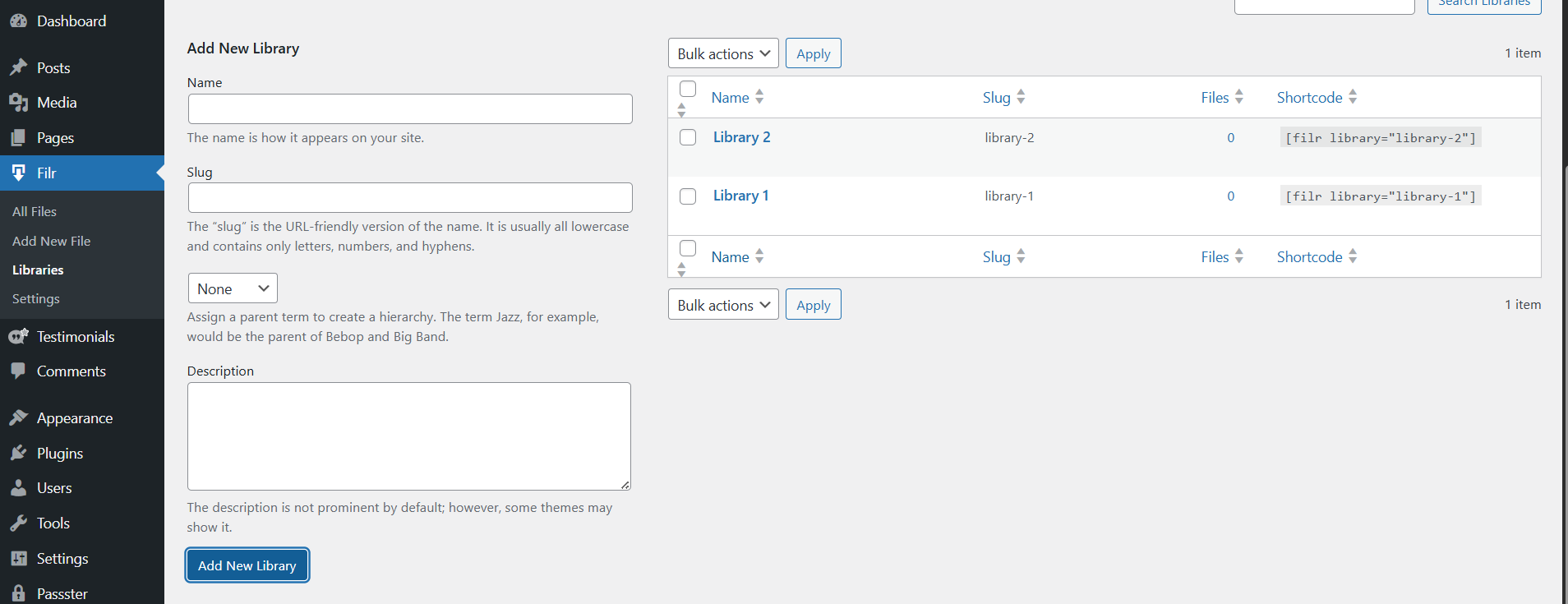
WordPress protect downloads starts with organizing your files. Go to Filr > Libraries from your WordPress dashboard, give the library a name and description, then click Add New Library.
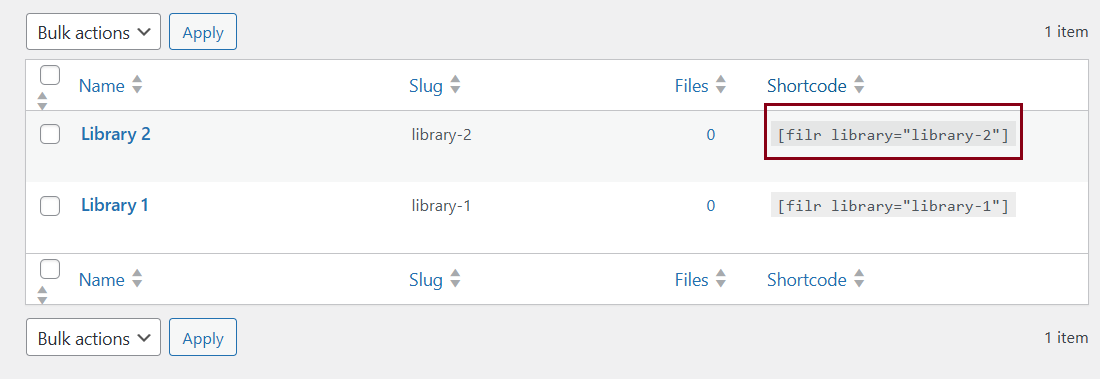
The new library appears on the right side of the page alongside a shortcode. Copy that shortcode — you’ll need it in Step 3 to display the library on the front end.
Step 2: Upload your files
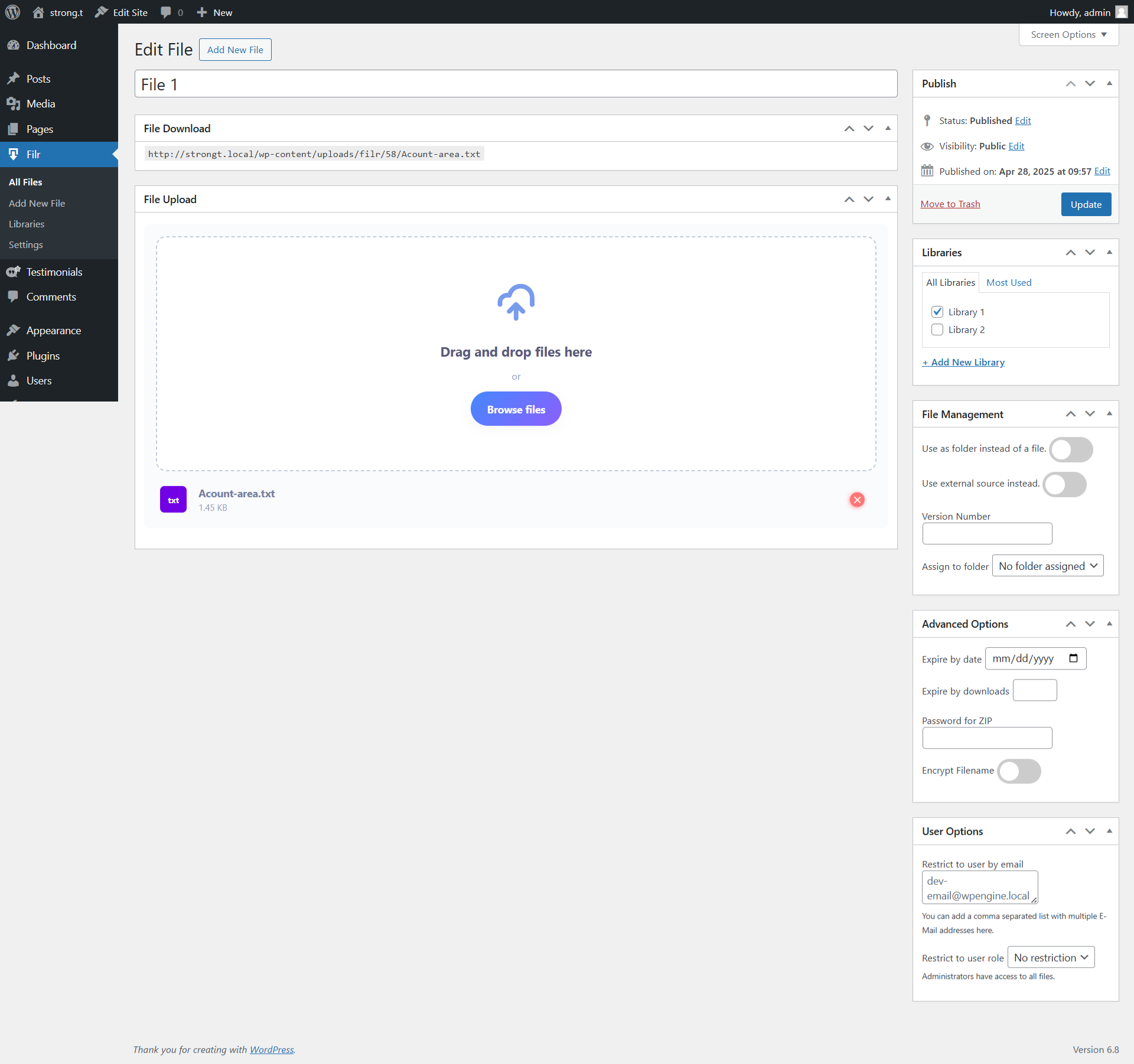
Go to Filr > Add New to upload your downloadable files. Give each file a name, upload it using the File Upload meta box, then assign it to the library you created in Step 1 using the Libraries meta box on the right.
You can also set expiry rules at this stage:
- Expire by date — the file becomes unavailable after a specific date
- Expire by downloads — the file expires after a set number of downloads
Pro tip: Enable the Encrypt Filename toggle to hide the real file URL. This closes the direct-access vulnerability that native WordPress protection leaves open — users can’t bypass your password gate by guessing the file URL.
Click Publish when done.
Step 3: Add the document library to a page
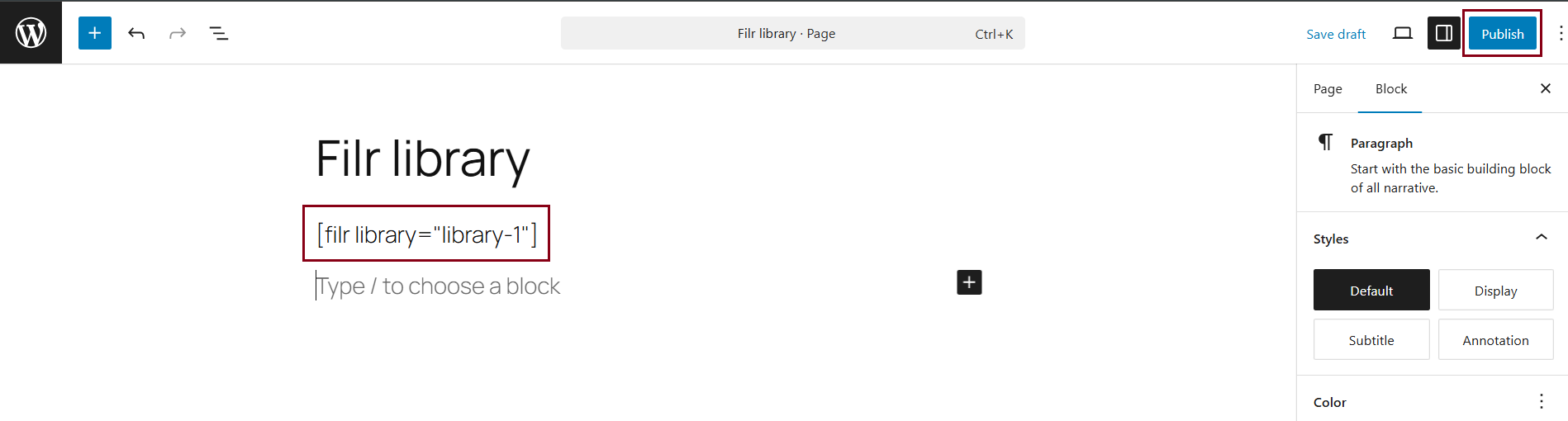
Create a new page (Pages > Add New), paste the Filr shortcode from Step 1 into a Shortcode block, and publish the page.
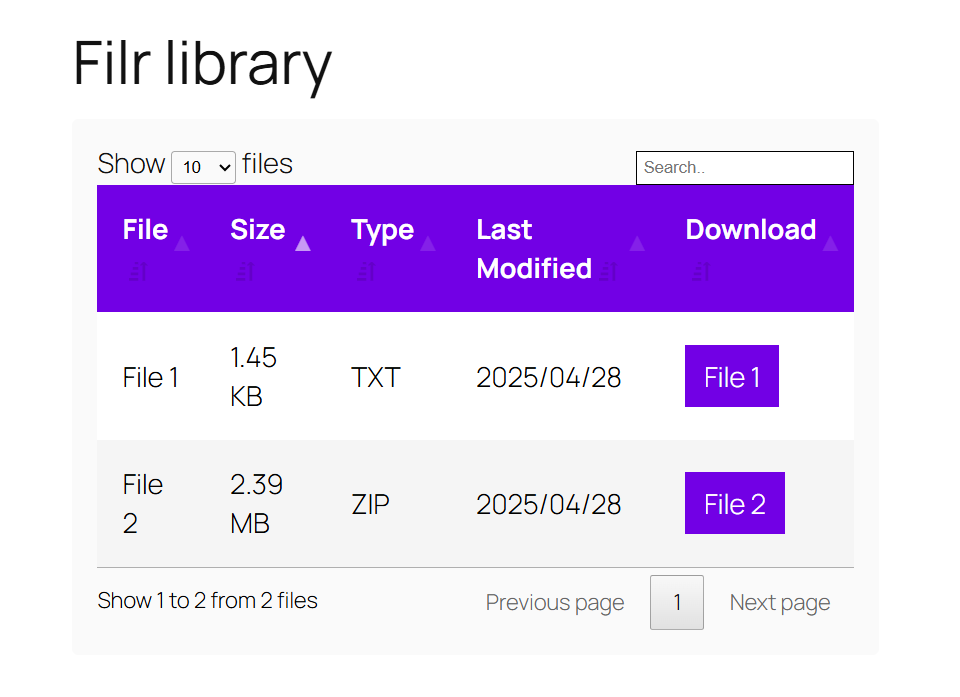
Your document library will appear on the front end with a downloadable files table. Visitors click the download button in the Files column to access files. You can customize the library’s appearance — columns, sorting, style — from Filr > Settings > Libraries > Shortcode tab.
Step 4: Add password protection with Passster
Now add the password gate. Go to Plugins > Add New, search for “Passster,” and install and activate the Passster – Password Protection plugin.
Navigate to the page where you added the Filr shortcode. In the page editor, open the Passster metabox. Set the Protection Mode to “Password,” then enter your chosen password in the field that appears.
Save the page. Visitors who reach that page now see a password prompt. Once they enter the correct password, the library becomes visible and they can download files normally.
To revoke access, change the password in the Passster metabox and save. Anyone using the old password loses access immediately.
For multiple passwords or bulk password lists, upgrade to Passster Pro. Passster Pro lets you issue a unique password to each user and revoke individual access without changing the password for everyone else.
Frequently Asked Questions
Not with WordPress’s built-in protection — anyone with the direct file URL can still download it, bypassing the page. The Filr + Passster combination closes this gap: Filr’s filename encryption hides the real file URL, while Passster gates the page that displays the download link.
They see a password entry form rather than the download library. Once they enter the correct password, the Filr document library appears and they can download files as normal.
Yes. Passster protects the entire page, so every file in the Filr library on that page sits behind the same password. Users enter the password once and get access to all files shown.
Password protection shares a key with the people you want to grant access — no user account required. Role-based restriction requires users to register and log in first. For simple, account-free access control, password protection is the right fit. For ongoing access tied to subscriptions or memberships, role-based restriction works better — see our guide to restricting downloadable files in WordPress.
Wrapping up
Filr and Passster together give you a complete WordPress download protection setup: an organized document library on the front end and a password gate that protects actual file access. Single password protection handles most straightforward scenarios; Passster Pro adds multiple password support for more complex use cases.
Ready to get started? Grab Filr and Passster to set up password-protected downloads on your WordPress site.