

A WordPress PDF library lets you store, organize, and share PDF files on your website — far beyond what the native WordPress media library can offer.
If your site includes downloadable ebooks, policy documents, product manuals, or any other PDFs, a dedicated PDF library gives you full control. You can organize files into folders, restrict who downloads them, add an in-page PDF viewer, and display a filterable, searchable library your visitors can actually use.
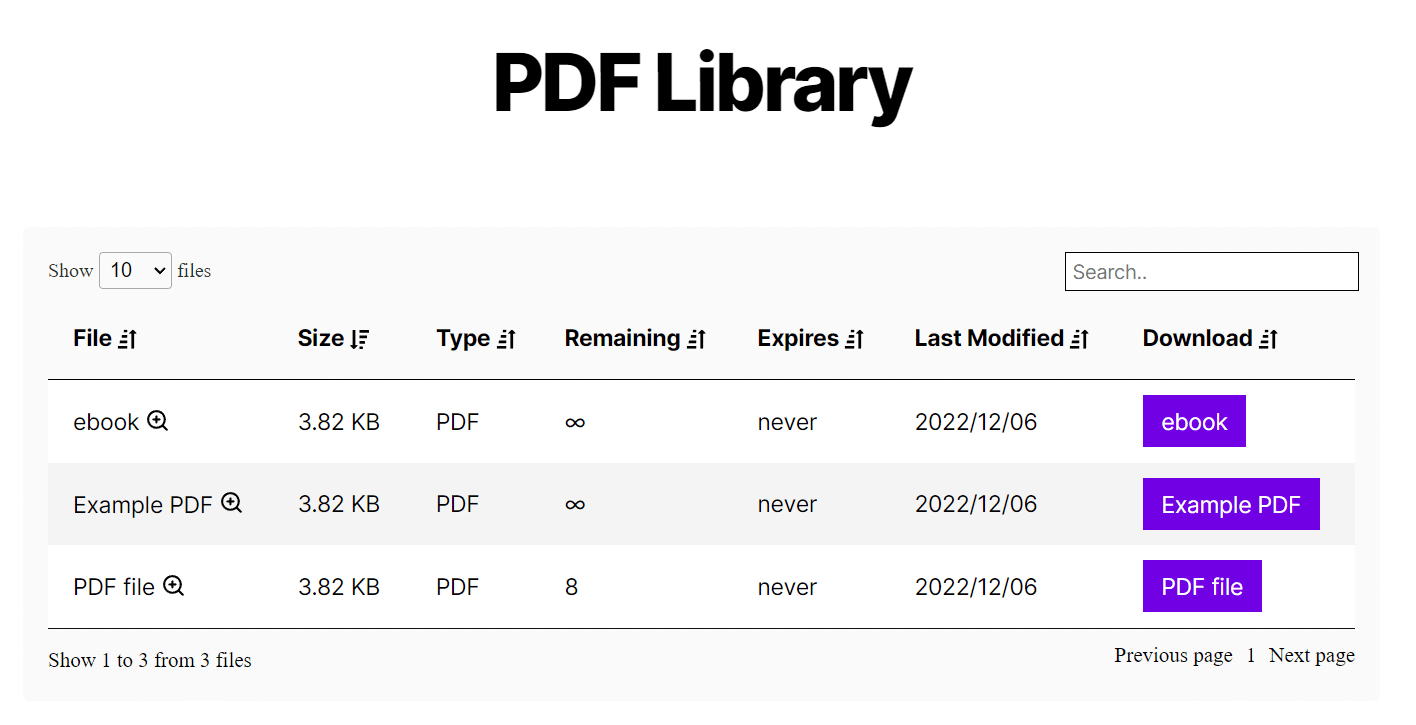
The following steps walk through setting up your own WordPress PDF library using Filr — the WP Document Library plugin built for this exact purpose.
What is a WordPress PDF library?
A WordPress PDF library is a dedicated storage and display layer for PDF files on your WordPress site, separate from the native media library. It lets site owners upload, organize, and display PDFs with search, filtering, access controls, and a built-in PDF viewer — capabilities the default WordPress media library does not provide.
A WordPress PDF library works in two ways:
- As a private backend — store and manage PDFs for yourself or logged-in users, without exposing them publicly.
- As a public frontend library — display a searchable, filterable PDF collection on any WordPress page so visitors can browse and download files easily.
Either way, a PDF library makes finding and sharing documents far simpler than digging through a cluttered media library.
Why build a dedicated WordPress PDF library?
PDFs are the web’s most portable document format. They display identically on any device, recipients can’t edit them, and anyone can open them without special software. That makes PDFs the default choice for contracts, guides, reports, and anything else that needs to look professional and consistent.
WordPress built its media library for images and videos — not for managing dozens or hundreds of PDFs. Finding a specific document in a mixed-media library is frustrating, and there’s no native way to add download restrictions, expiry dates, or a proper in-page viewing experience.
A WordPress PDF library plugin solves these problems. Specifically, you get:
- PDF files kept separate from images and videos so documents are easy to find and manage.
- Folders and categories to help users navigate large collections.
- Download controls — cap downloads per file or add expiry dates.
- Access restrictions — limit downloads to specific user roles or email addresses.
- Encrypted file URLs — prevent direct-link sharing that bypasses your access rules.
- Download tracking — see each PDF’s download count in the dashboard.
- Frontend uploads — let clients, members, or staff submit PDFs from the front end.
These features make a PDF library the right fit for membership sites sharing resources, law firms distributing client documents, nonprofits publishing policy guides, healthcare organizations sharing forms and protocols, and businesses running client portals.
How to create a WordPress PDF library
WordPress doesn’t include a built-in PDF library, so you’ll need a plugin. The steps below use Filr — the WP Document Library plugin purpose-built for this.
For a guide covering all file types (not just PDFs), see our WordPress document library guide, which covers the all-document-types approach.
How the Filr plugin works
Filr adds a dedicated document management layer to WordPress. Once you upload a PDF, you can:
- Assign it to one or more libraries.
- Organize it into folders.
- Set expiry dates and download limits.
- Restrict access by user role or email.
- Link to PDFs hosted externally — on Google Drive, Dropbox, or OneDrive — rather than storing them on your server.
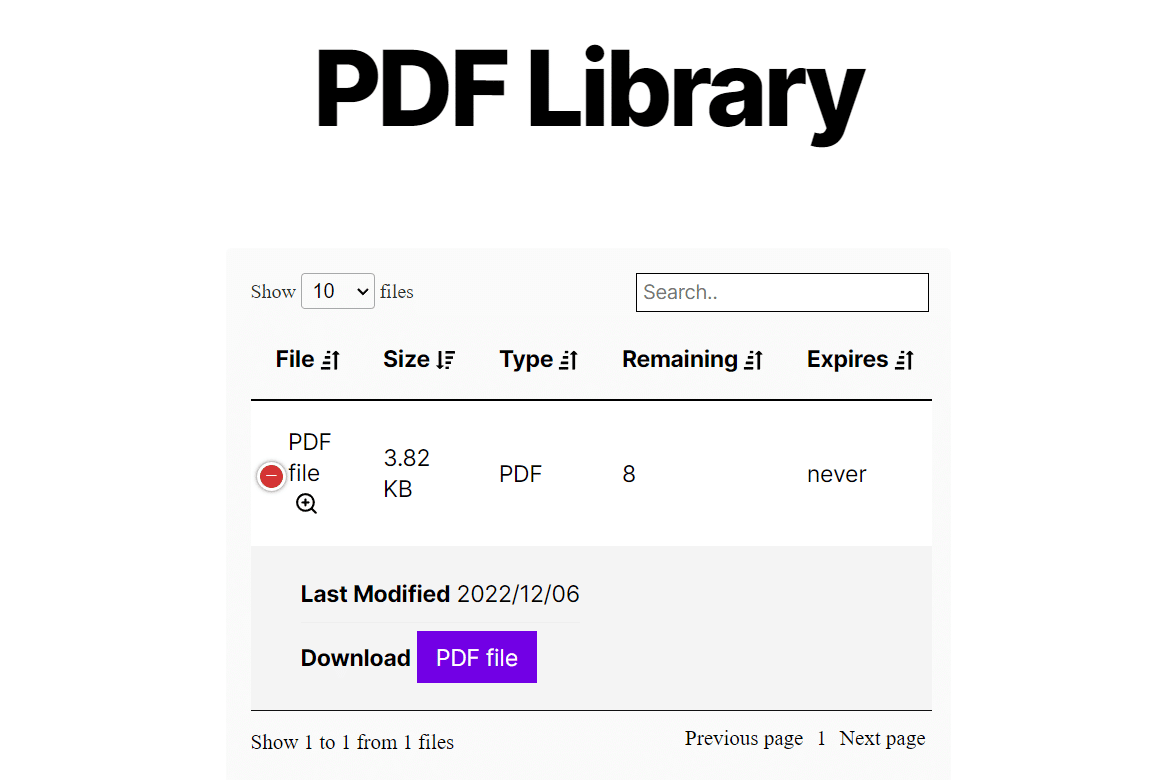
On the frontend, Filr generates a library page your visitors can search and filter. They can preview PDFs in a built-in WordPress PDF viewer and download files with a single button.
Step 1: Install Filr
Download the premium version of Filr from wpdocumentlibrary.com. After buying Filr, you’ll receive the plugin zip file and a license key by email.
Then follow these steps to install Filr:
- Go to Plugins > Add New in your WordPress dashboard and click Upload Plugin.
- Select the zip file you downloaded and click Activate now.
- Enter your license key when prompted and click Agree & Activate.
Filr is now active and ready to use.
Step 2: Create a PDF library
Next, create the library container that will hold your PDFs.
- Go to Filr > Libraries from your WordPress dashboard.
- Enter a name and a brief description for the new library.
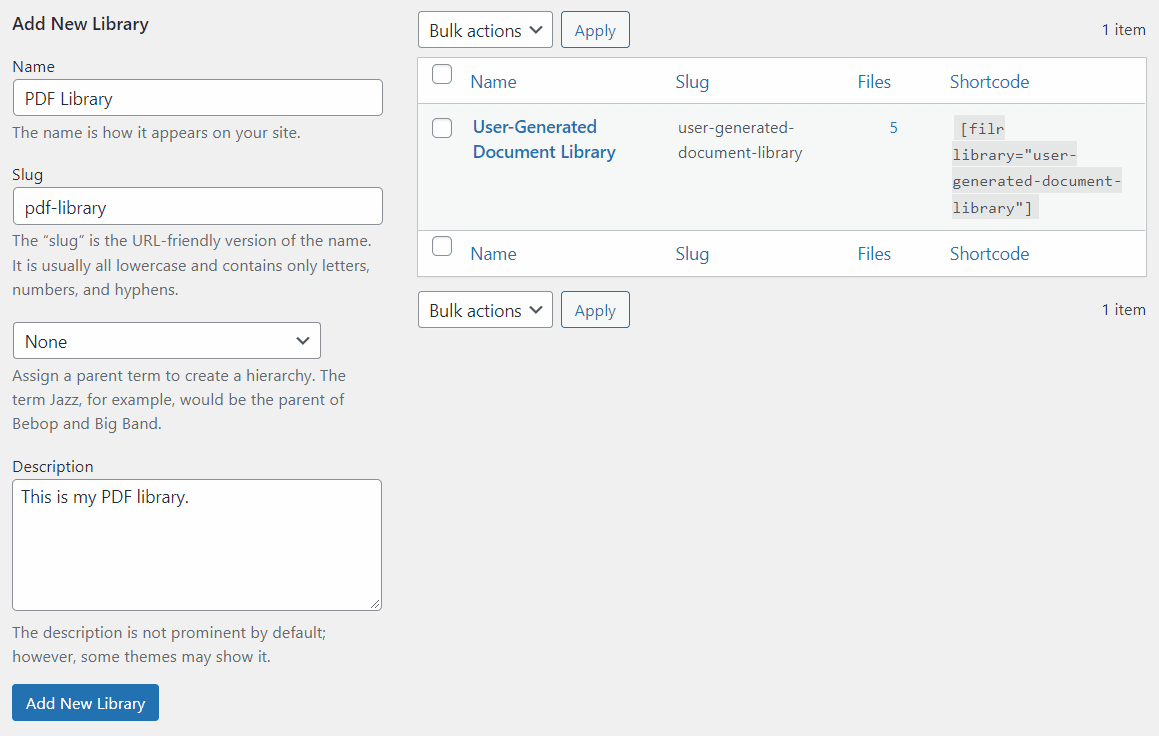
- Click Add New Library.
- A shortcode appears next to your new library in the table. Copy it — you’ll need it to display the library on a page.
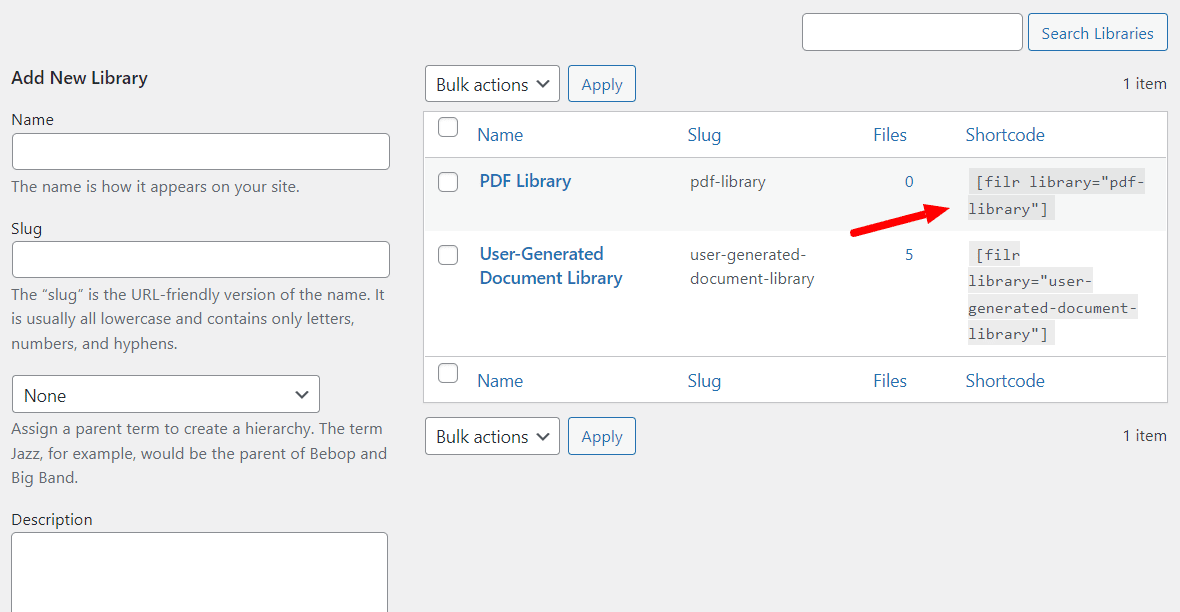
You can create as many libraries as you need — for example, a separate one for each content type, client, or department.
Step 3: Upload PDFs to your library
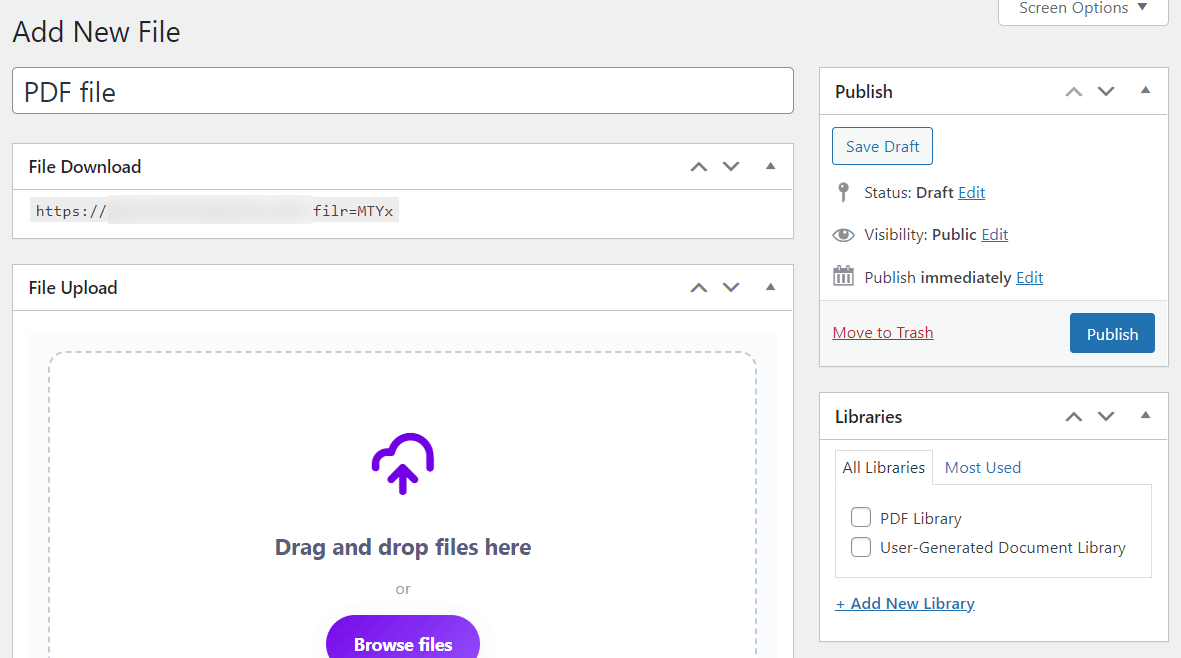
- From the WordPress dashboard, go to Filr > Add New.
- Give the PDF a name or title.
- Drag and drop the PDF into the uploader, or click Browse file to select one from your computer.
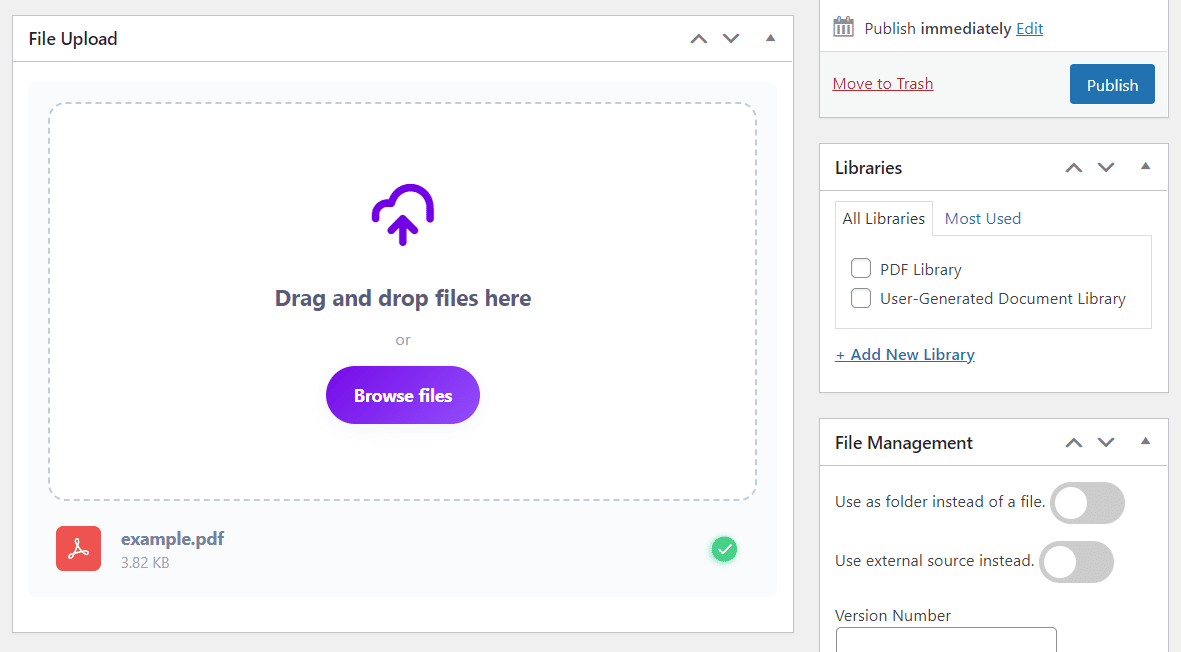
- Under Libraries, tick the checkbox next to the library you just created.
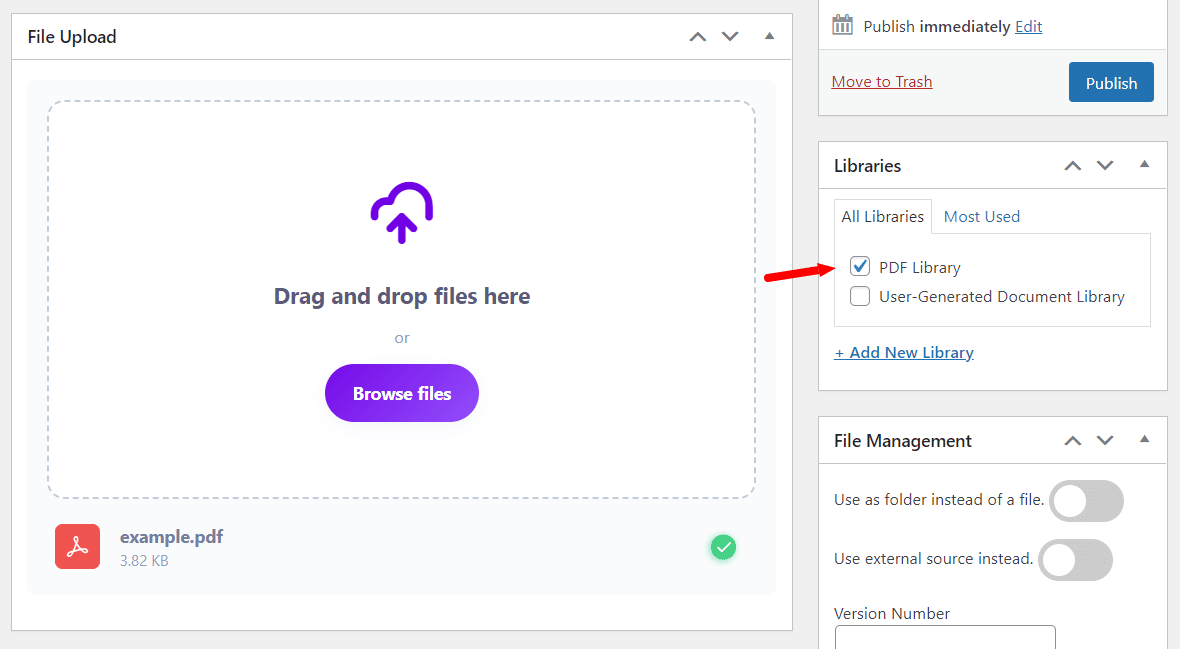
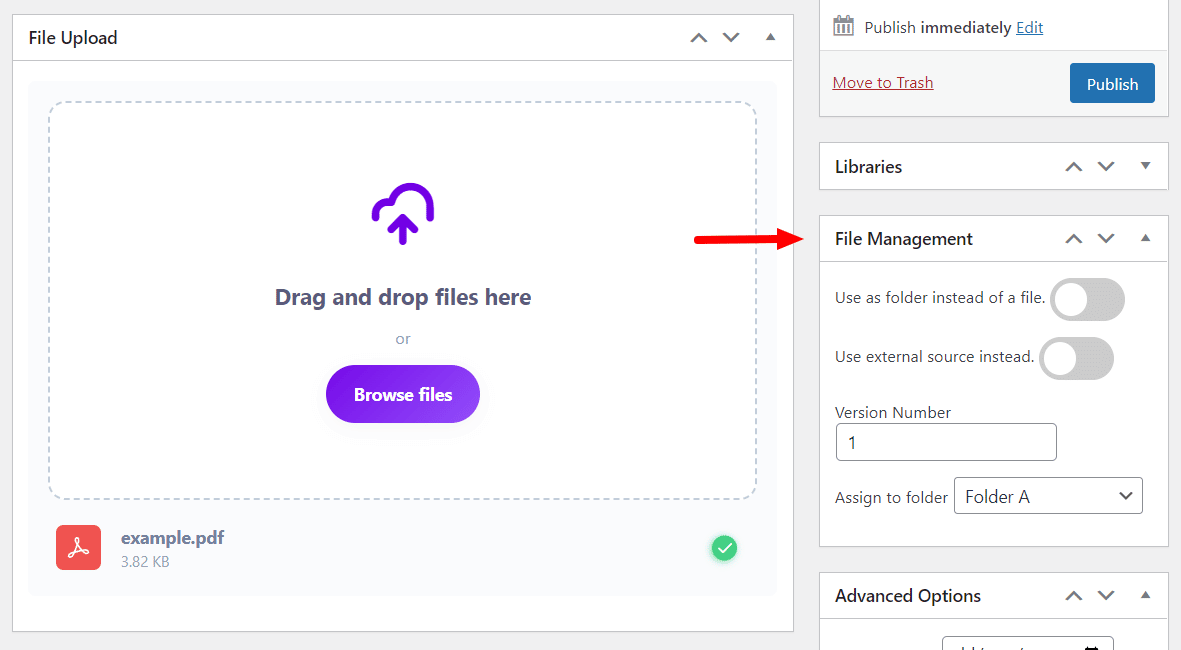
- In the File Management section, you can also: create a folder and assign the file to it for extra organization; use an external file URL instead of uploading directly (useful when PDFs already live on Google Drive, Dropbox, or OneDrive — you can add a file size note so users know what they’re downloading); and add a version number to track document updates.
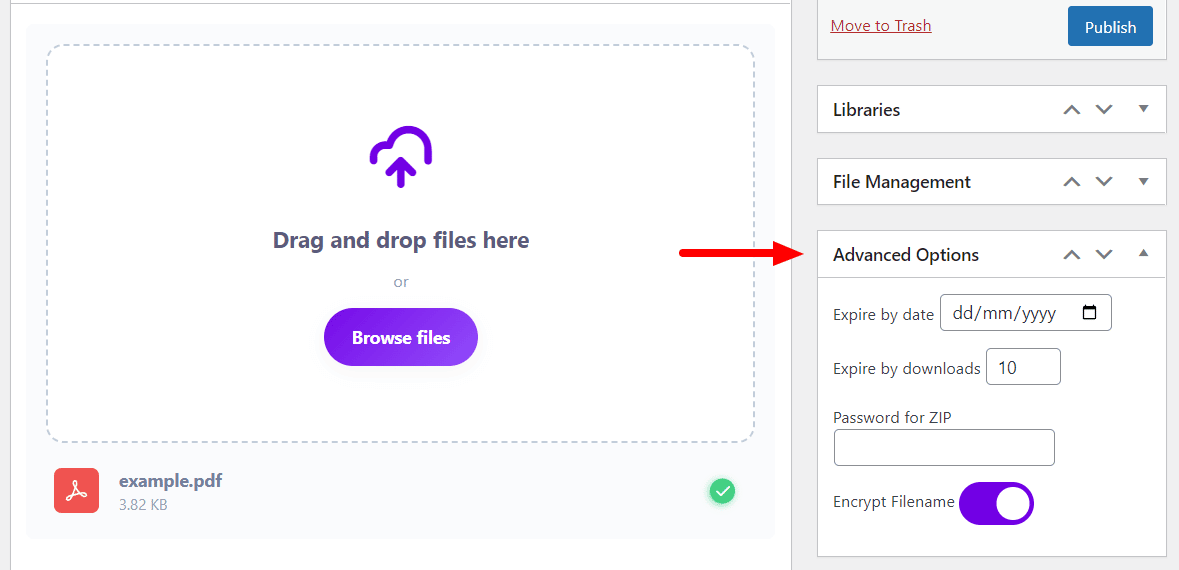
- In the Advanced Options section, you can: set an expiration date after which the file becomes inaccessible, limit the number of downloads, and encrypt the file name to prevent direct URL guessing.
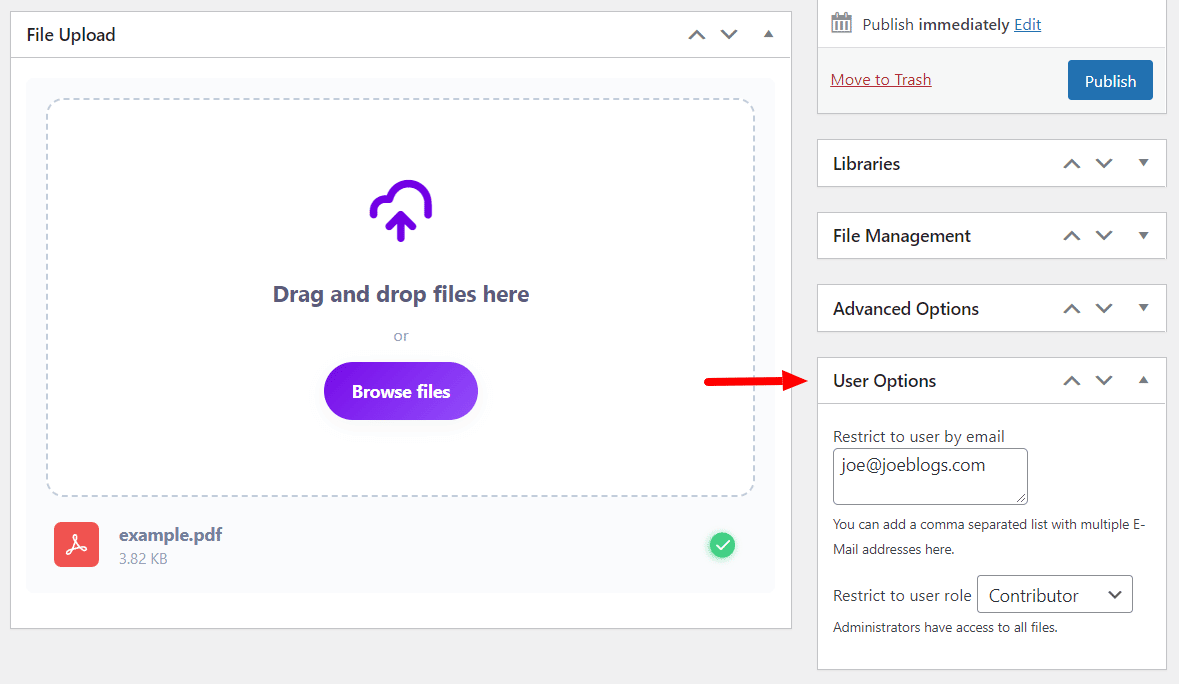
- In the User Options section, you can restrict file access to specific user roles or individual email addresses.
- Click Publish when done. Repeat for each PDF you want to add.
Step 4: Display your PDF library on a page
- Go to Pages > Add New in the WordPress dashboard.
- Paste the shortcode from Step 2 into the Gutenberg content area. (If you need to retrieve it again, go to Filr > Libraries and copy the shortcode.)
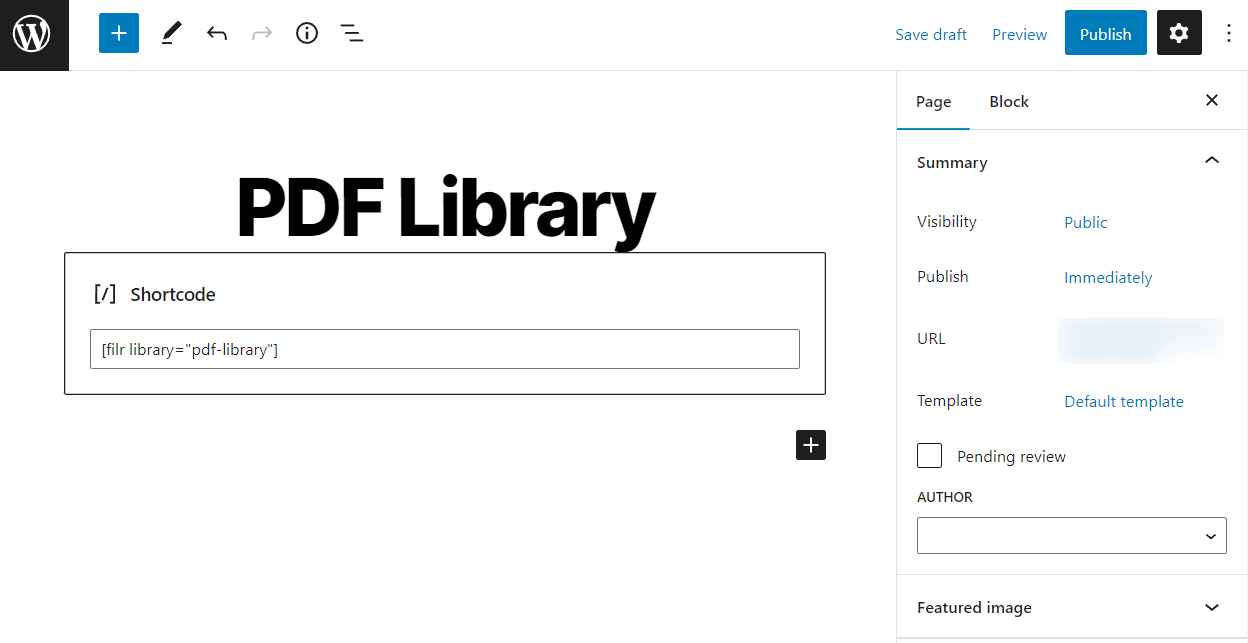
- Give the page a title and click Publish.
Your PDF library is now live on the frontend of your site.
Step 5: Customize the library’s style
- Go to Filr > Settings and click the Libraries tab.
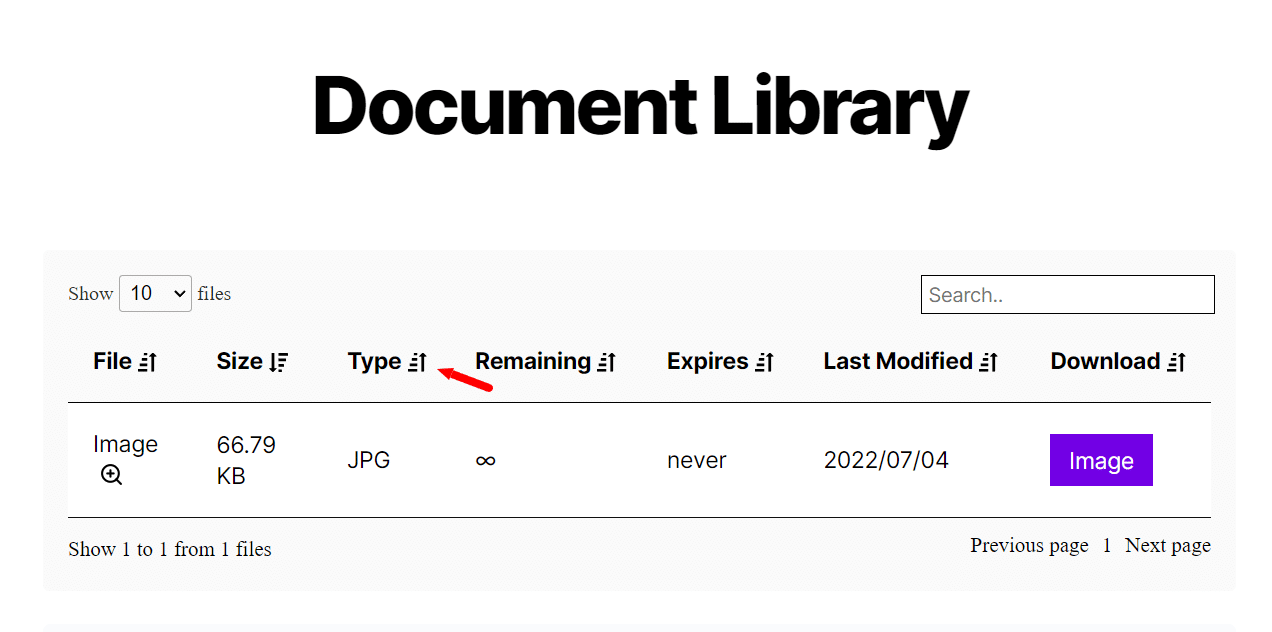
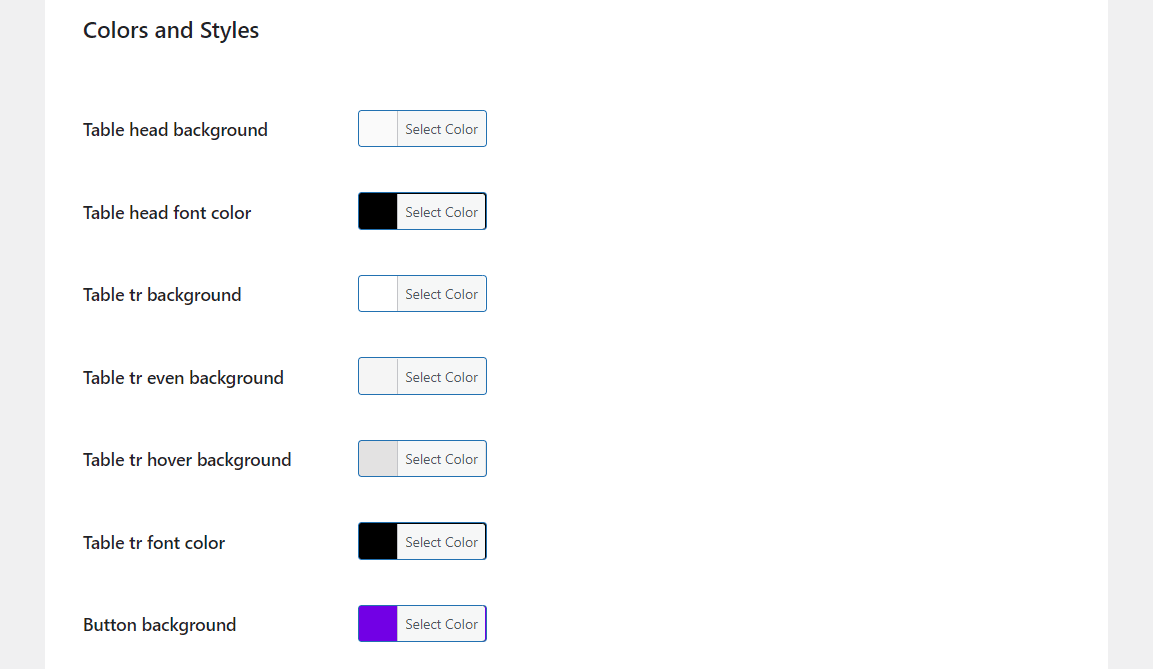
- Here you can: adjust colors, borders, and background styles for headings, buttons, and table rows; choose which columns appear (file name, date, size, download button) and reorder them; and rename the download button, toggle the search box and pagination, and activate the PDF preview option.
How to display and preview PDFs in your library
Filr’s built-in WordPress PDF viewer lets visitors read a PDF in-page before downloading — without leaving the library page. This is the feature that separates a proper PDF library from a basic list of download links.
To enable PDF preview:
Go to Filr > Settings > Libraries and activate the document preview option. A Preview button then appears next to each PDF in the library, and visitors can read the document in a lightbox.
This is particularly useful for membership sites and client portals where users need to decide which files to download, and for public resource libraries where the full document content matters.
Securing your PDF library
Securing your files prevents unauthorized direct access. To enable protection:
- Go to Filr > Settings > Status.
- Choose a protection mode: No protection (default — files are accessible via direct URL), Index.php (places an index file at the root of your uploads directory, hiding directory contents), or Htaccess (blocks direct browsing of your uploads folder and returns a 403 Forbidden response).
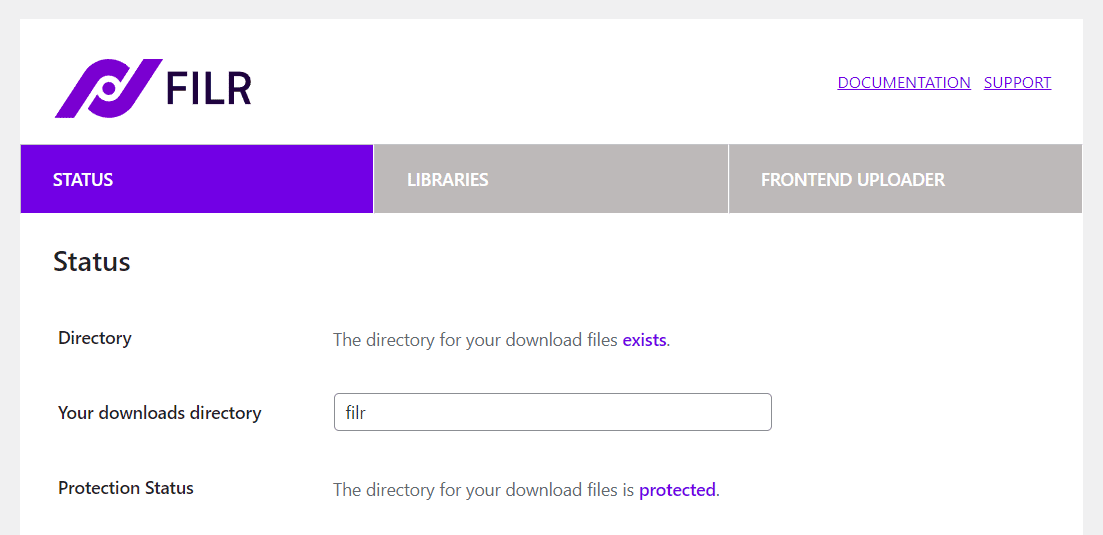
We recommend enabling Index.php or Htaccess protection so unauthorized users can’t reach your PDFs through direct links.
After securing the library, you can also allow specific user roles or visitors to upload PDFs from the frontend. For instructions, see How to create files on the frontend of your site.
Frequently Asked Questions
Yes. WordPress supports PDF uploads natively through the media library. But native support has no search, no filtering, no access controls, and no PDF viewer. A WordPress PDF library plugin like Filr adds these capabilities on top of standard WordPress.
The simplest method is to upload a PDF to the media library and link to it. For a better experience — a searchable display, an in-page PDF viewer, and download buttons — use a WordPress PDF library plugin like Filr. Upload your PDFs, enable the preview option, and paste the shortcode on any page.
In Filr, every file in the library automatically gets a Download button. You can customize the button text, restrict who can use it by role or email, limit the number of downloads per file, and set an expiration date after which the download is no longer available.
Yes. In the File Management section when adding a file, select the external file URL option and paste the link to your hosted PDF. The file stays on Dropbox or Google Drive — Filr lists and manages it in the library alongside any locally uploaded PDFs.
A PDF library focuses on PDF files, with features tuned for that format — in-page PDF viewer, encrypted URLs, PDF thumbnails. A general document library supports all file types: Word, Excel, audio, video, and more. If you manage multiple file formats, see our WordPress document library guide.
Start building your WordPress PDF library today
A WordPress PDF library fixes a real limitation of the native media library: no search, no access controls, no viewer, and no way to manage PDFs separately from everything else.
With Filr, you get a properly organized, secure, and browsable PDF collection that works for your visitors and for you. Whether you’re running a membership site, a client portal, or a public resource hub, a dedicated WordPress PDF library plugin makes sharing documents easier — and keeps your files safe.
Get started at wpdocumentlibrary.com.